Cómo localizar y administrar el tenant de su organización en la plataforma
Resumen
Esta guía muestra cómo encontrar y administrar el tenant de tu organización en la plataforma utilizando el panel principal. Aprenderás a navegar por los tenants, verificar tus roles, marcar tenants específicos como favoritos y acceder rápidamente al área de administración clave.
Instrucciones paso a paso
Abrir la vista general del inquilino
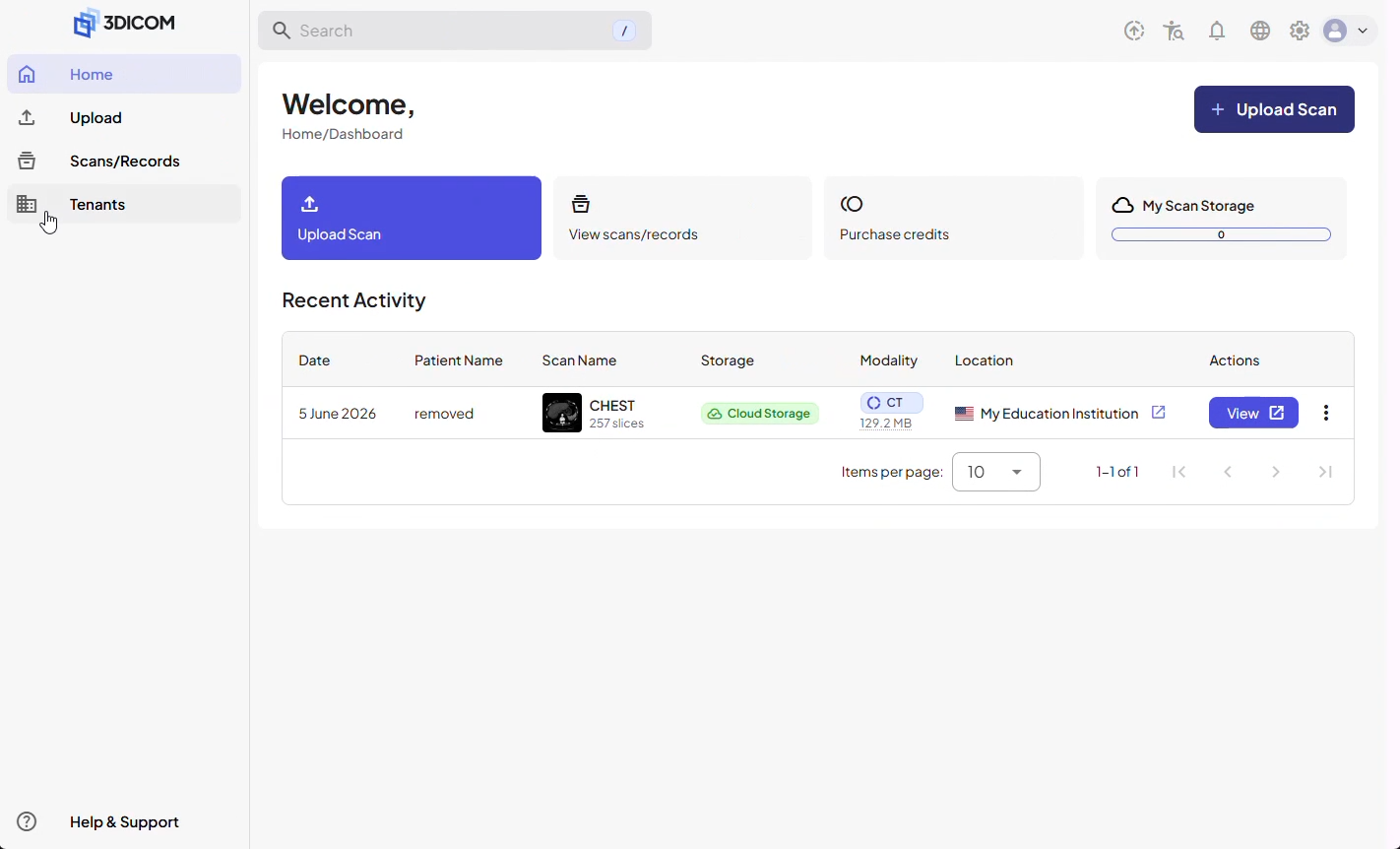
Paso 1. Desde la página de bienvenida, localiza la barra lateral a la izquierda.
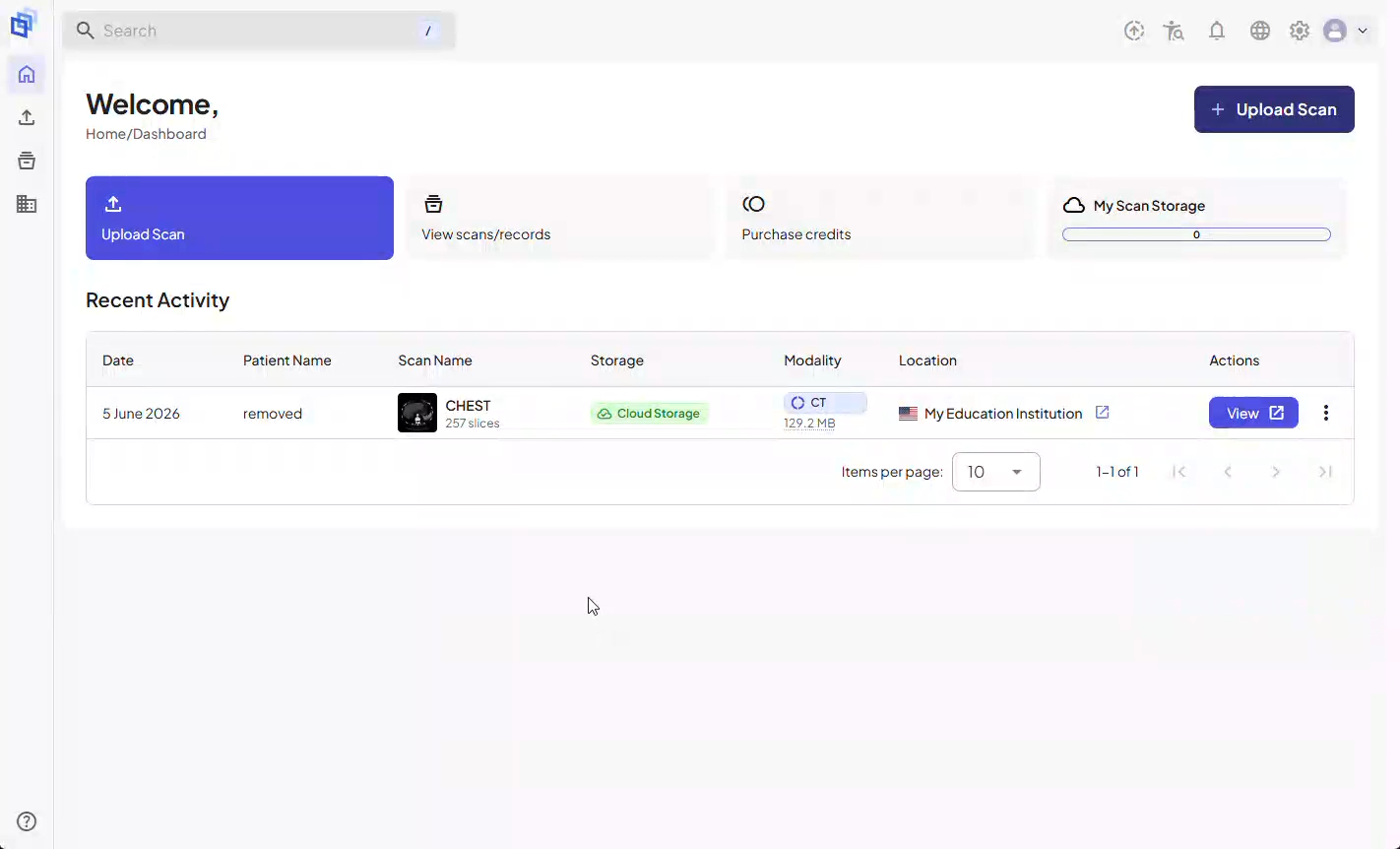
Paso 2. Clic Inquilinos en la barra lateral. Esta sección está representada por el ícono del edificio.
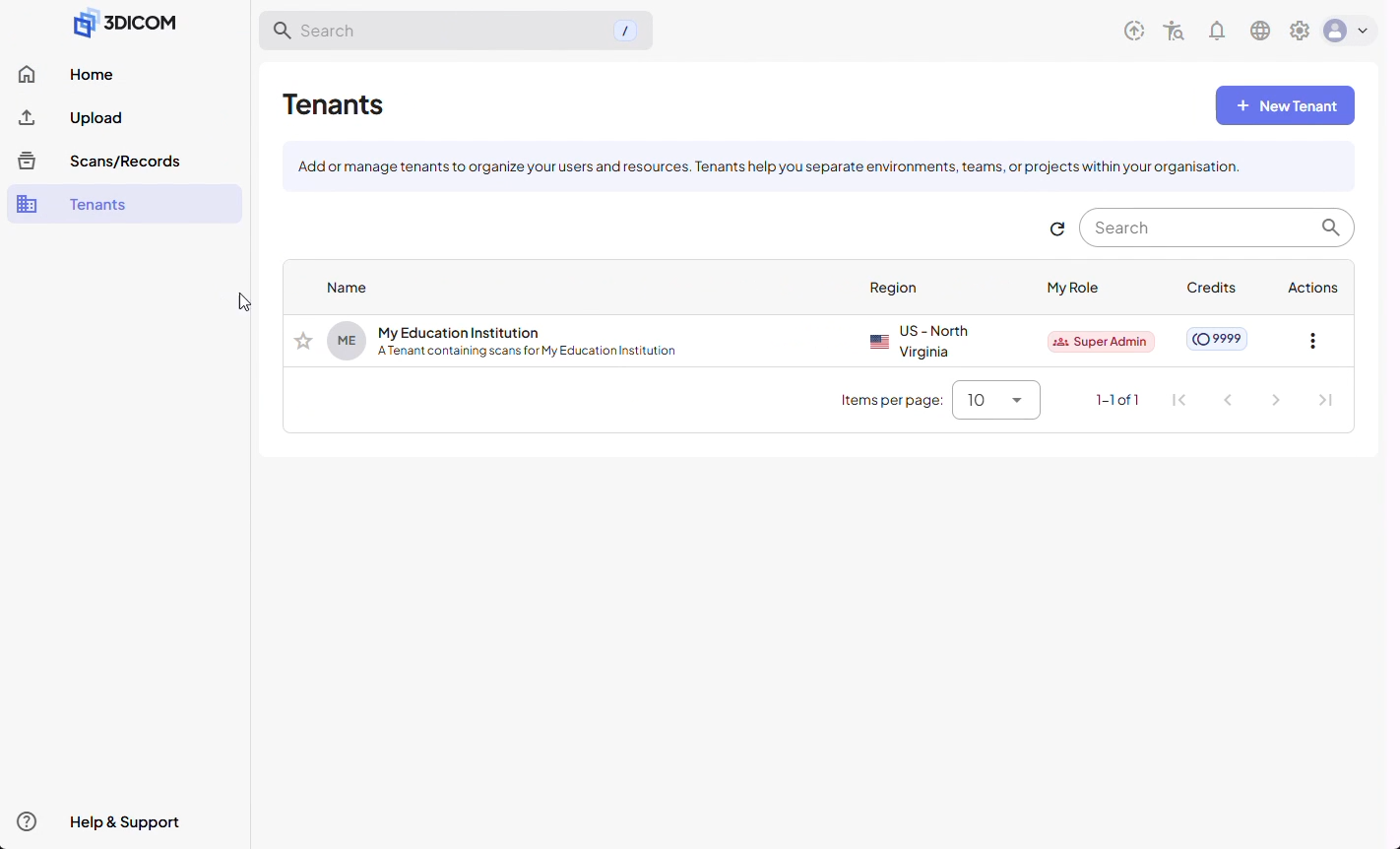
Revisa a tus inquilinos
Paso 3. En el Resumen del inquilino página, ver todos los inquilinos a los que perteneces. Verás tu función en cada inquilino y el saldo de crédito disponible para cada uno.
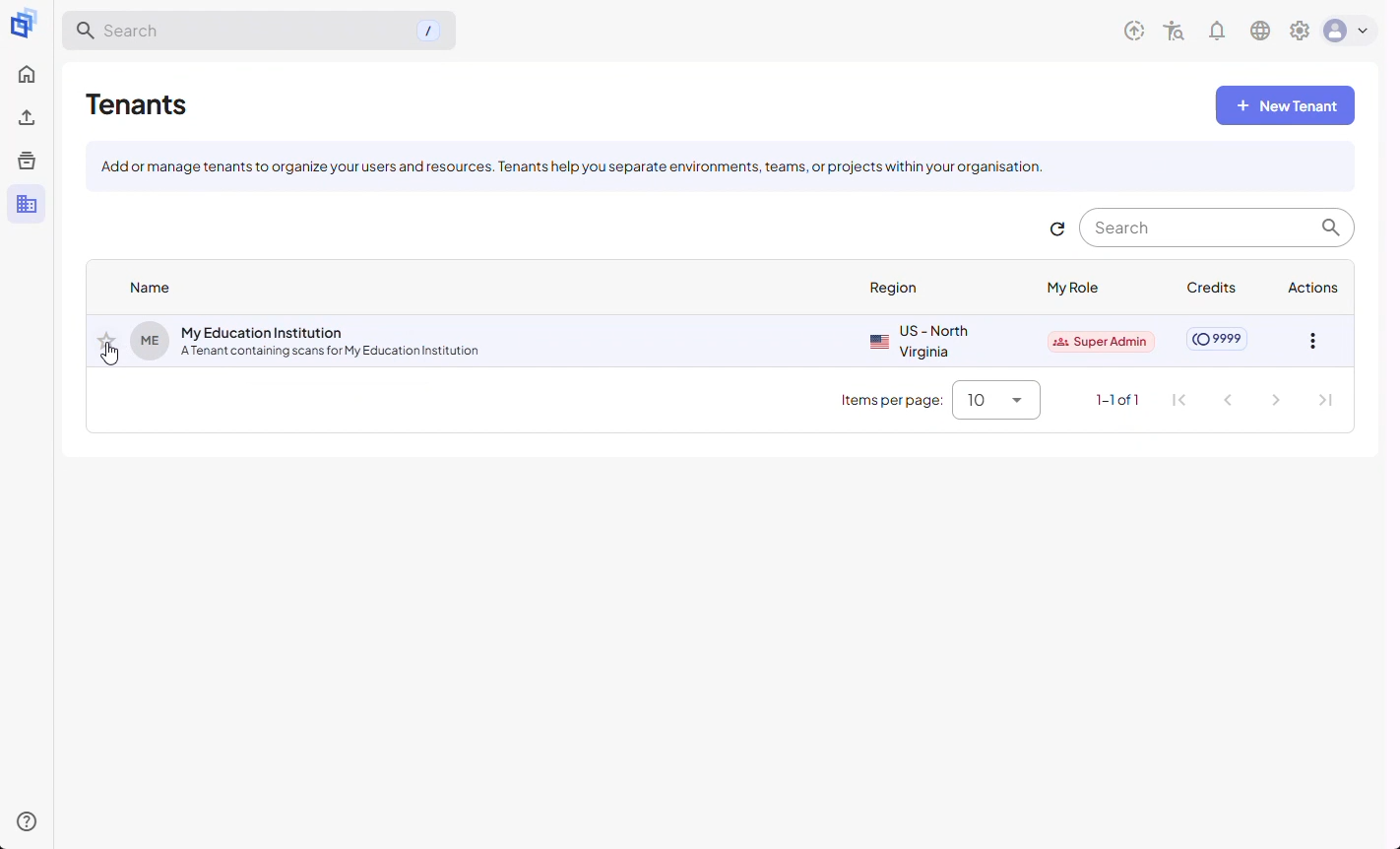
Crea un acceso directo en la barra lateral para acceso rápido
Paso 4. Haz clic en el ícono de estrella junto al inquilino que desees. Esto crea un acceso directo en la barra lateral para un acceso más rápido en el futuro.
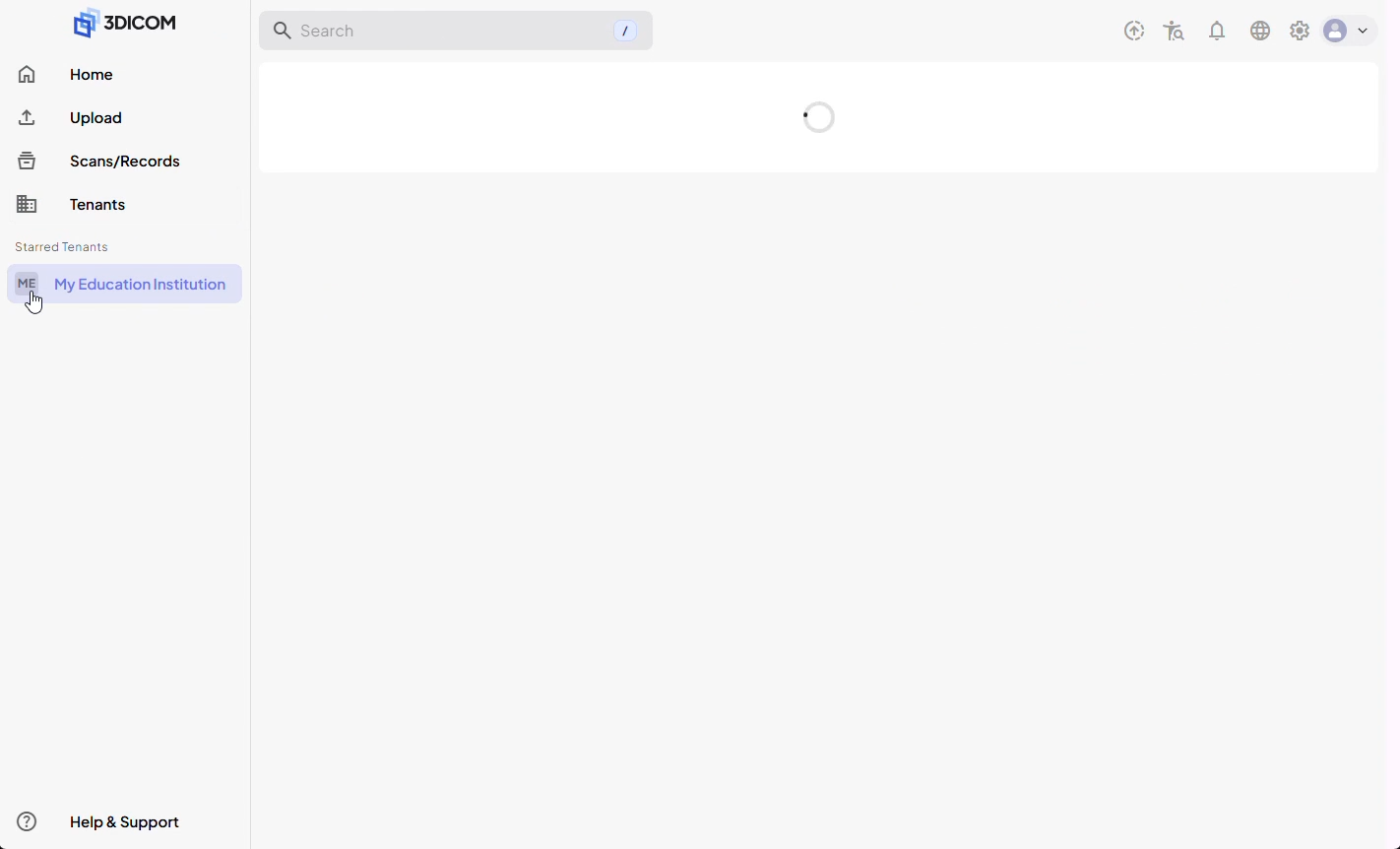
Ingrese al área de administración de inquilinos
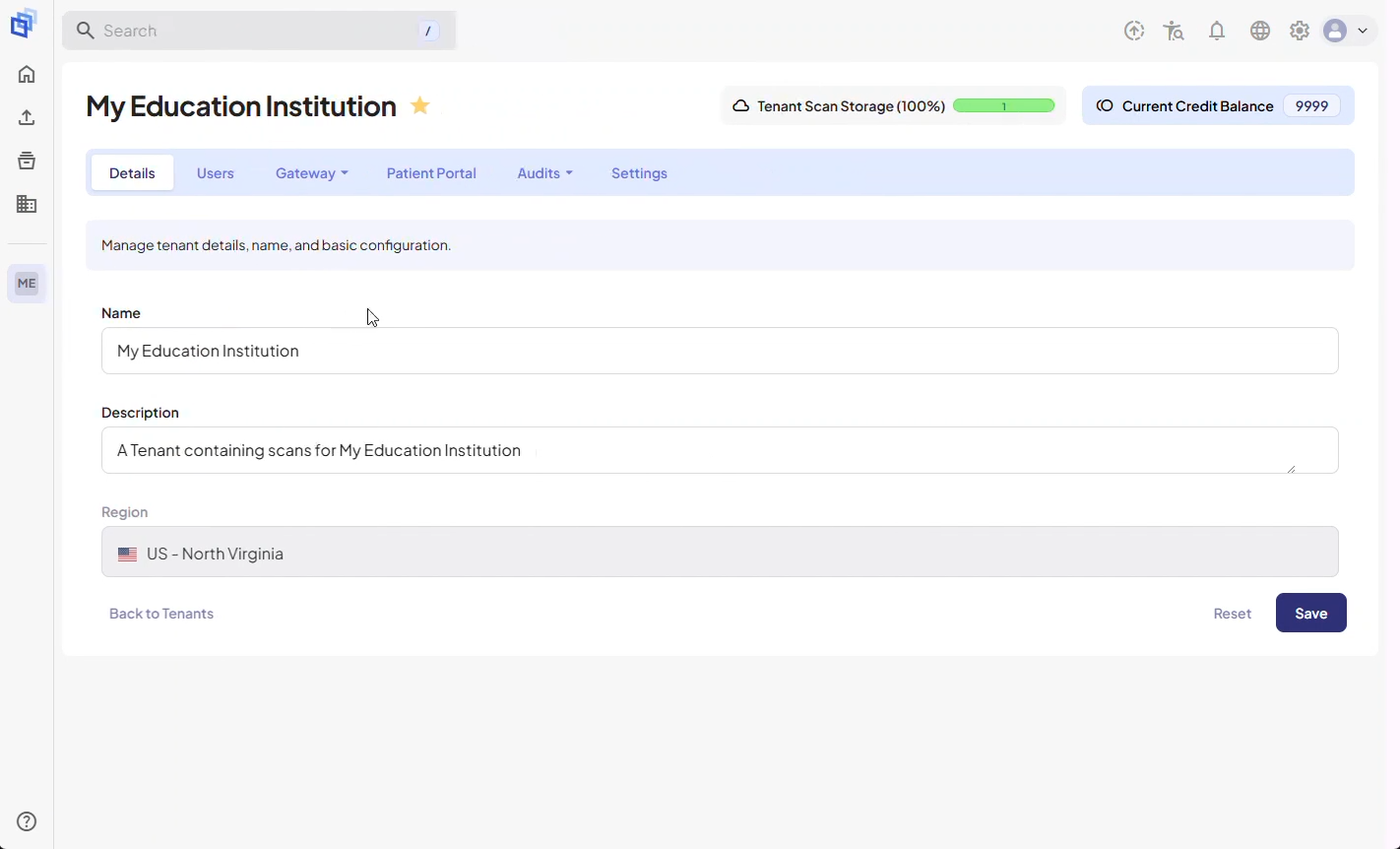
Paso 5. Haz clic en el acceso directo de tu inquilino en la barra lateral para abrir el Gestión de Inquilinos área.
Gestionar la configuración y el acceso del inquilino
Paso 6. En el área de gestión de inquilinos, los usuarios autorizados pueden:
Administrar acceso y permisos de usuarios
Configurar Puerta de enlace configuración para conectarse a la infraestructura PACS de su organización
Ver registros de auditoría para rastrear la actividad
Actualizar la configuración del inquilino según sea necesario
Nota: Las imágenes médicas se cargan y asocian con el inquilino desde el área de Escaneos y Registros, no directamente dentro de la sección de Inquilinos.
Resultado
Ahora sabe cómo localizar el tenant de su organización, configurar un acceso directo en la barra lateral y administrar las funciones administrativas principales del tenant. Esta configuración garantiza un acceso rápido y confiable al tenant de su organización y una navegación sencilla en toda la plataforma.