How to share a study using a secure link in 3DICOM
Overview
This guide explains how to share a study using a password-protected link in 3DICOM, then how the recipient can access and download the shared DICOM files. Detailed steps align with the actions shown in the tutorial video.
Step-by-step instructions
Share a study with a secure link
Step 1. Find the study you want to share in your Dashboard and click the options menu for the selected study to Share.
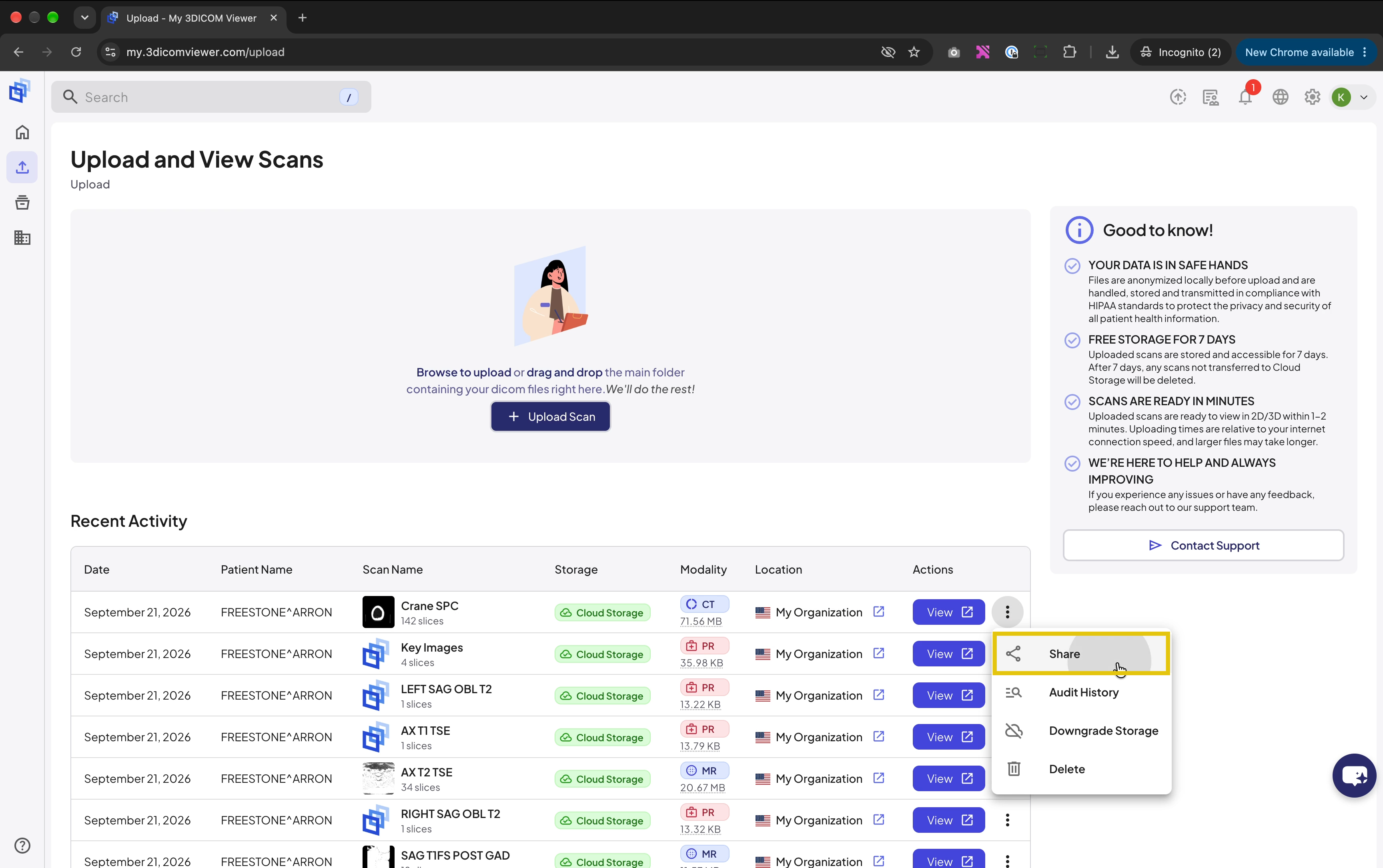
Step 2. In the sharing options, choose Secure Link.
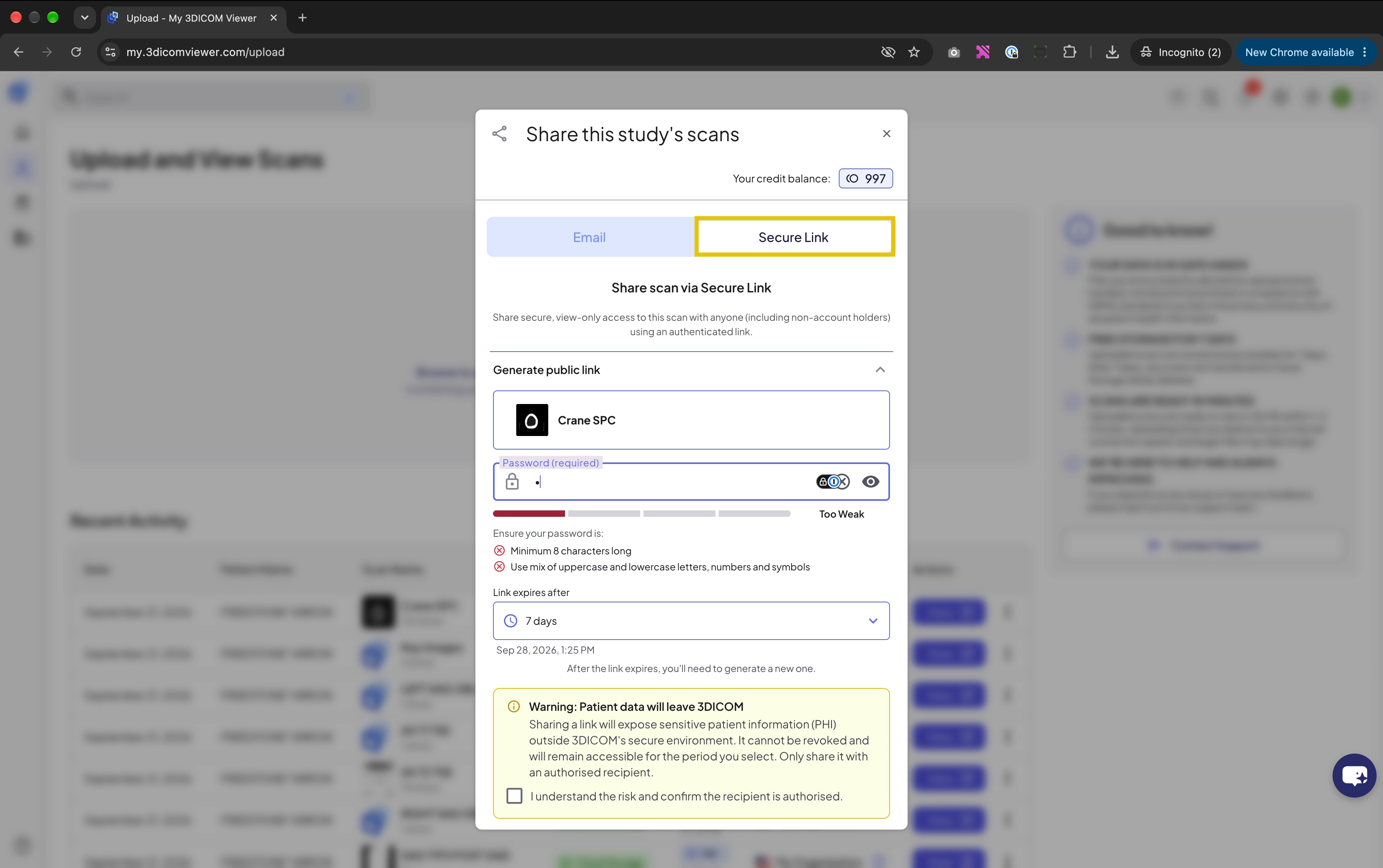
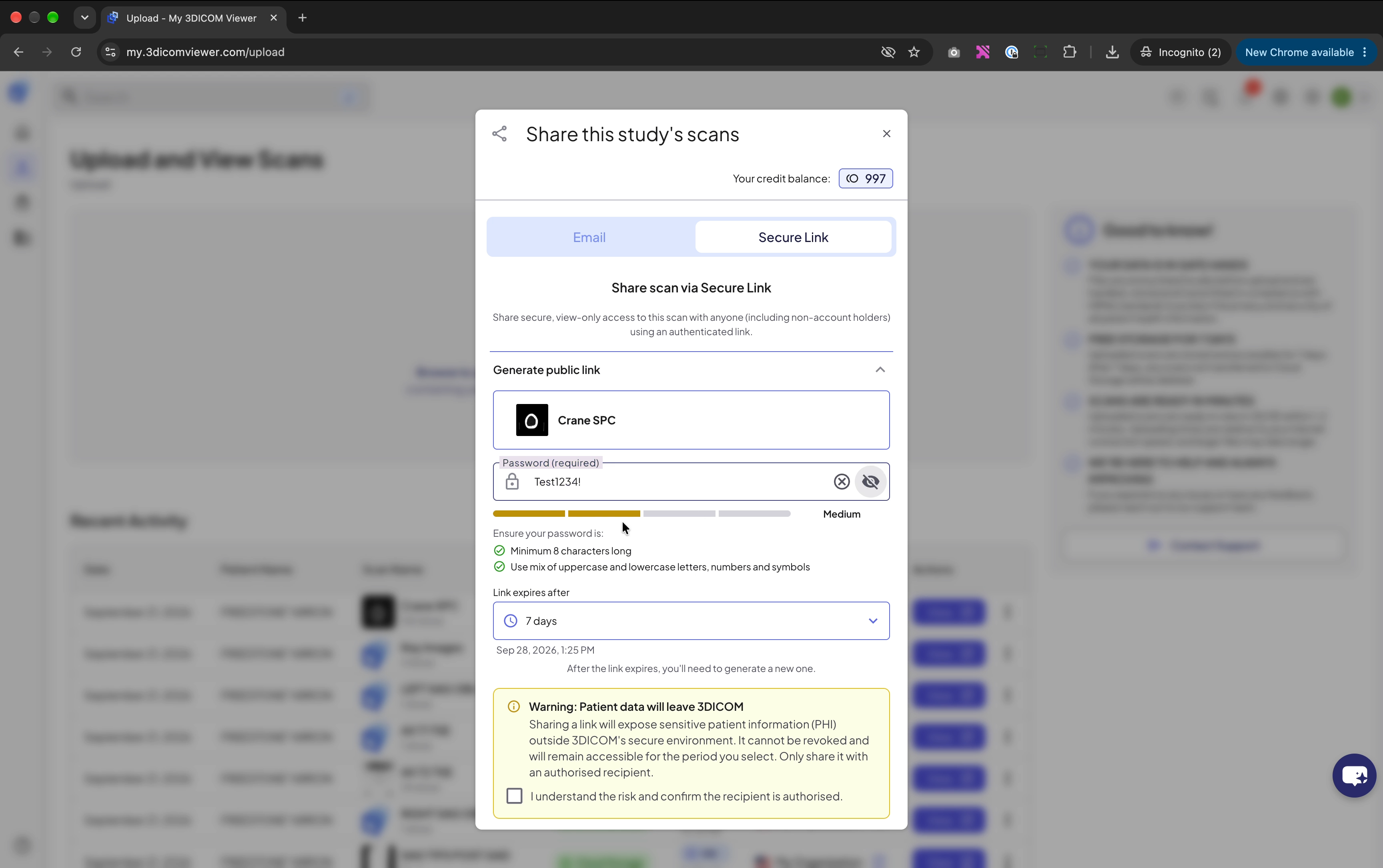
Step 3. Enter a password to protect the link in the password field.
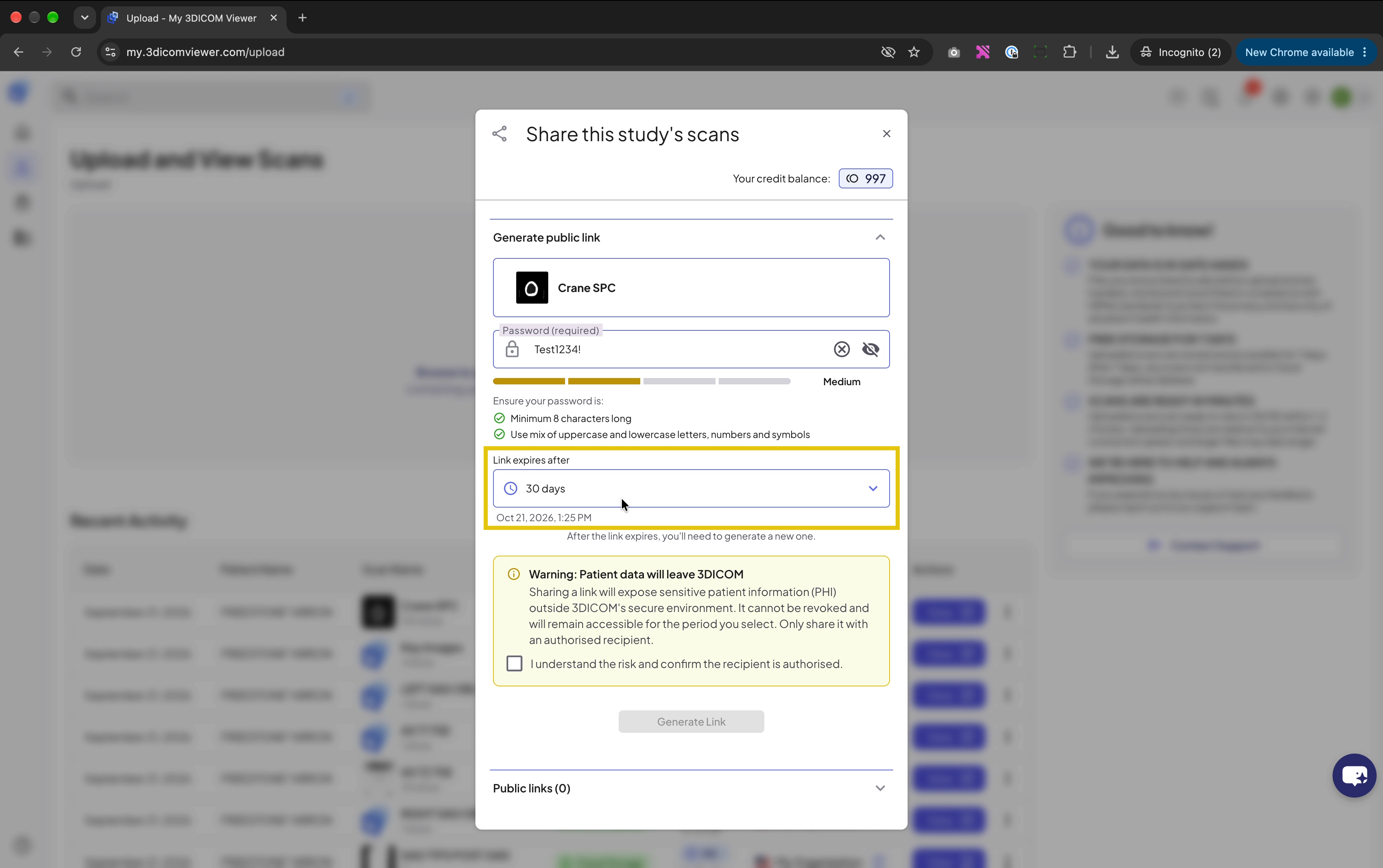
Step 4. Select the expiry period for your secure link. For this example, select 30 days to set the link’s expiry.
Step 5. Carefully read the warning banner at the bottom of the sharing window, and tick the checkbox to confirm you understand the sharing policy.
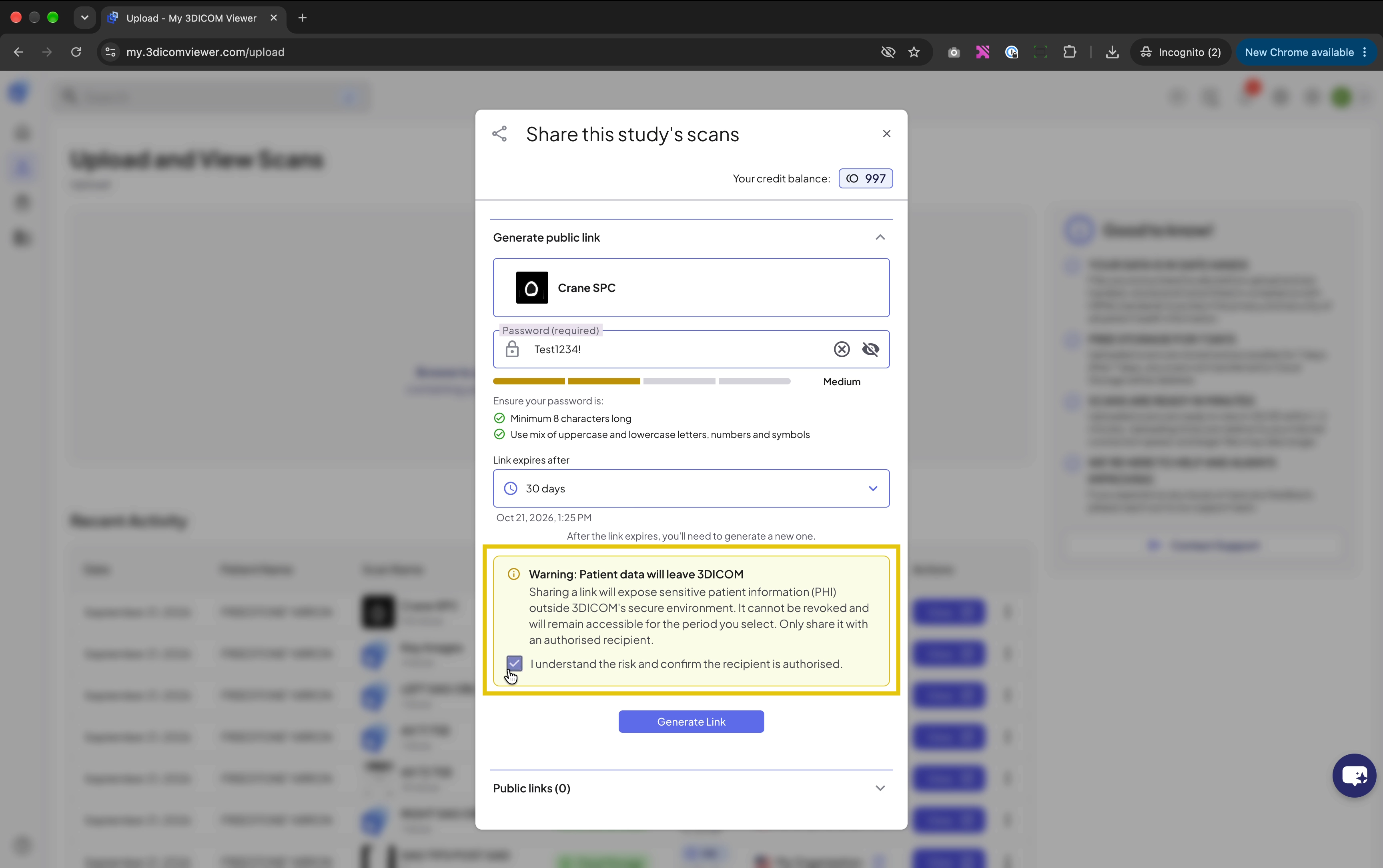
Step 6. Click Generate Link to create the secure sharing link.
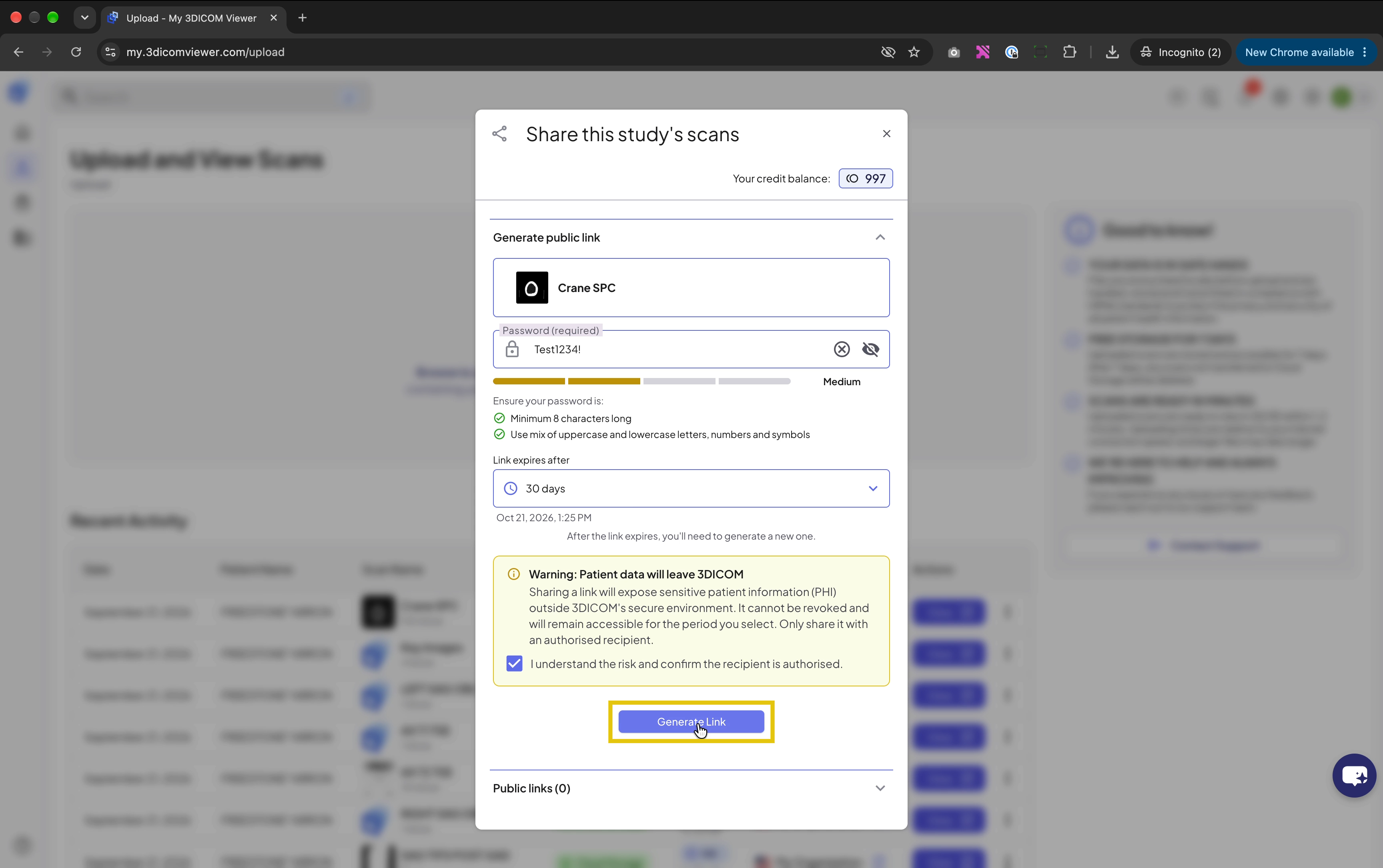
Step 7. Share the generated link and password with your intended recipient. They’ll need both to access the study.
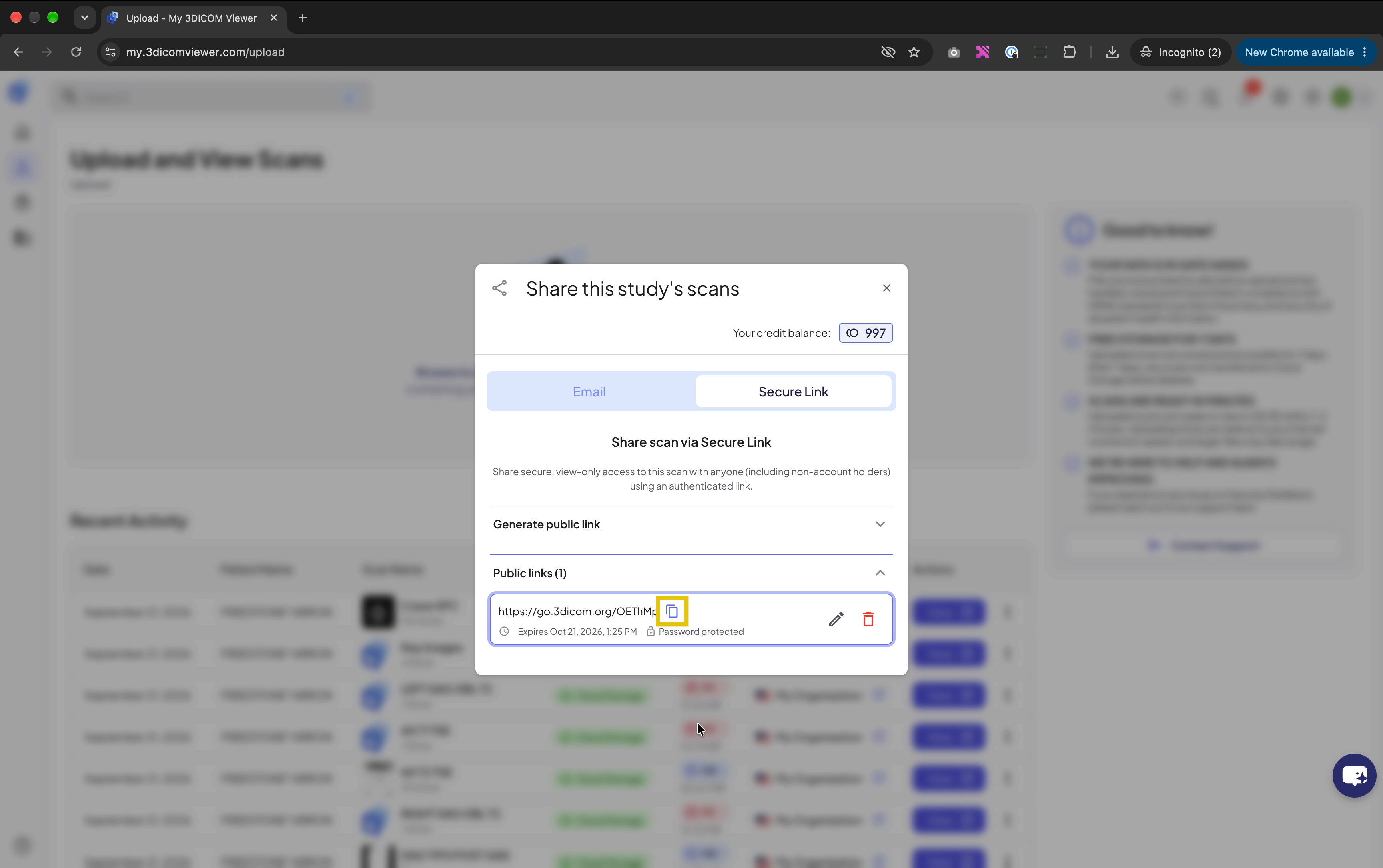
Open a shared study as a recipient
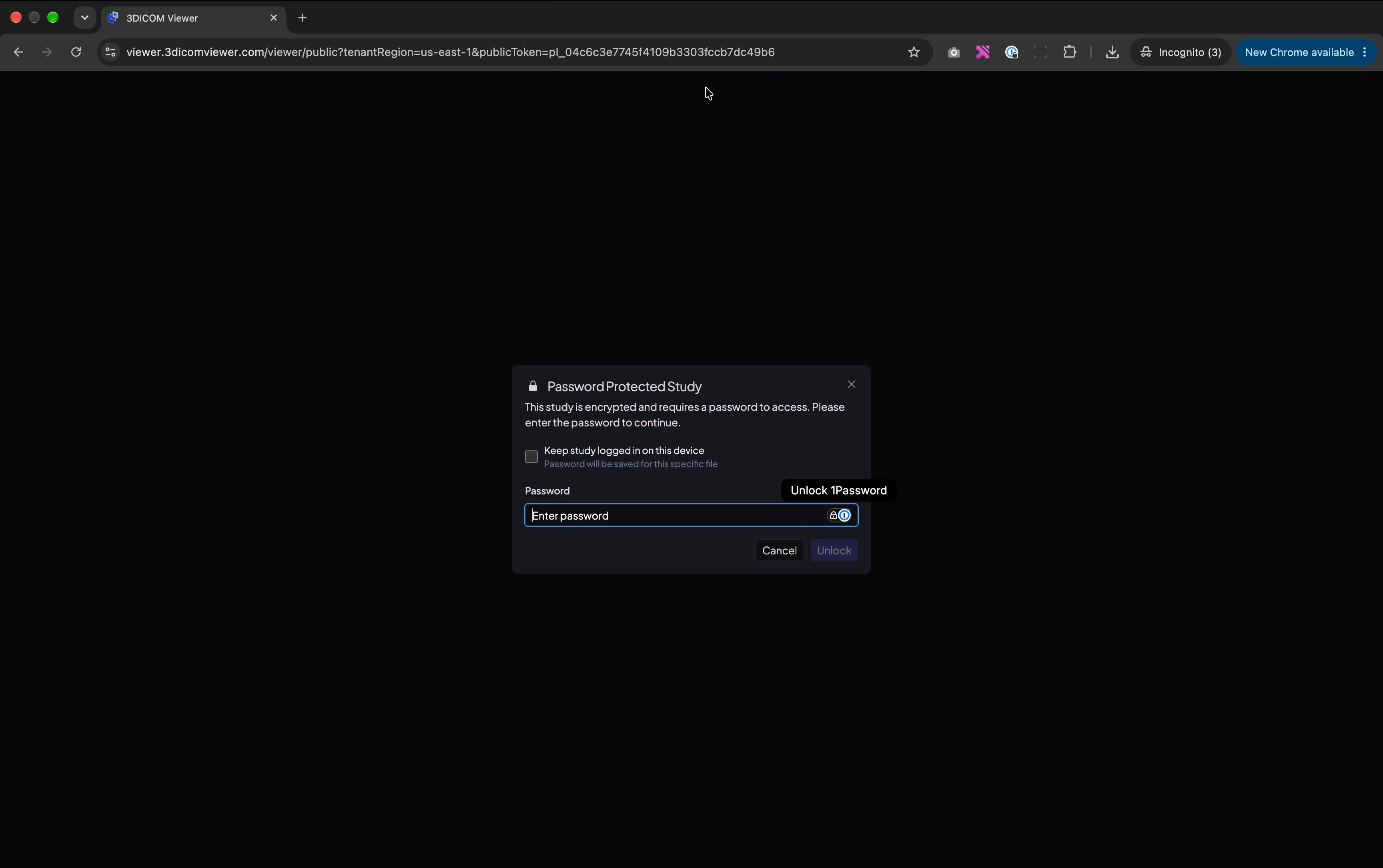
Step 8. Open the shared link in your web browser.
Step 9. When prompted, enter the provided password in the password field.
Step 10. Click Unlock to proceed.
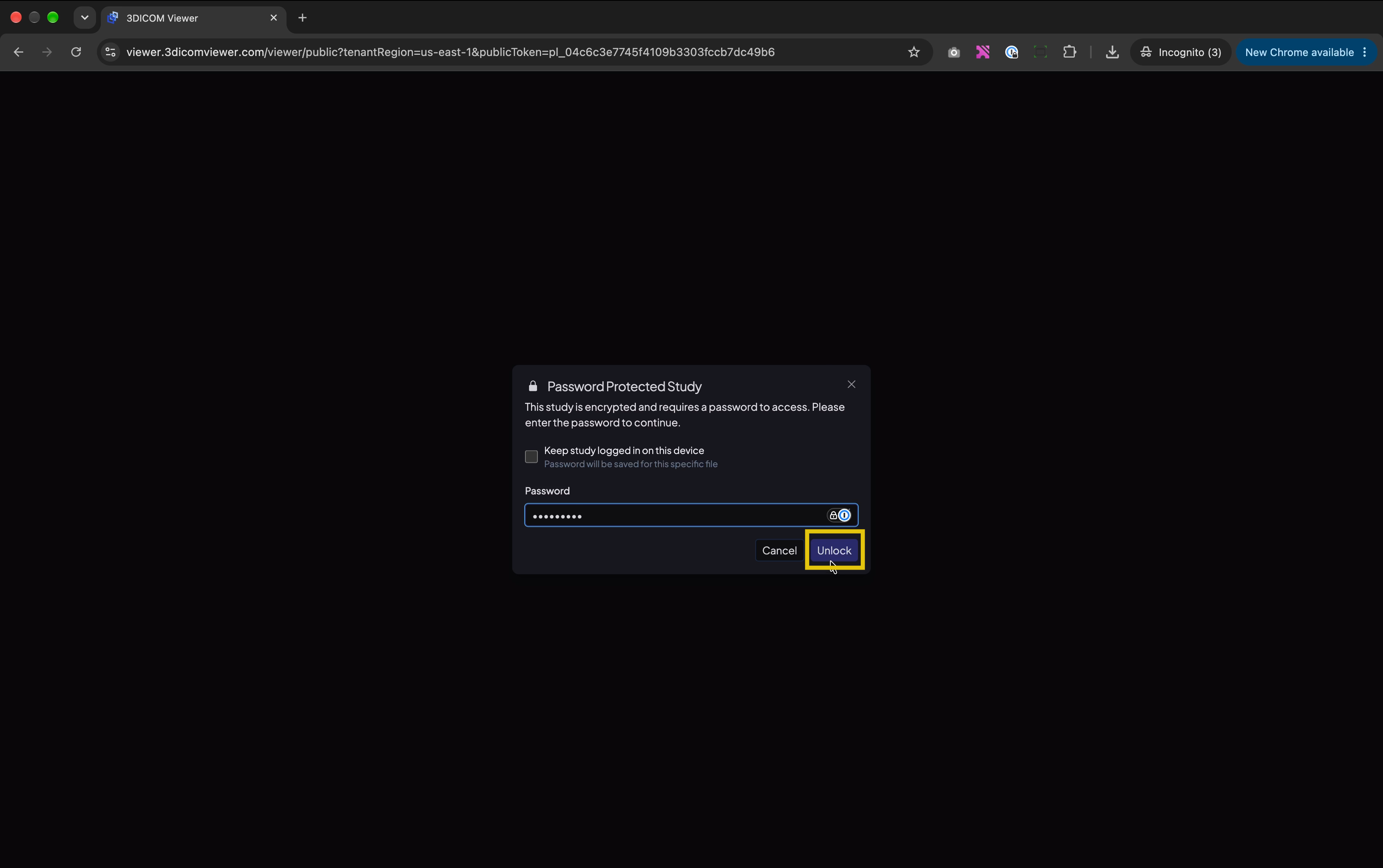
Step 11. Wait for the study to fully load in the shared-link viewer. This viewer is separate from the FDA-cleared 3DICOM MD® Cloud environment and is not FDA-cleared for diagnostic use.
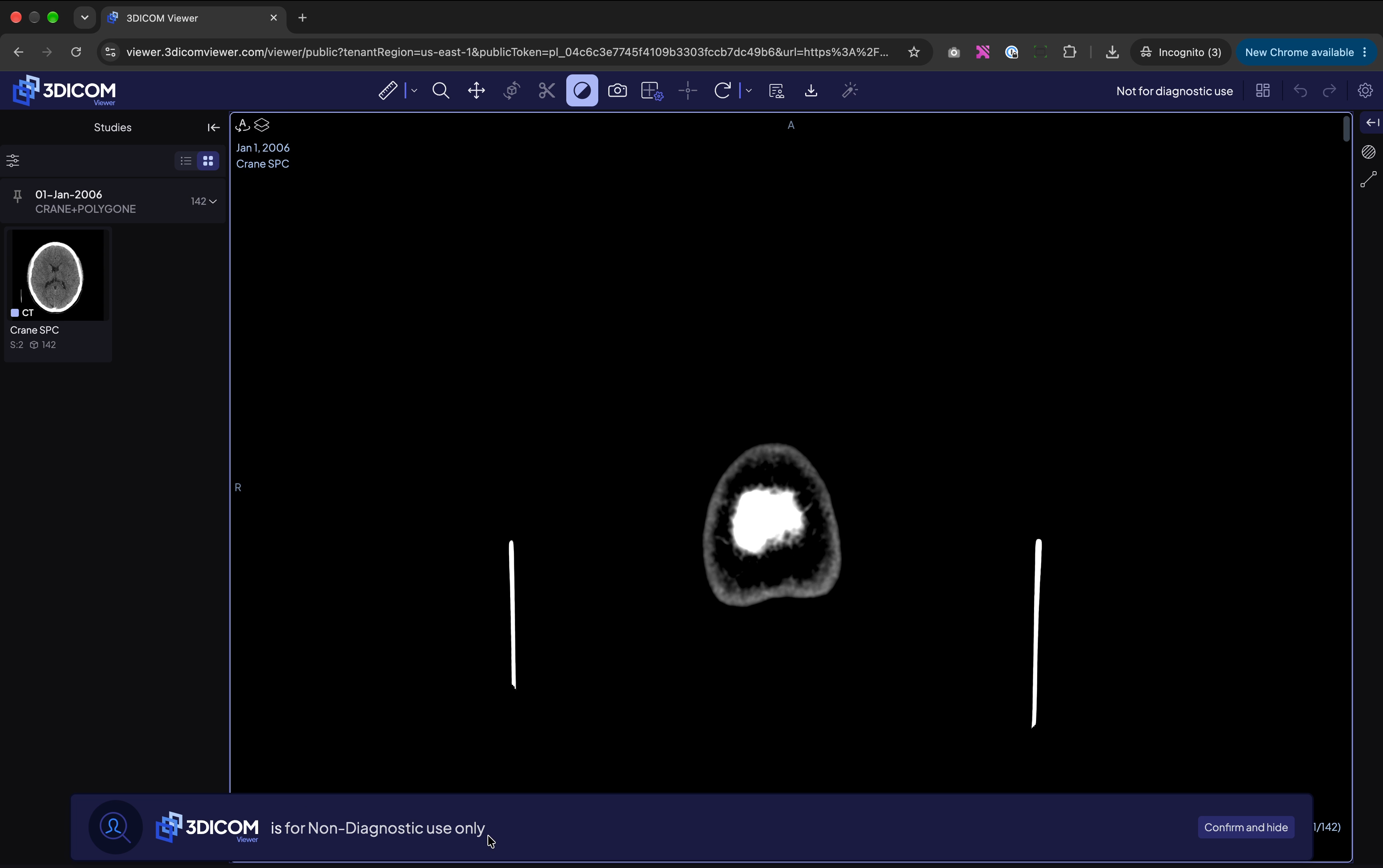
Download the study from the shared-link viewer
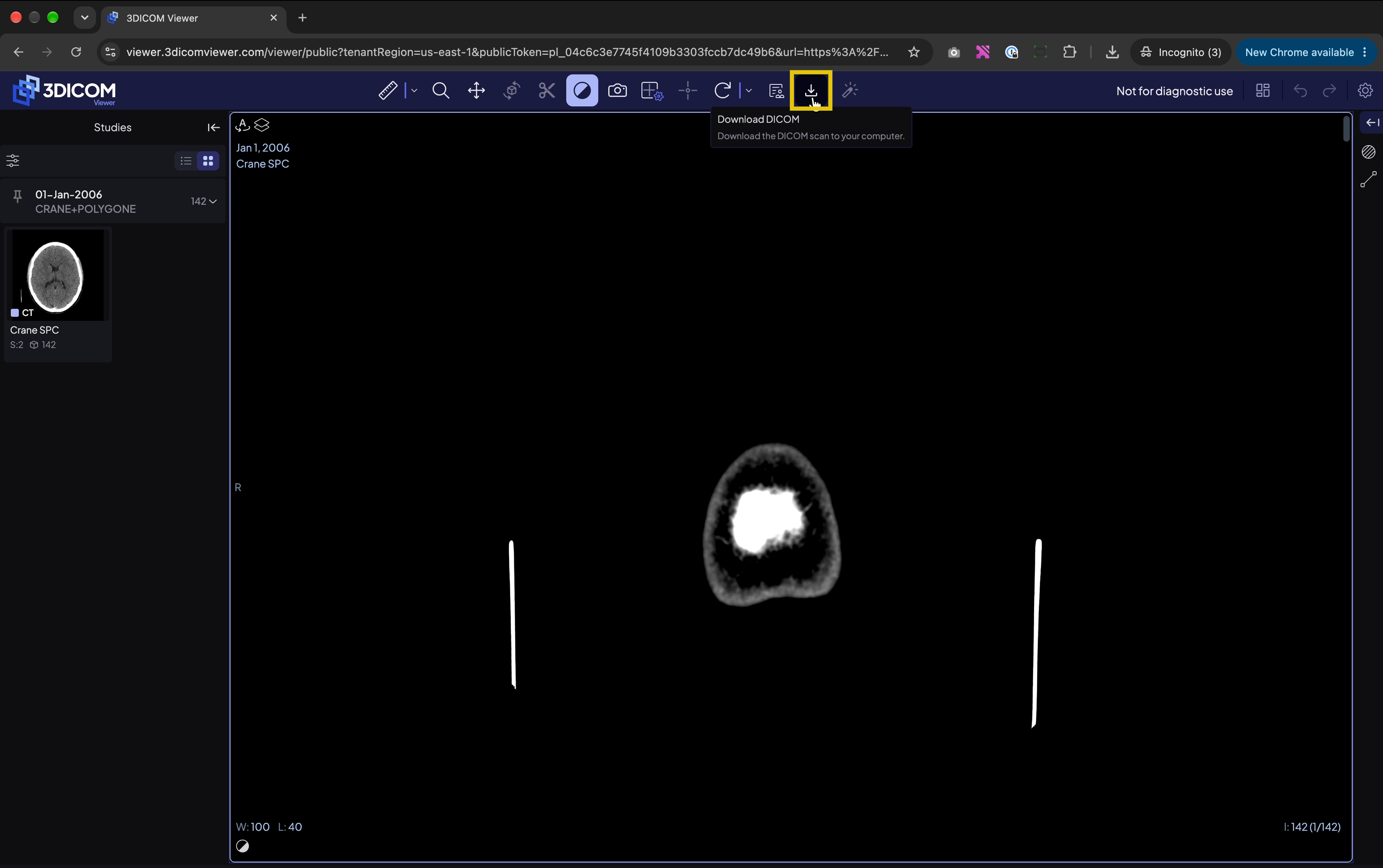
Step 12. Click the Download button in the top toolbar of the viewer to begin downloading the study.
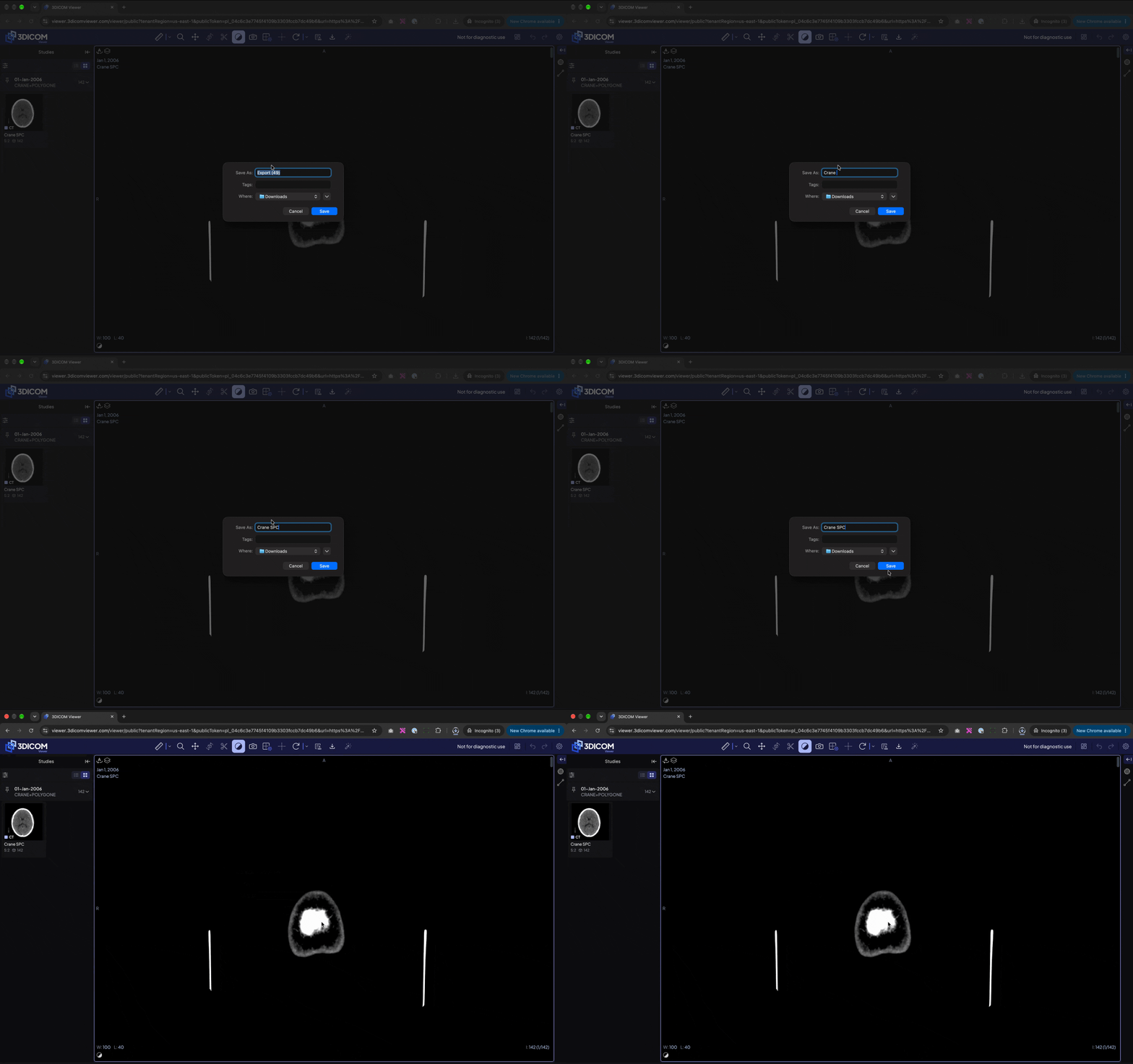
Step 13. When the download window appears, enter a name for the folder where the study will be saved. Complete the download and locate the study in your Downloads folder.
Manage your existing Secure Link
Step 14. To update an existing secure link, click the pencil icon next to the link you generated.
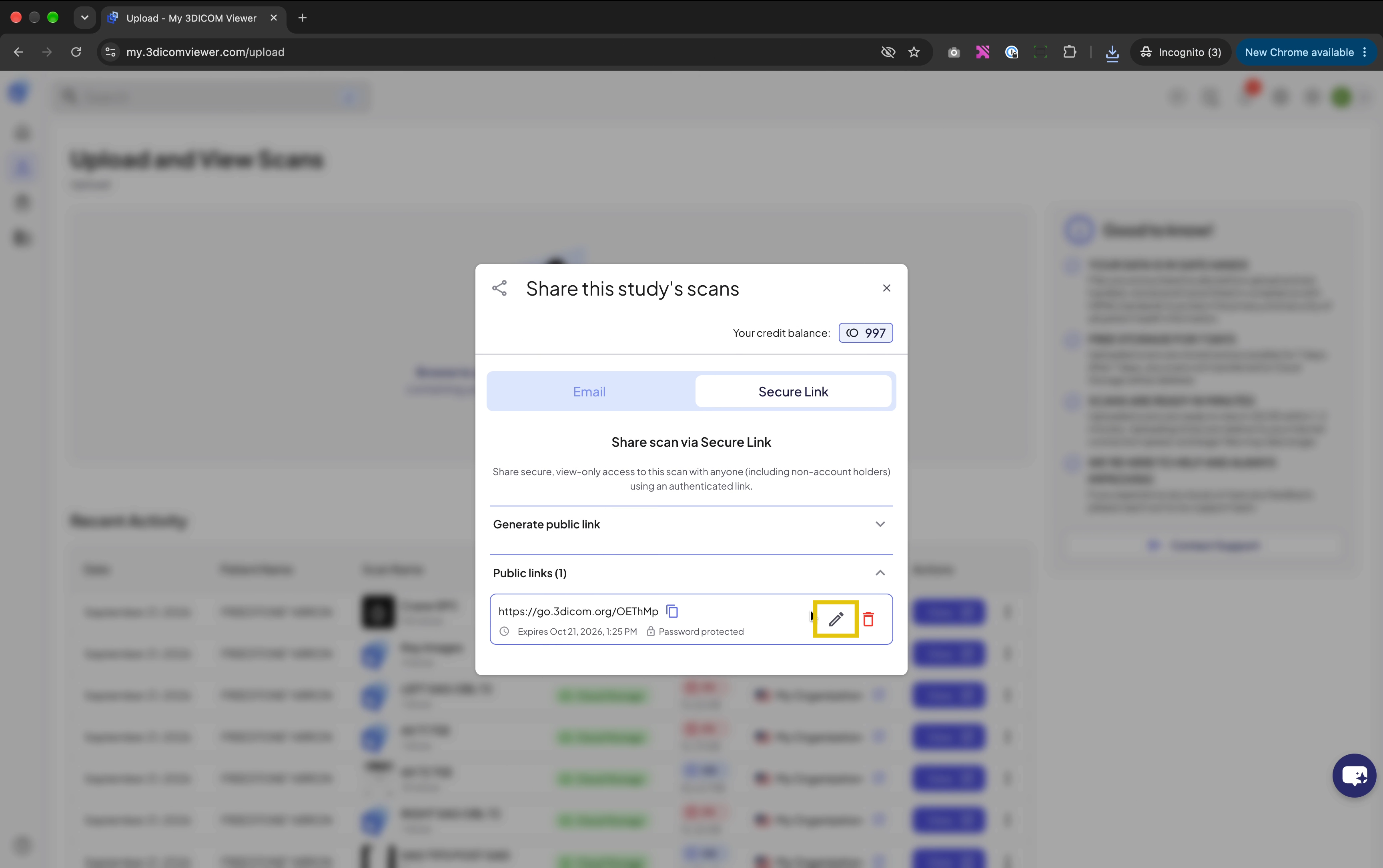
Step 15. To change the expiry period, select a new option under Link expires after.
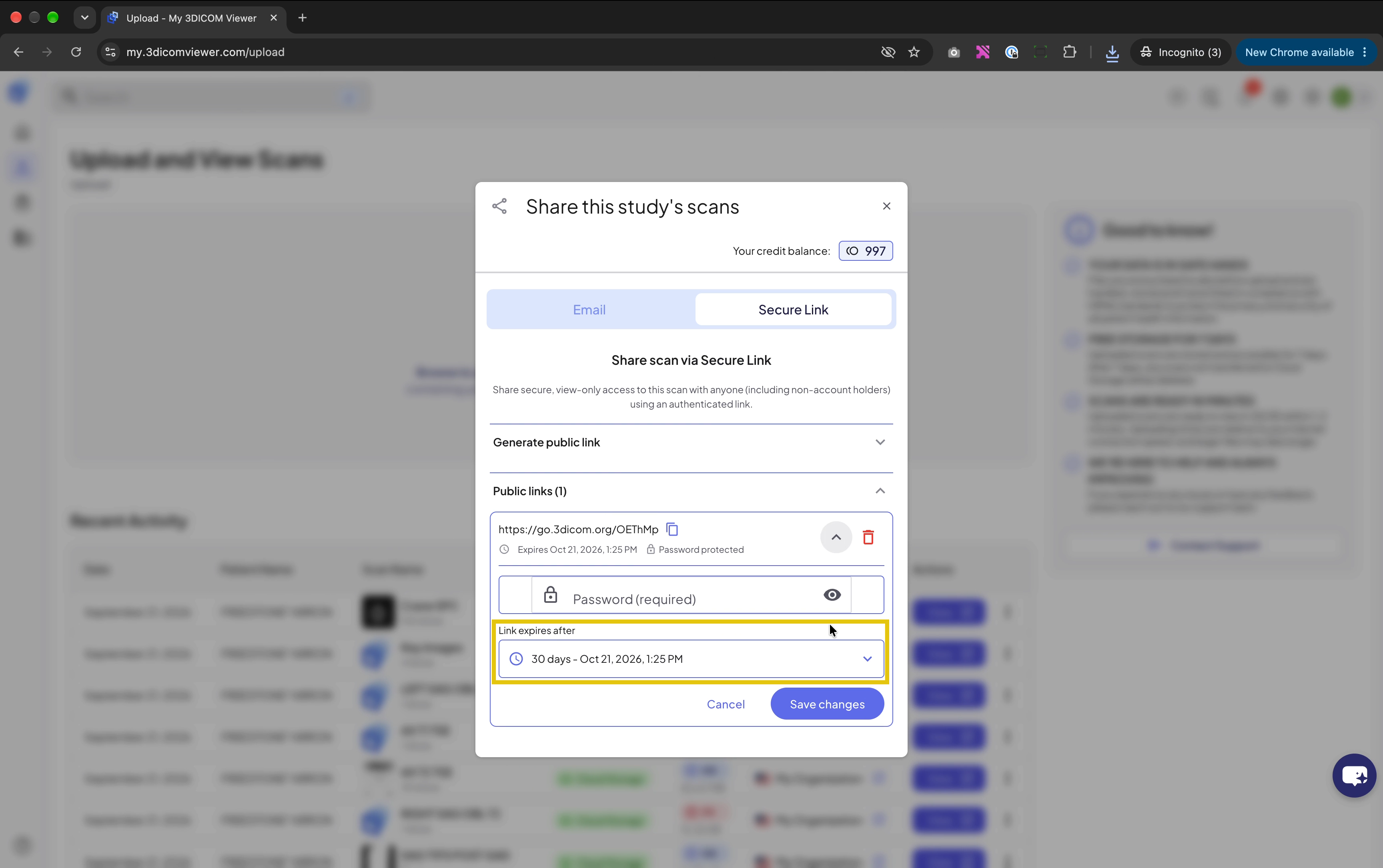
Step 16. If you want to change the password, enter a new password in the password field.
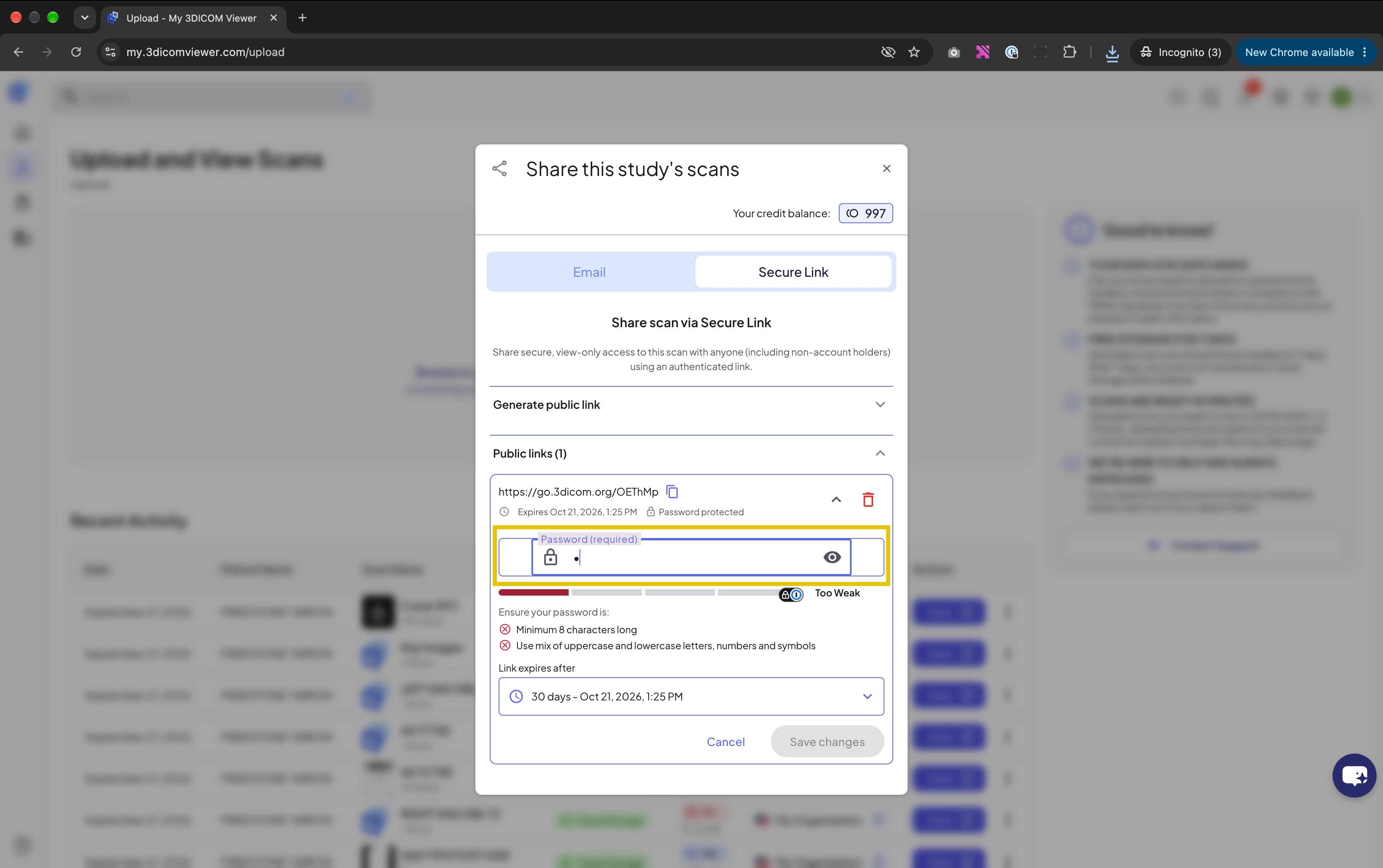
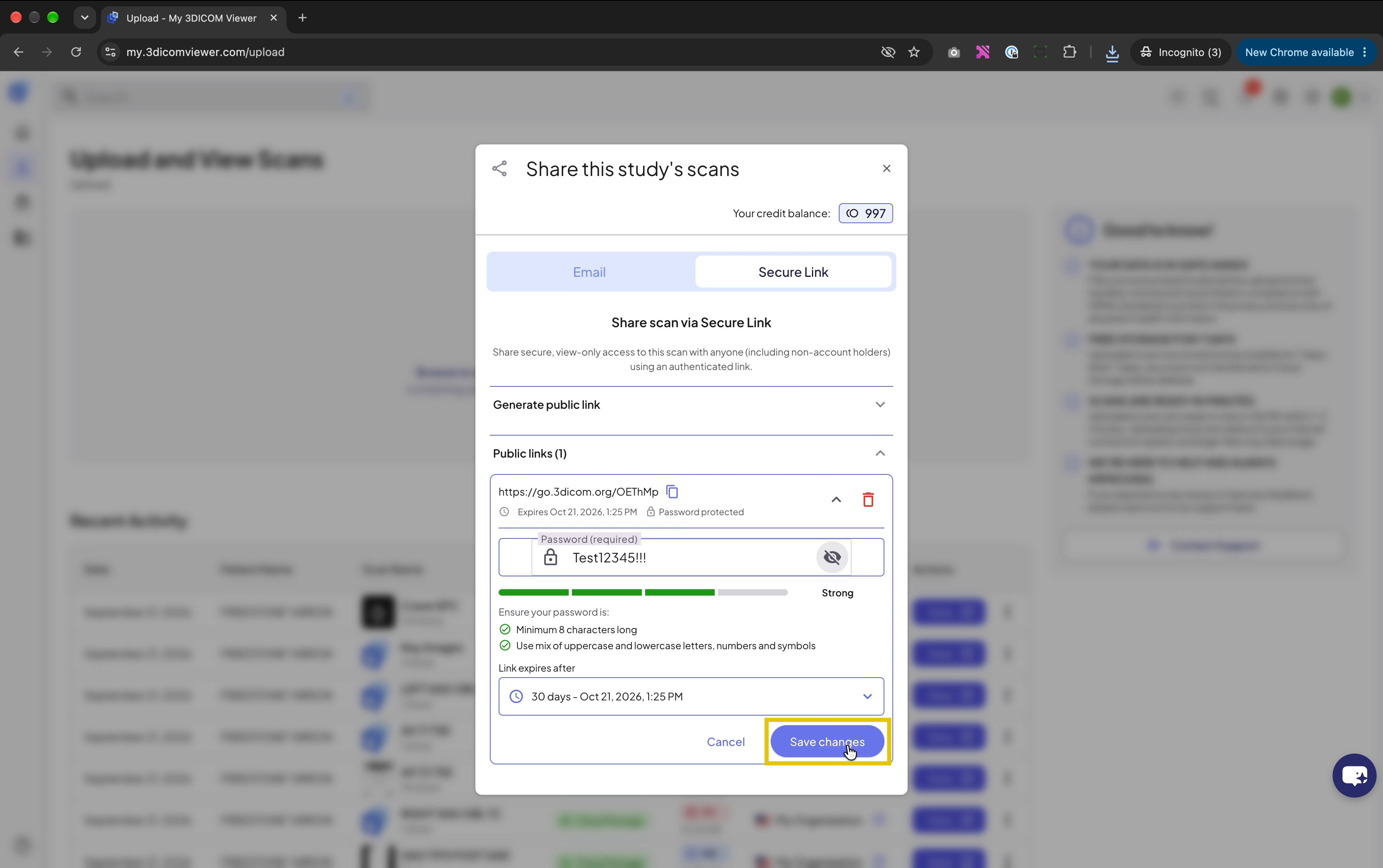
Step 17. Click Save changes. The recipient must use the updated password to access the study.
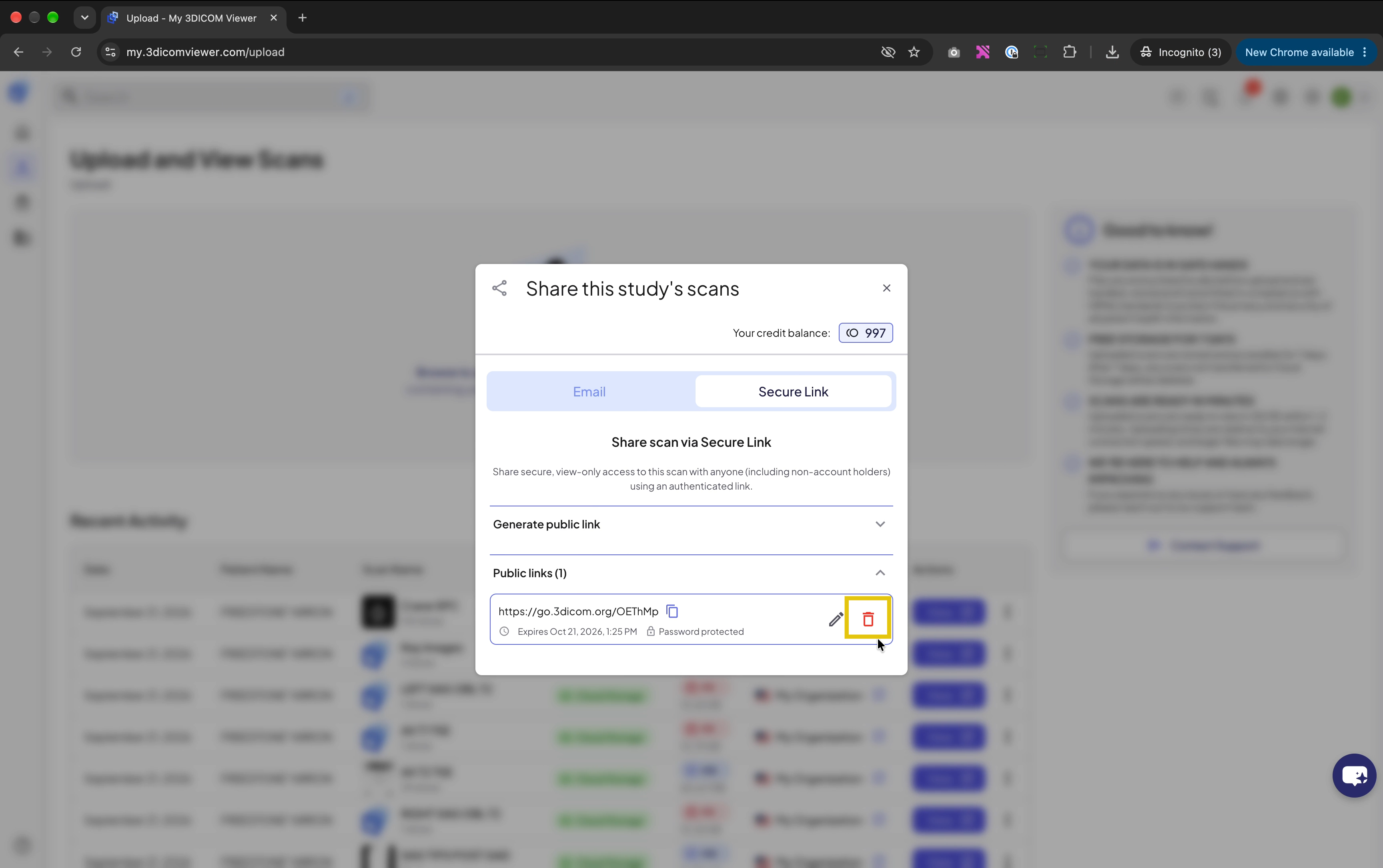
Step 18. To revoke the link completely, click the red bin icon. The link will be disabled and recipients will no longer have access.
Result
After completing these steps, your study can be securely shared with recipients using a password-protected link. Recipients can access and download the DICOM files as instructed, and you can manage, update, or revoke access as needed.