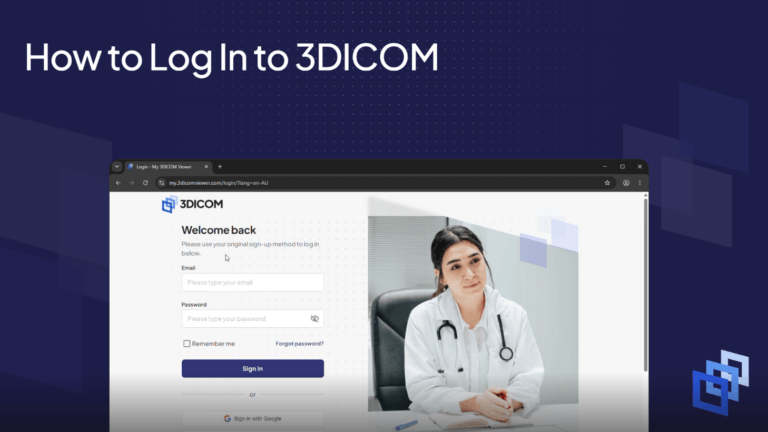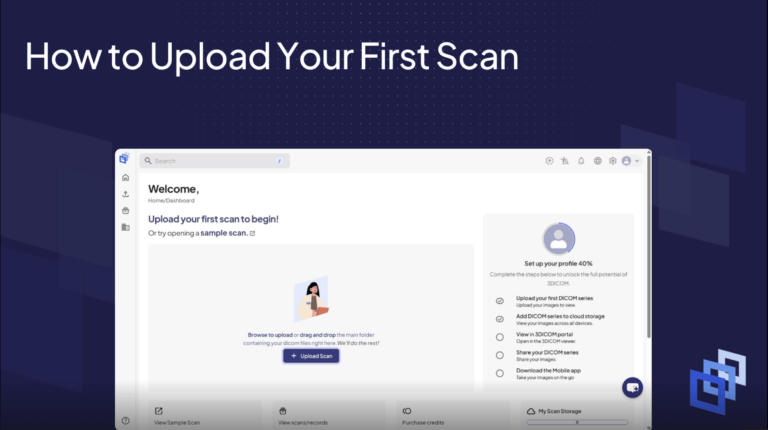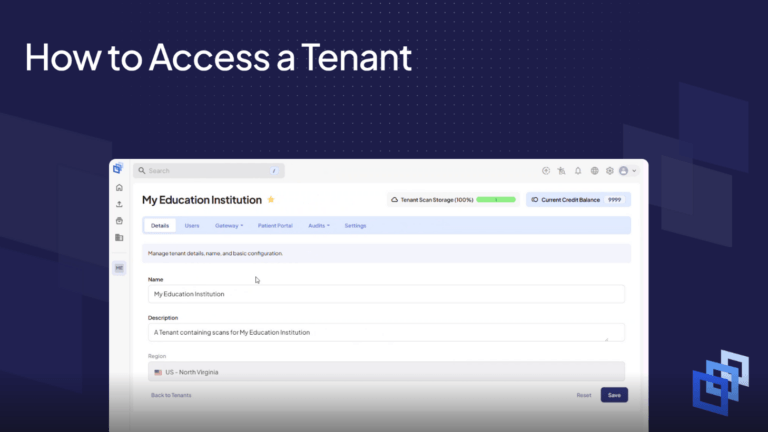
How to Upload from CD & View in 3DICOM MD Cloud
Overview
This guide shows you how to log in to 3DICOM and upload your first medical imaging series, following the same steps as demonstrated in the tutorial video. You will learn how to go from opening your imaging files to uploading and viewing your scans in the FDA-cleared viewer.
Before you begin
- Make sure you have your imaging files (from a CD-ROM or other source) available on your computer.
- Have your 3DICOM login credentials ready.
Please note:
We recommend copying your medical images from the CD-ROM to your computer before uploading, as this can speed up the upload process. If you don’t have enough disk space, you can upload directly from the CD-ROM, but it may take longer.
Uploading your scans to 3DICOM
Prepare your medical imaging files
Step 1. Open your CD-ROM using File Manager or File Explorer. Locate the folder containing your medical images.
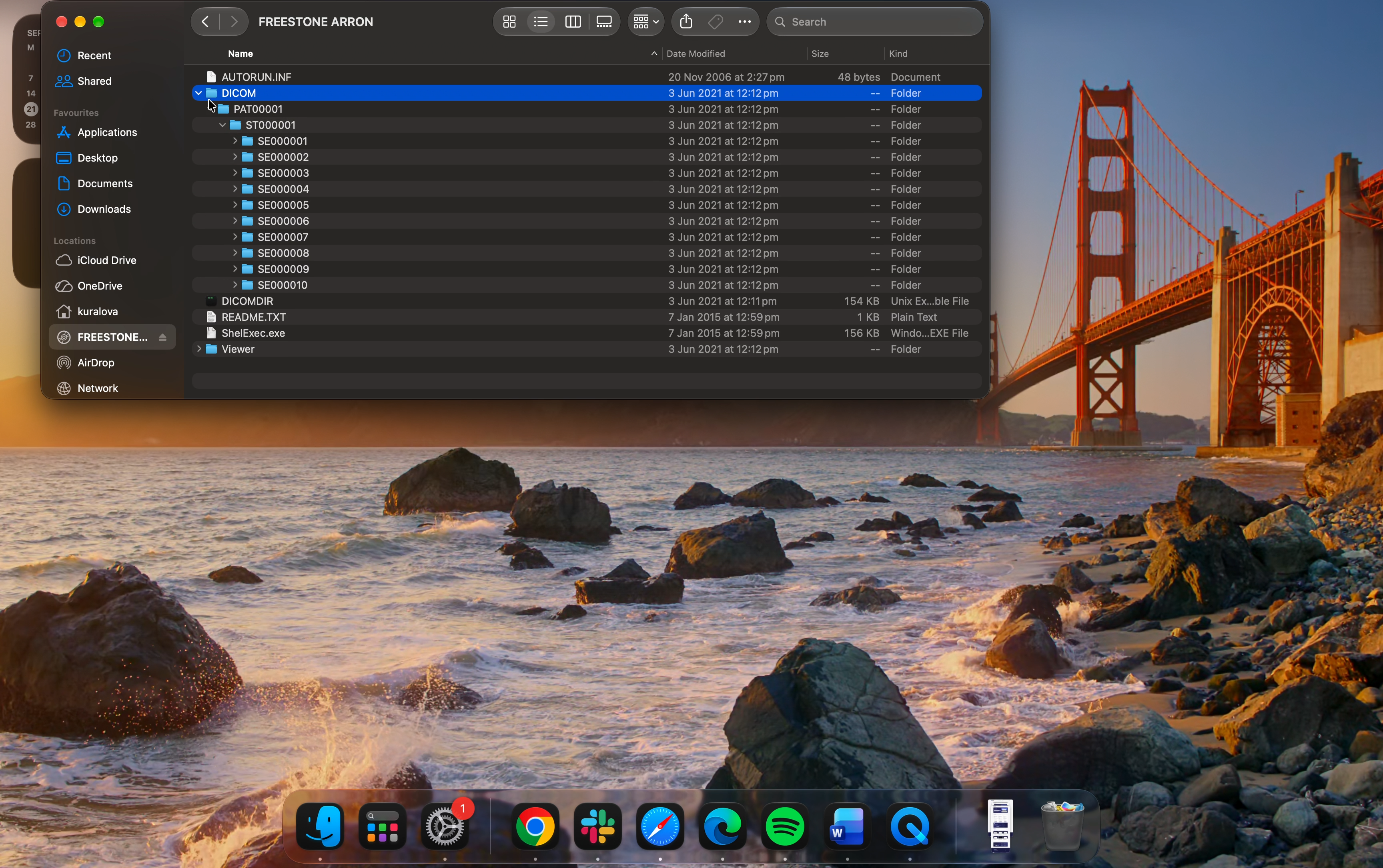
Step 2. Copy the entire imaging folder.
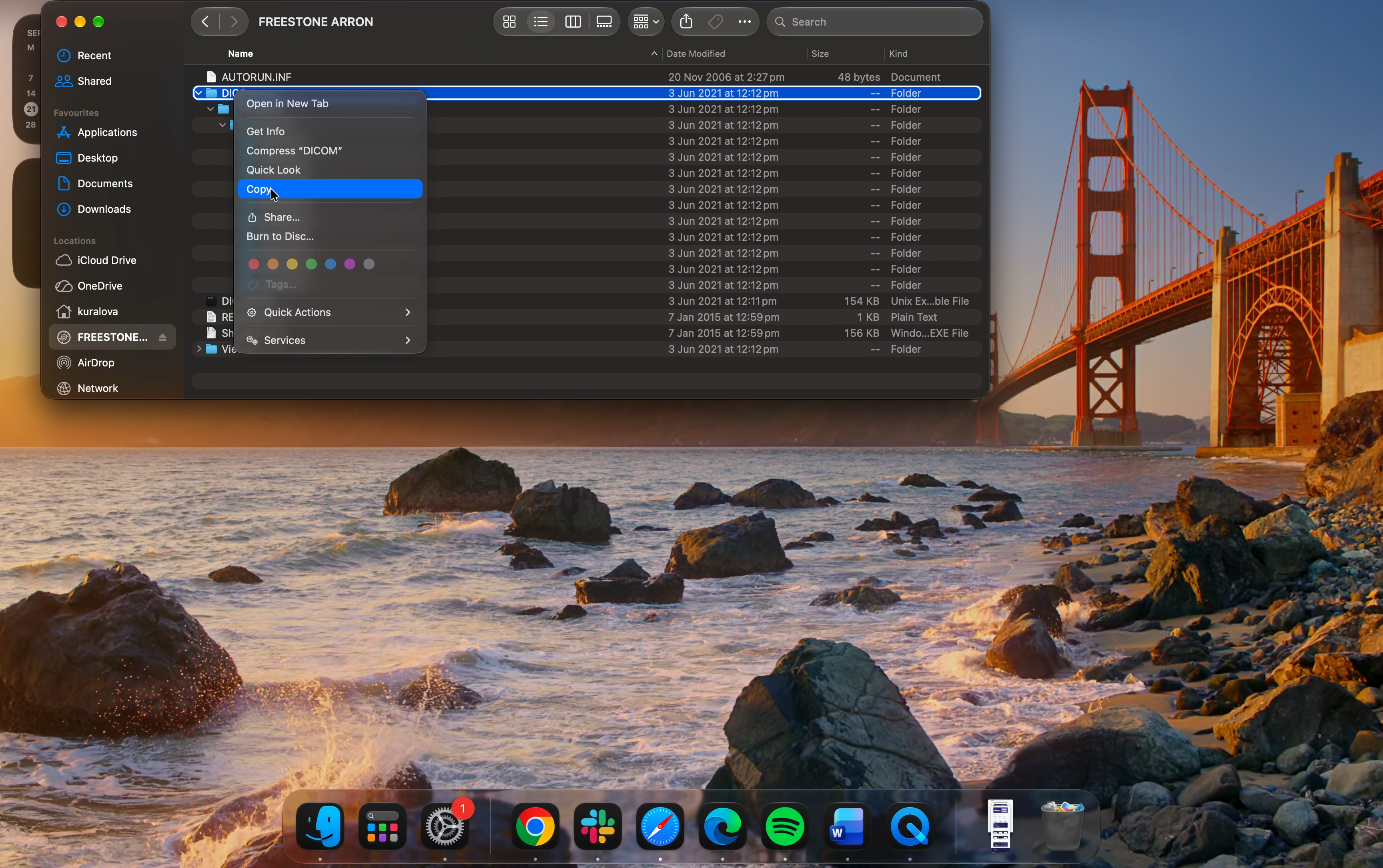
Step 3. Paste the copied folder onto your Desktop or Documents folder for easy access.
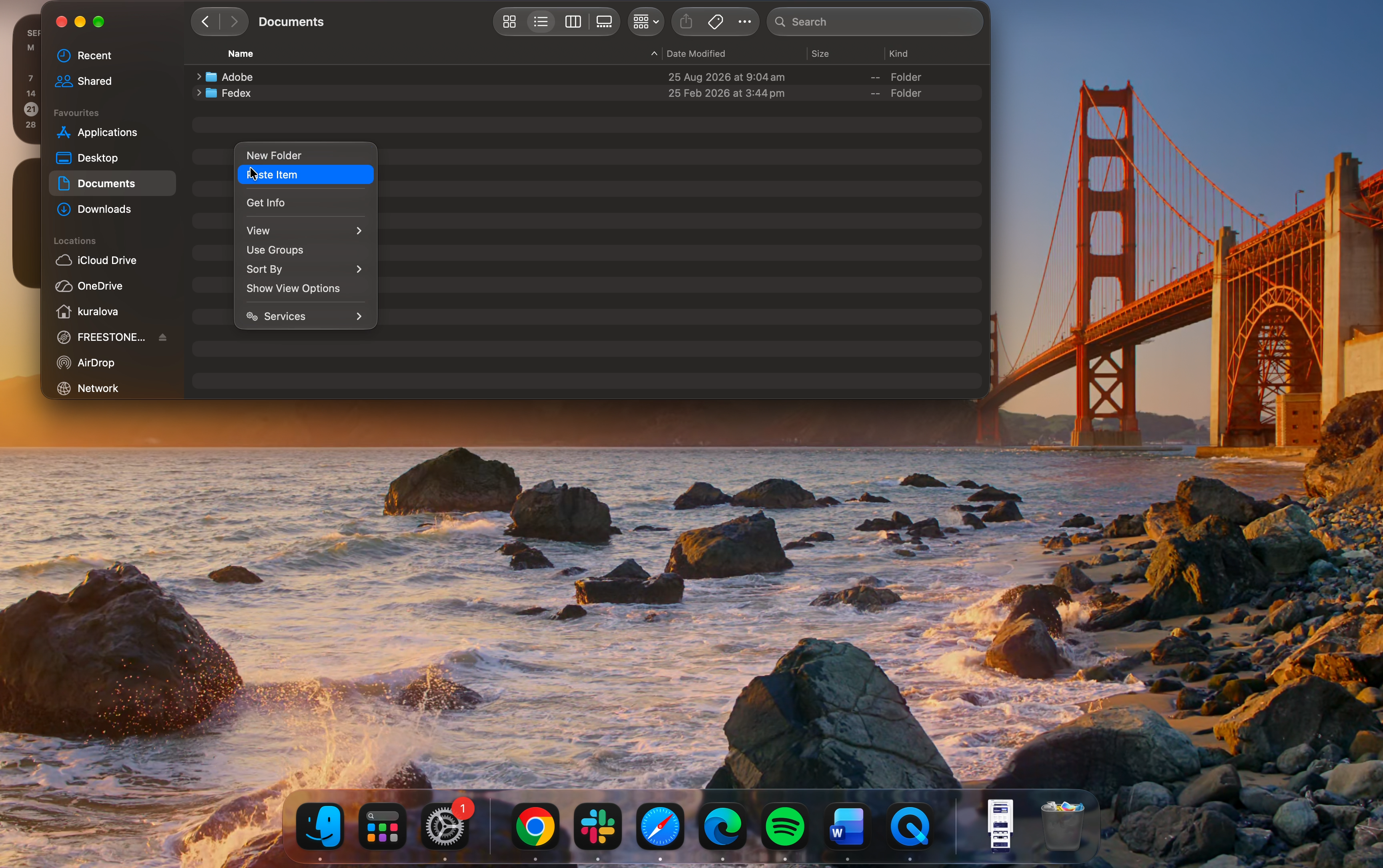
Step 4. Wait until all files have finished copying before you continue.
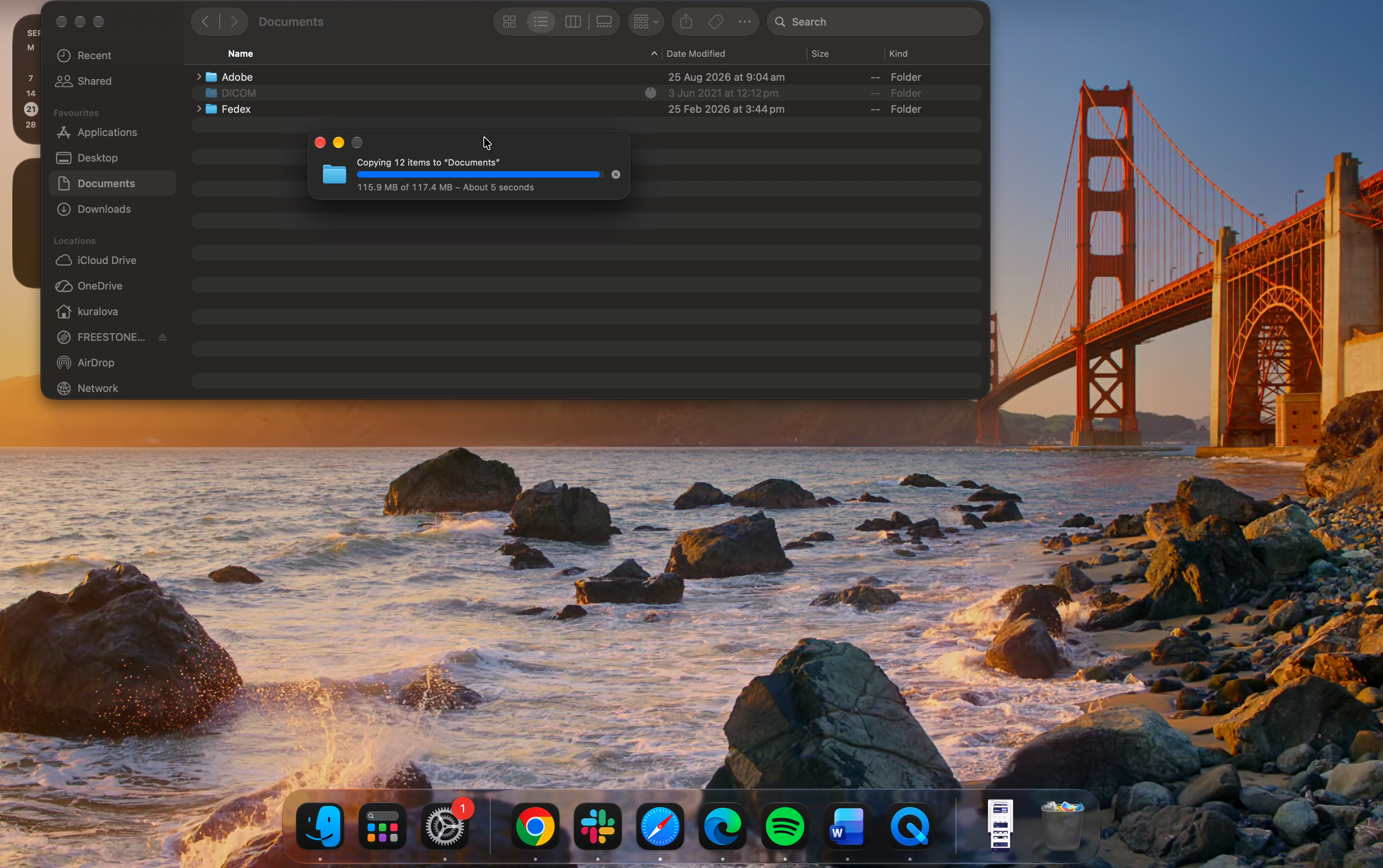
Upload your scans to 3DICOM
Step 5. Go to the 3DICOM portal in your web browser.
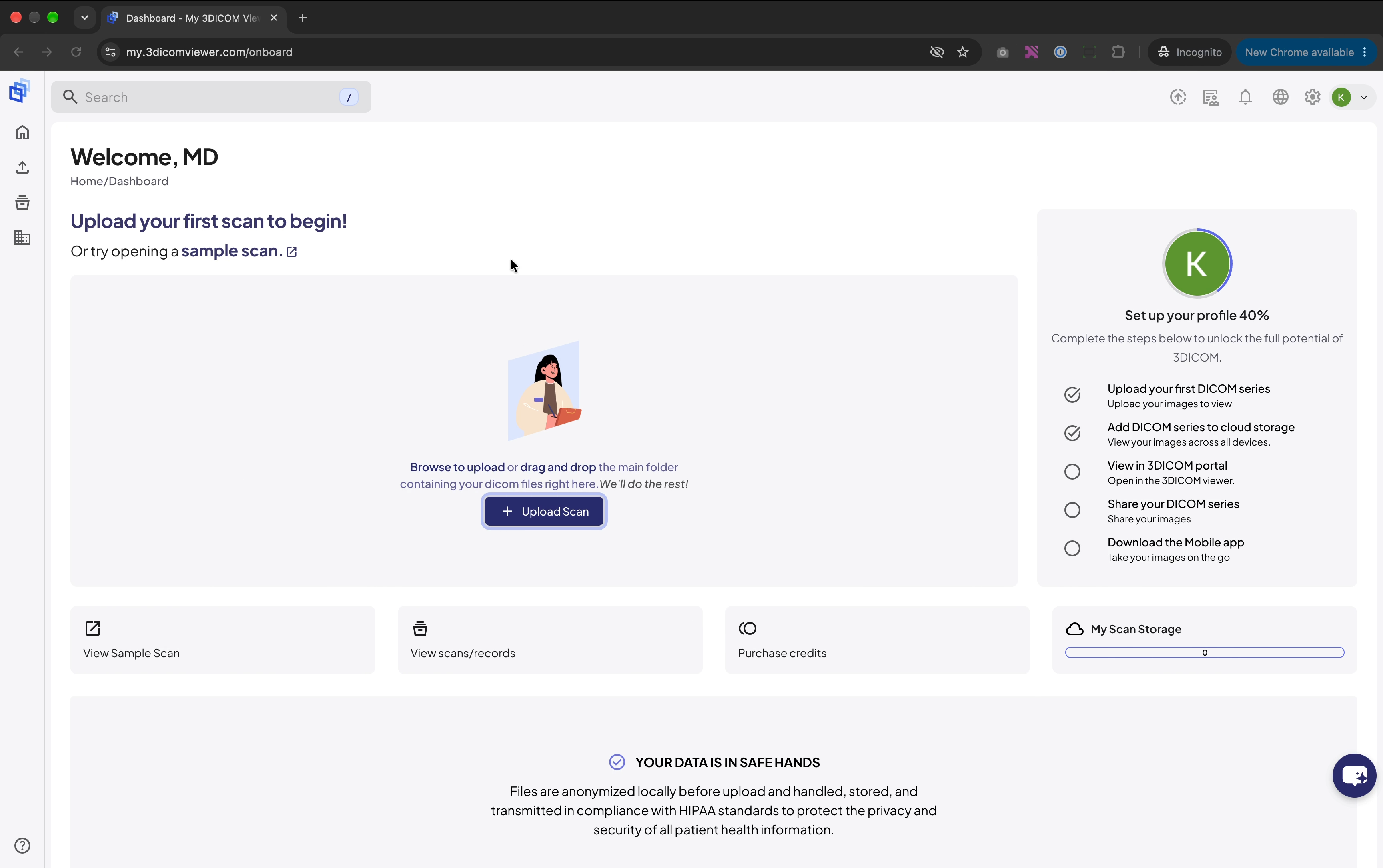
Step 6. Click Upload to start the upload process.
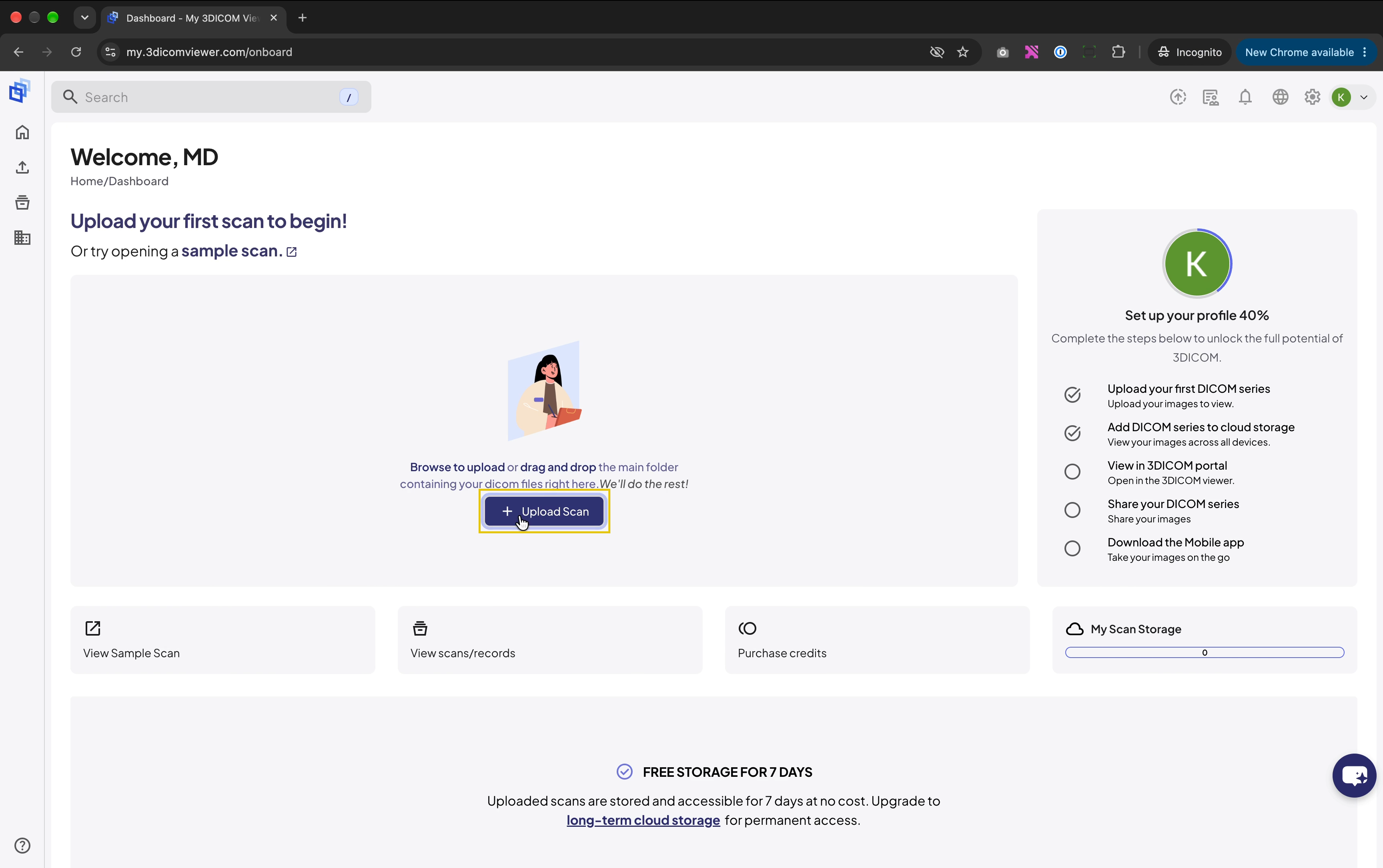
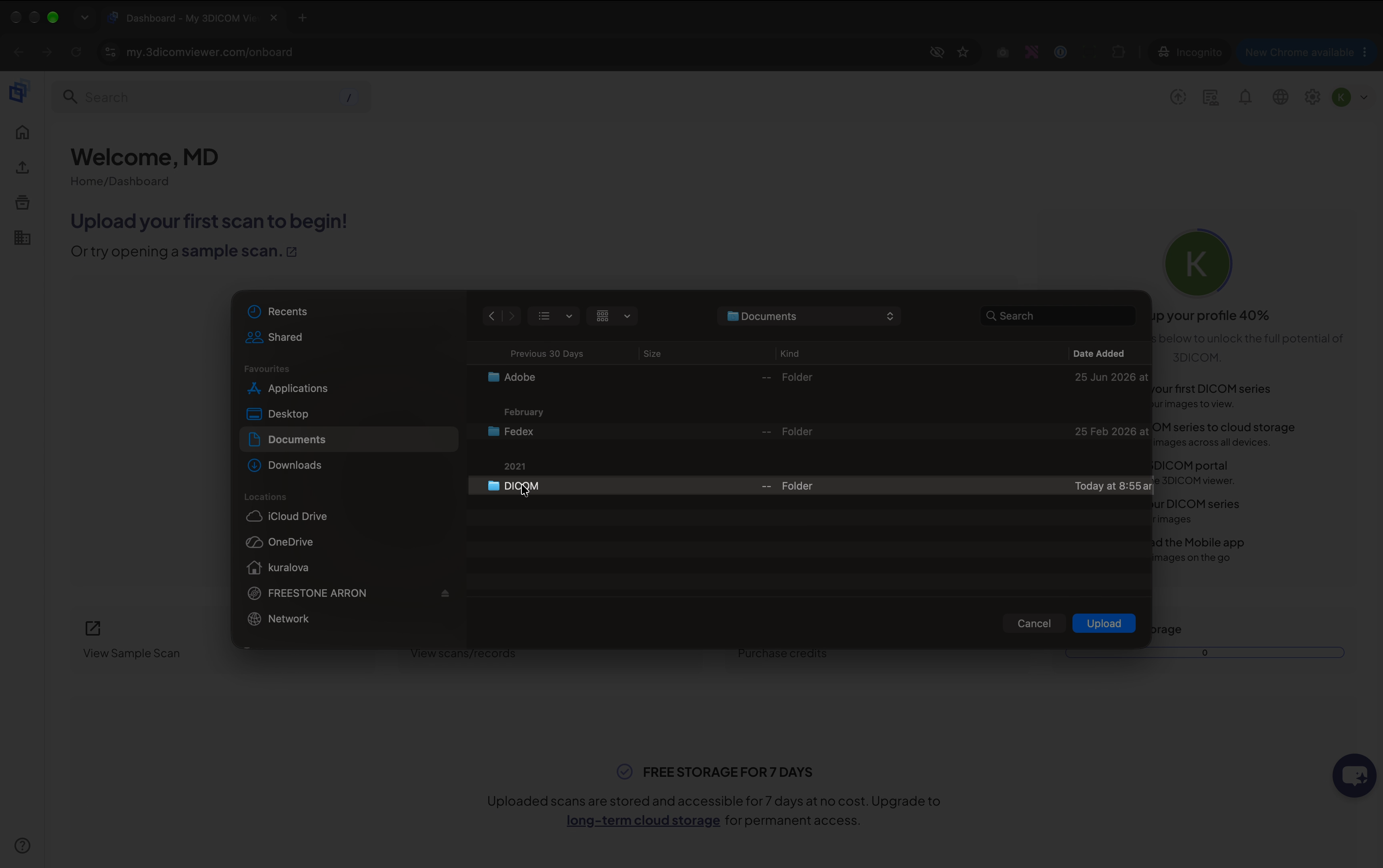
Step 7. In the upload window, navigate to the folder you copied earlier.
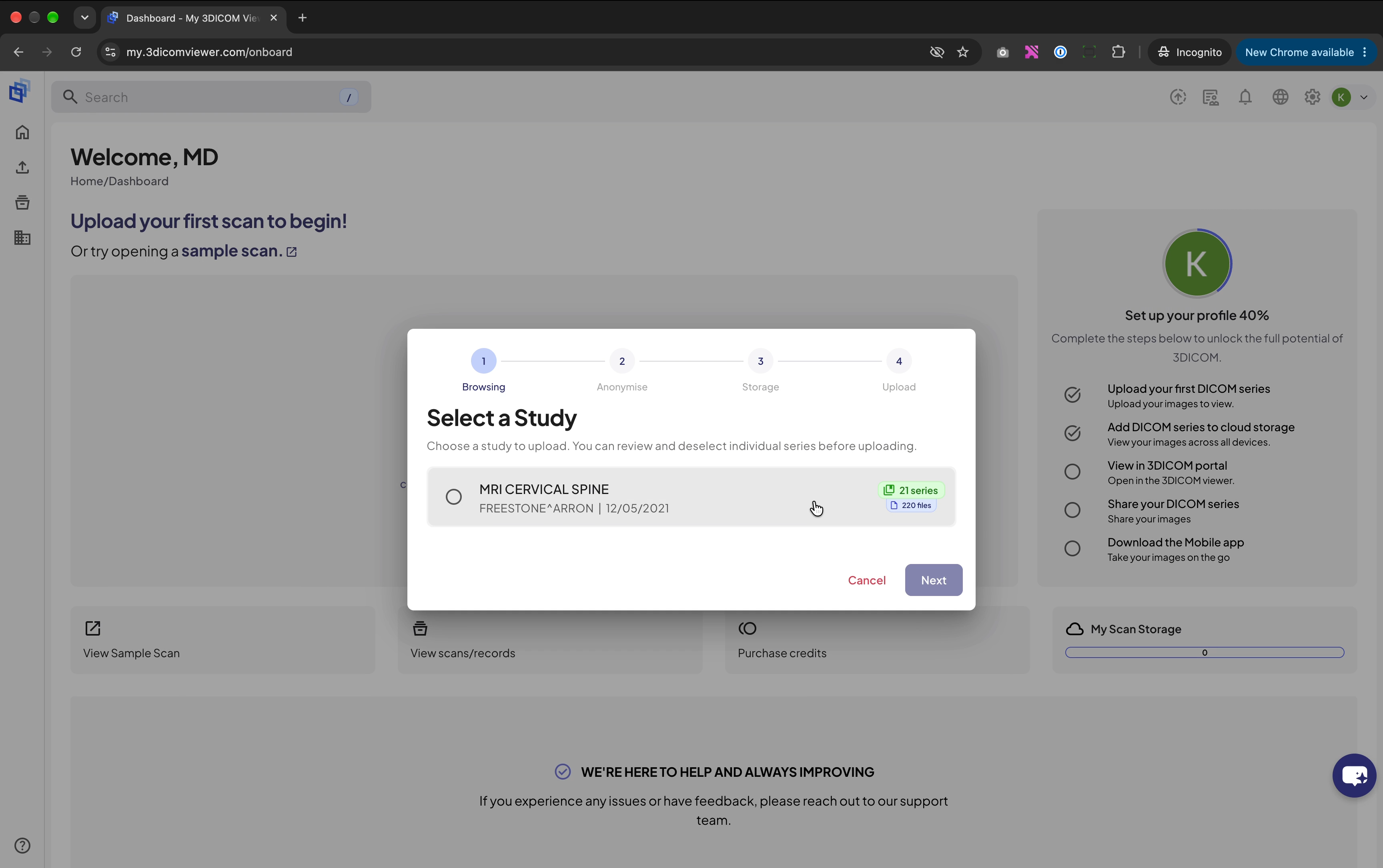
Step 8. Follow the four-step upload wizard that appears.
Step 9. In the first step, select the study you want to upload.
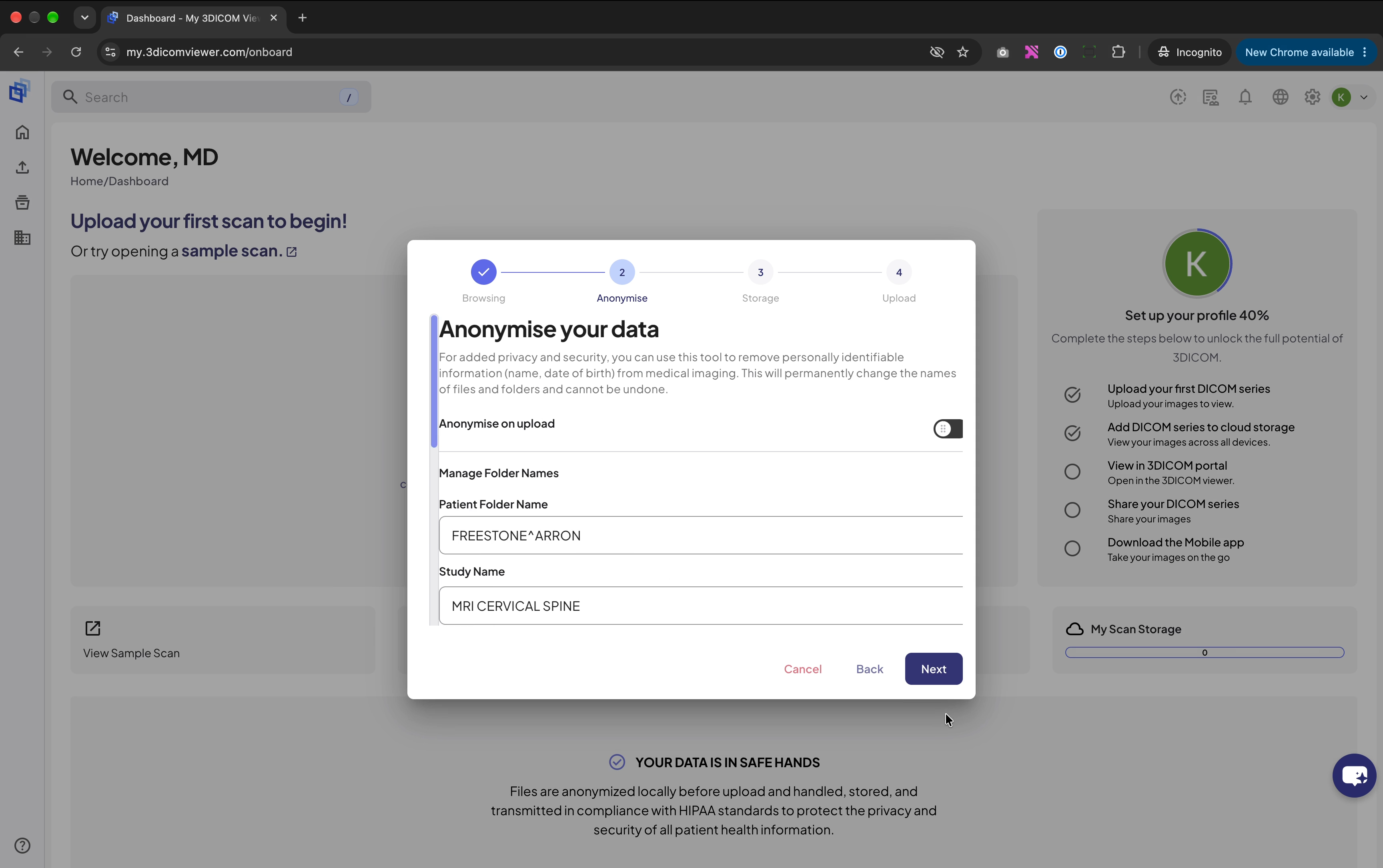
Step 10. Review or rename the study if needed, then proceed.
Step 11. Choose a storage location and tier for your upload. For most users, Long Term storage is recommended. If prompted, select tenant.
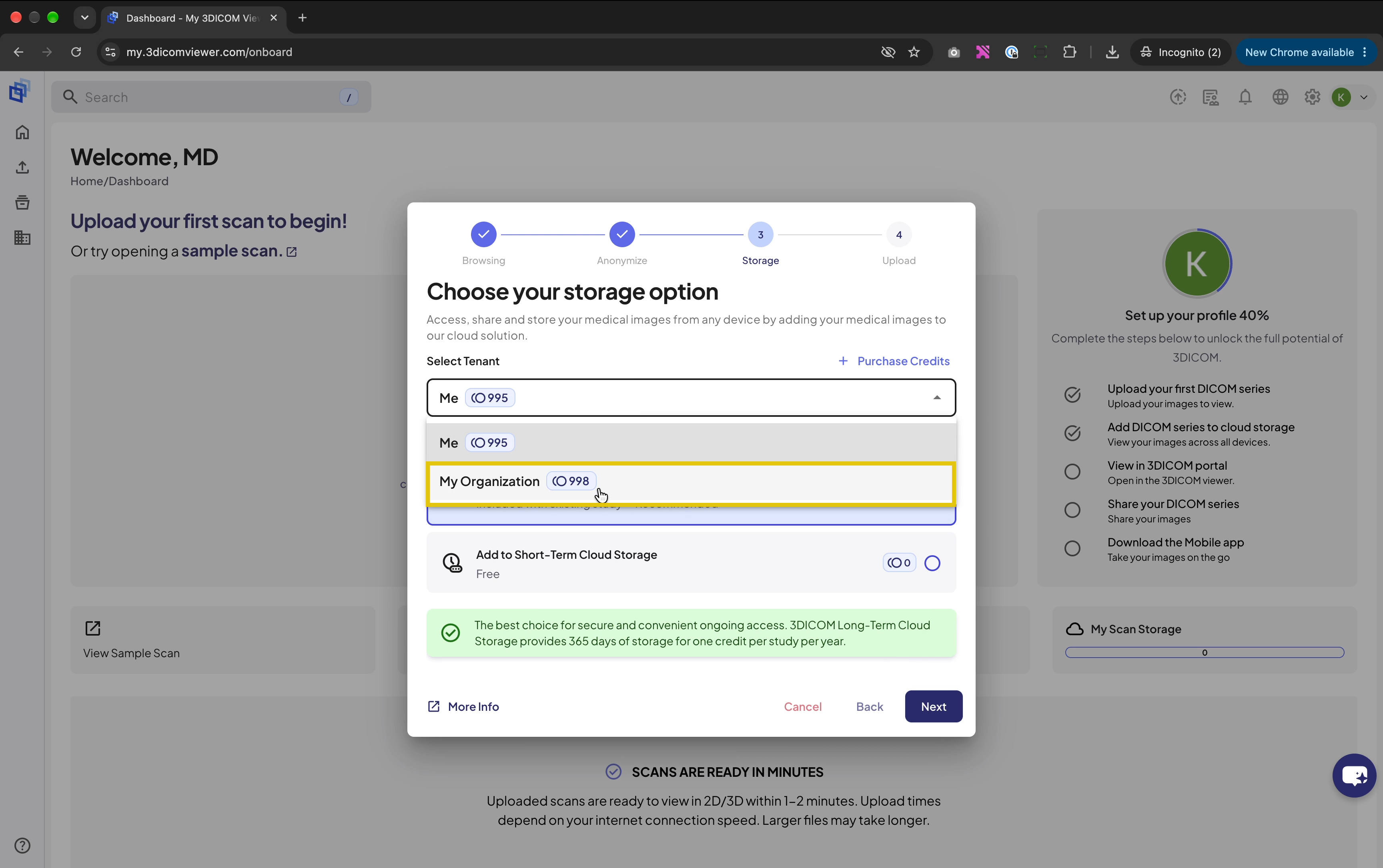
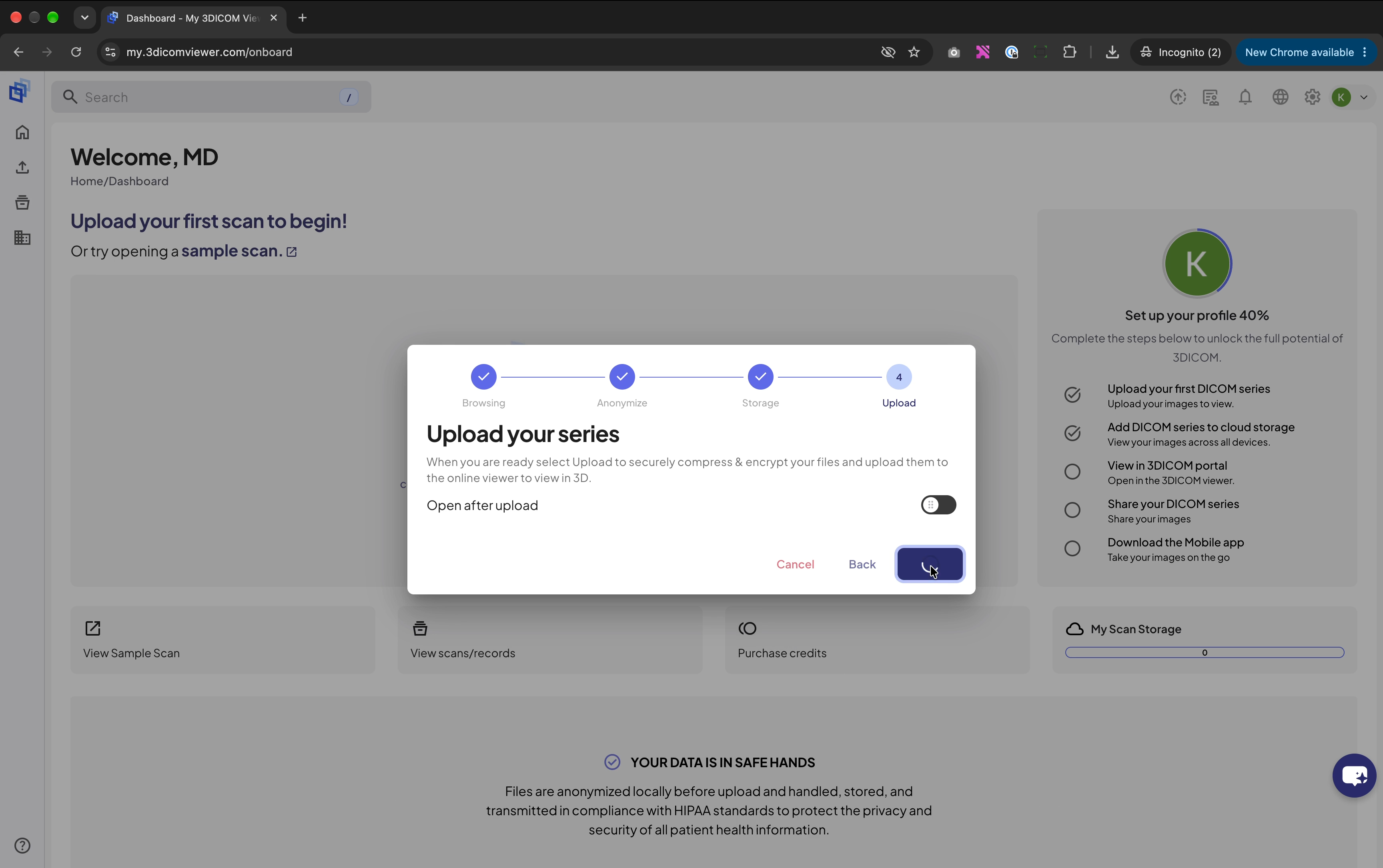
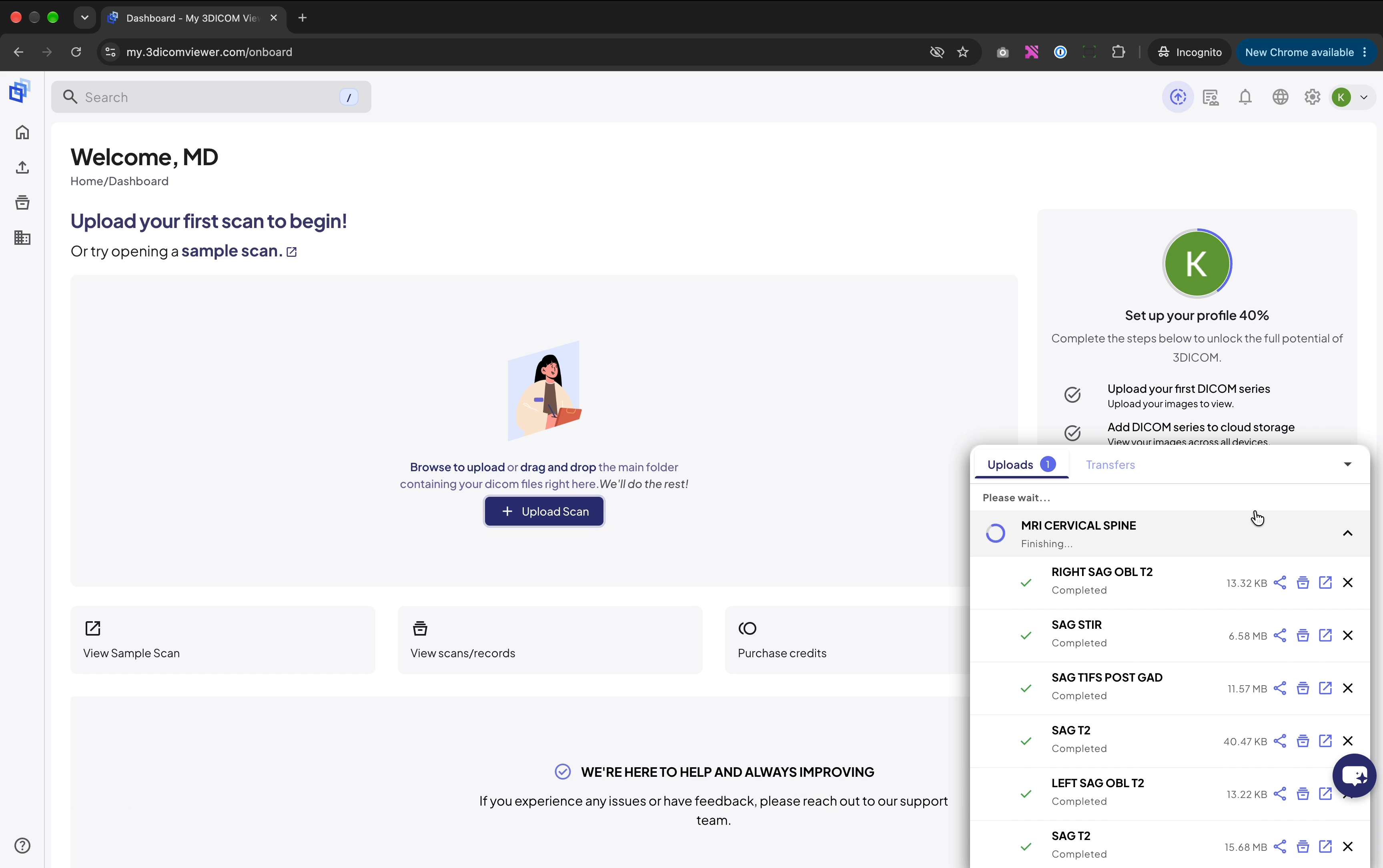
Step 12. Complete any remaining wizard steps and click to start your upload. You will see an Uploads window appear at the bottom right of the screen, where you can track the upload progress.
Step 13. Wait for all series to finish uploading. Once complete, the portal will automatically display your uploaded scans.
Opening your scan in 3DICOM
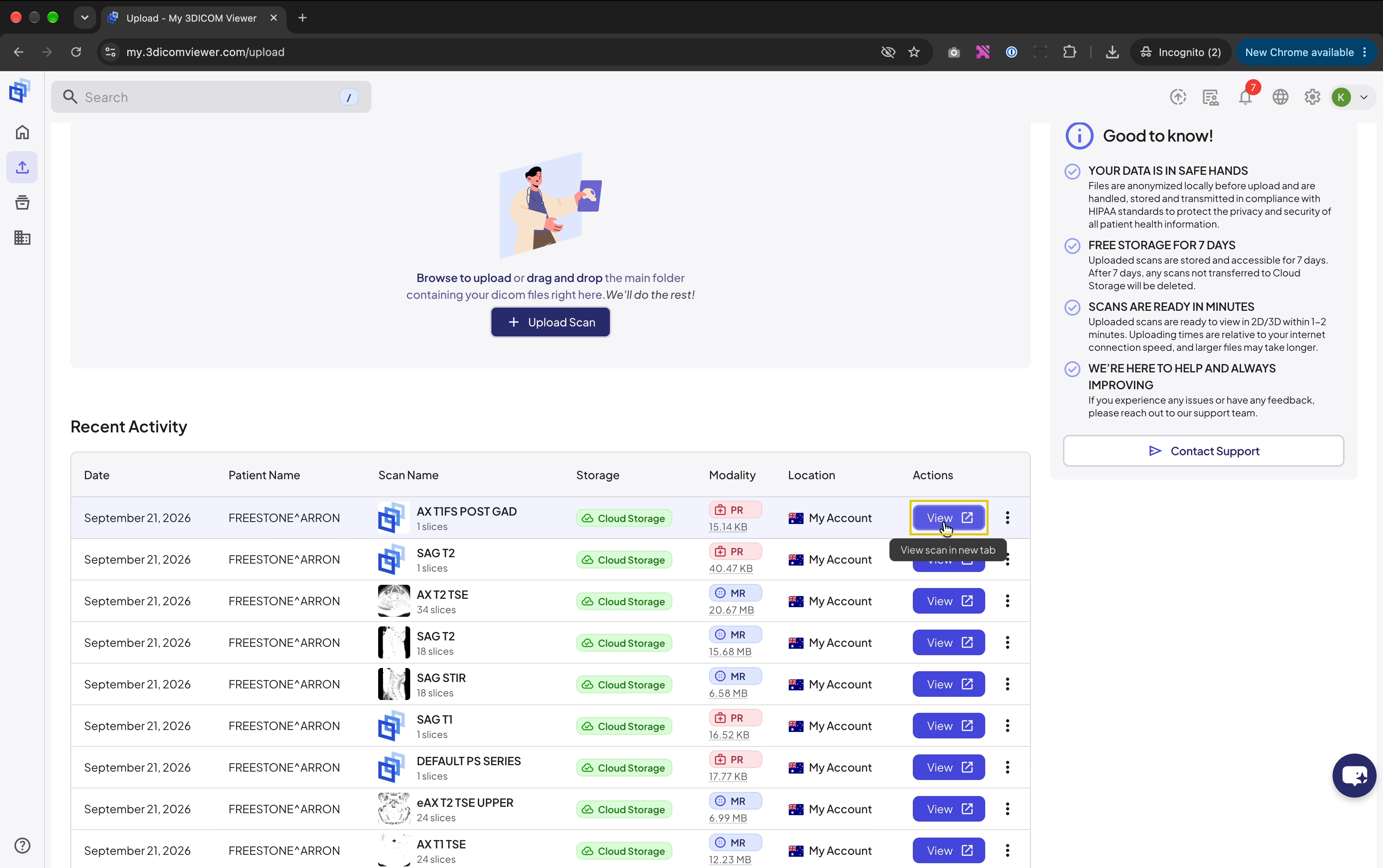
Step 14. Find your uploaded scan in the scans list. Click the View button next to the scan to open it.
Step 15. Once the study has fully loaded, you can begin exploring your images in the FDA-cleared viewer.
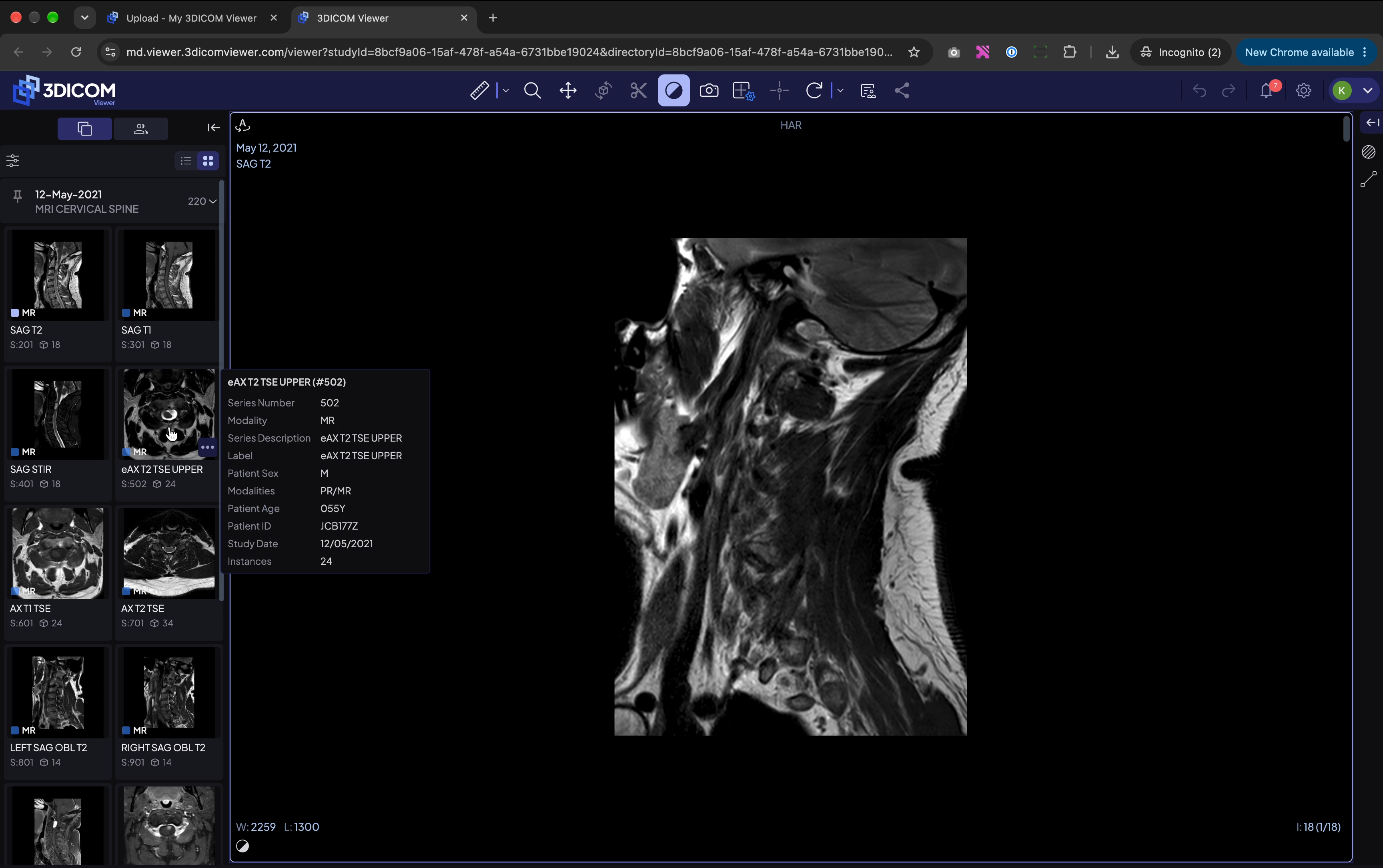
Result
After completing these steps, your medical imaging series will be uploaded and ready to view in the 3DICOM platform.