Using FDA-cleared MD Viewer in 3DICOM MD Cloud
Overview
This guide walks you through using the FDA-cleared MD Viewer in 3DICOM MD Cloud. You’ll learn how to open and explore your scans, use core viewing and measurement tools, adjust image layouts, and create structured reports—following the same sequence and terminology as the product tutorial video.
Before you begin
- Make sure you have access to your 3DICOM MD Cloud account from the USA region.
- Confirm that your imaging scans are uploaded and ready to view.
Opening and viewing your scan
Open your scan in MD Viewer
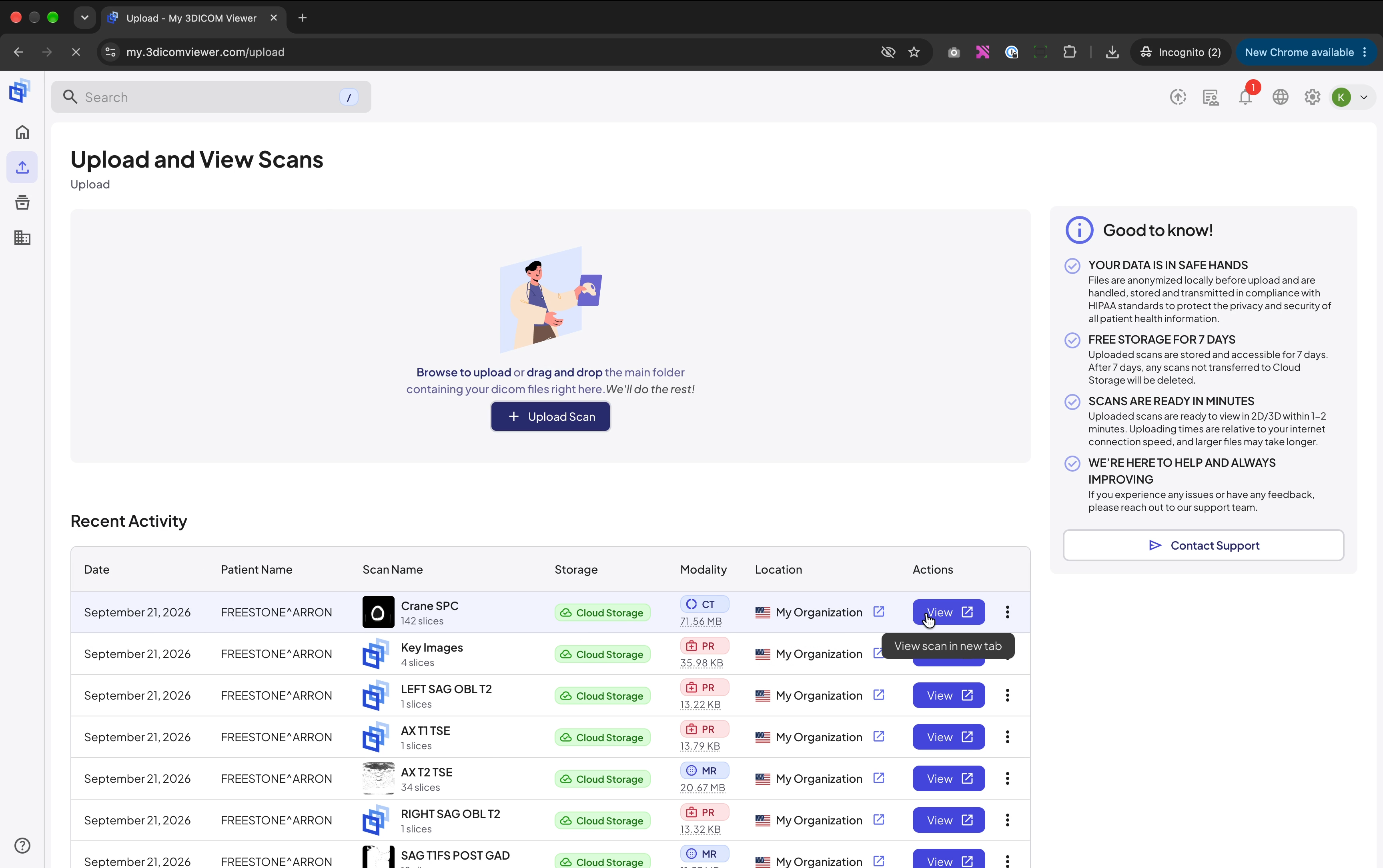
Step 1. Find the scan you want to view in your library.
Step 2. Click the View button to the right of your scan to open it in the viewer.
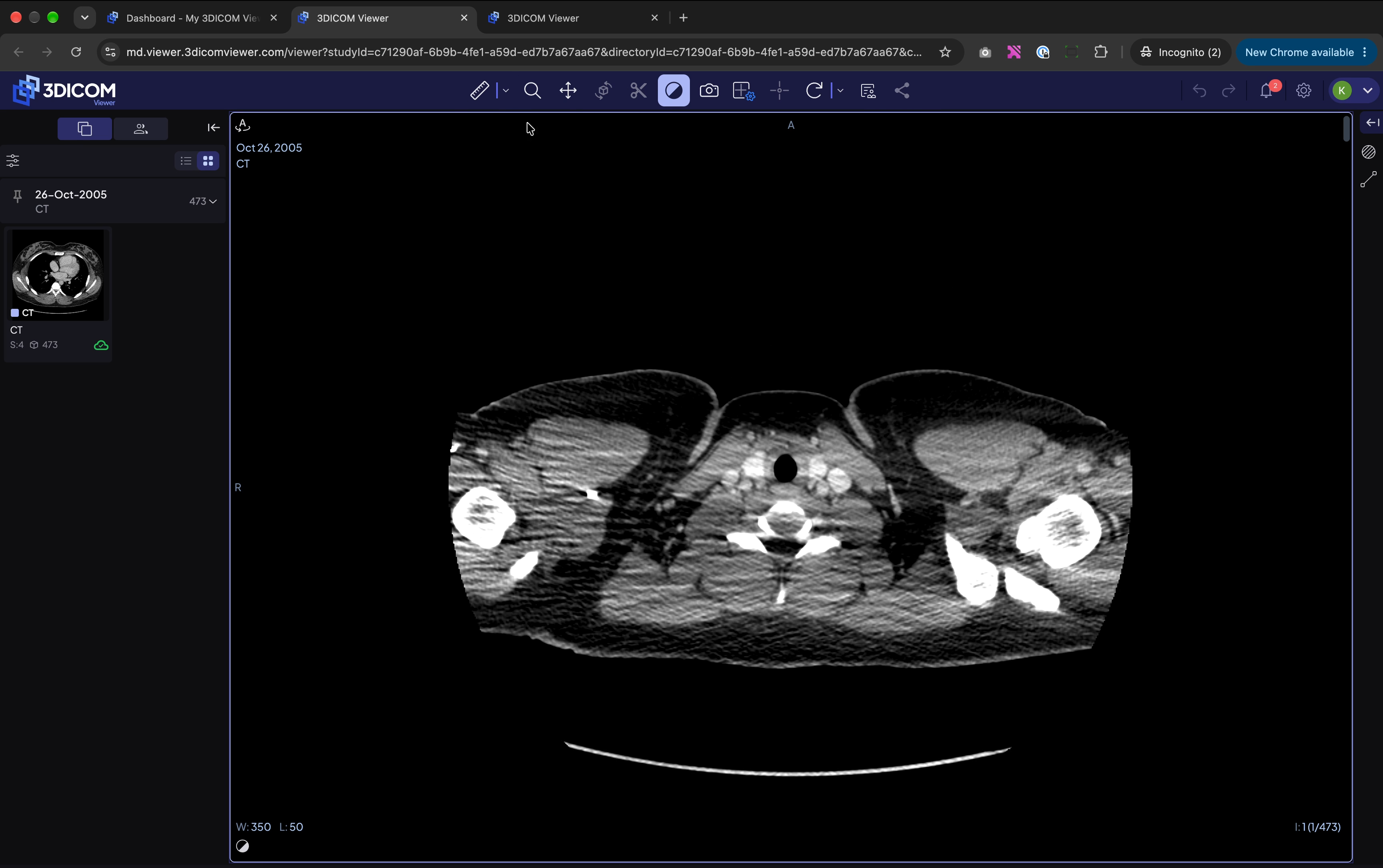
Step 3. Wait for the study to finish loading. Your series will appear in the left panel; the main view displays the selected image.
Using main viewing tools
Work with zoom, pan, windowing, and reset
Step 4. Use the Zoom tool on the top toolbar to enlarge or shrink the image as needed.
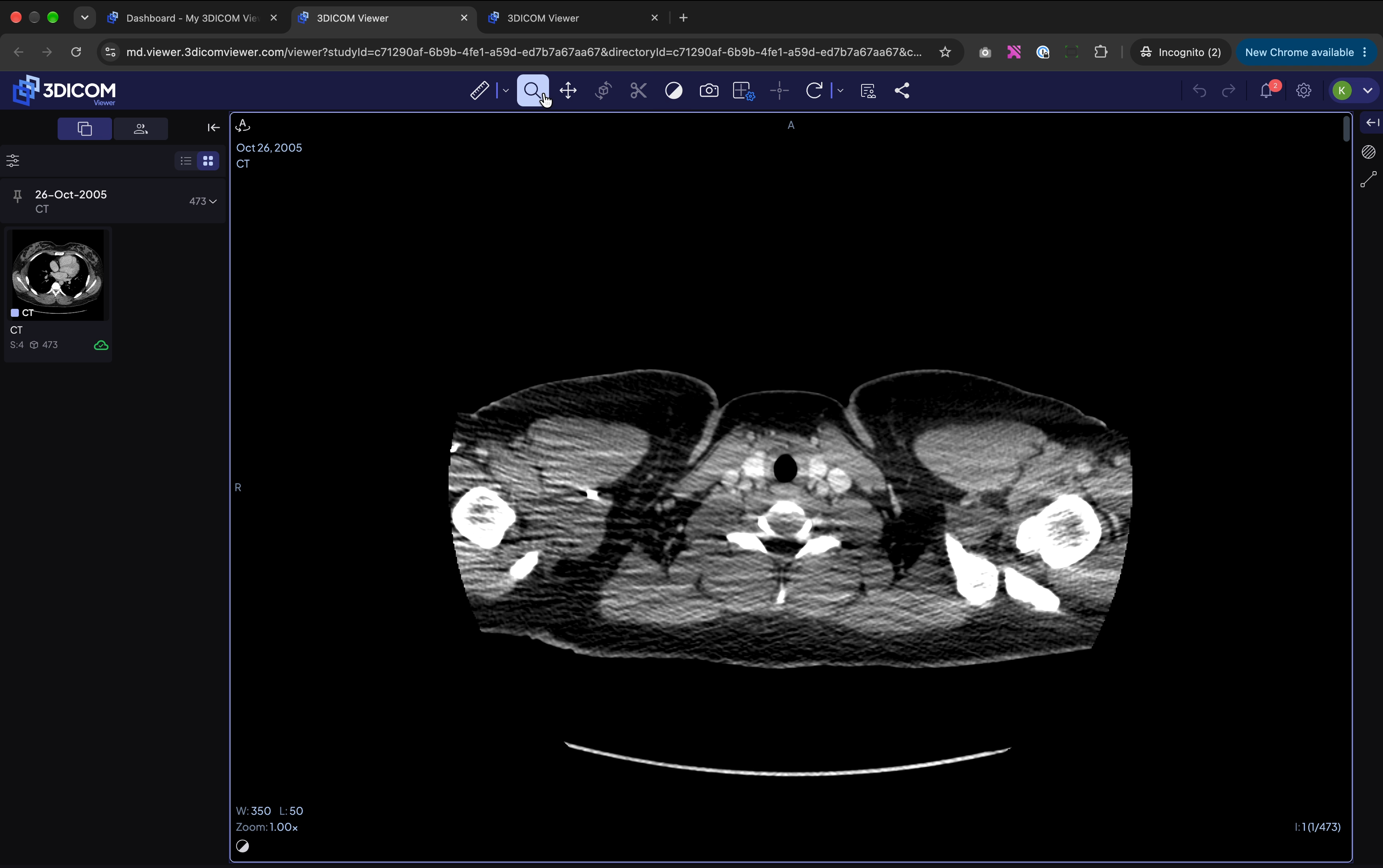
Step 5. Select the Pan tool to click and drag the image to any position.
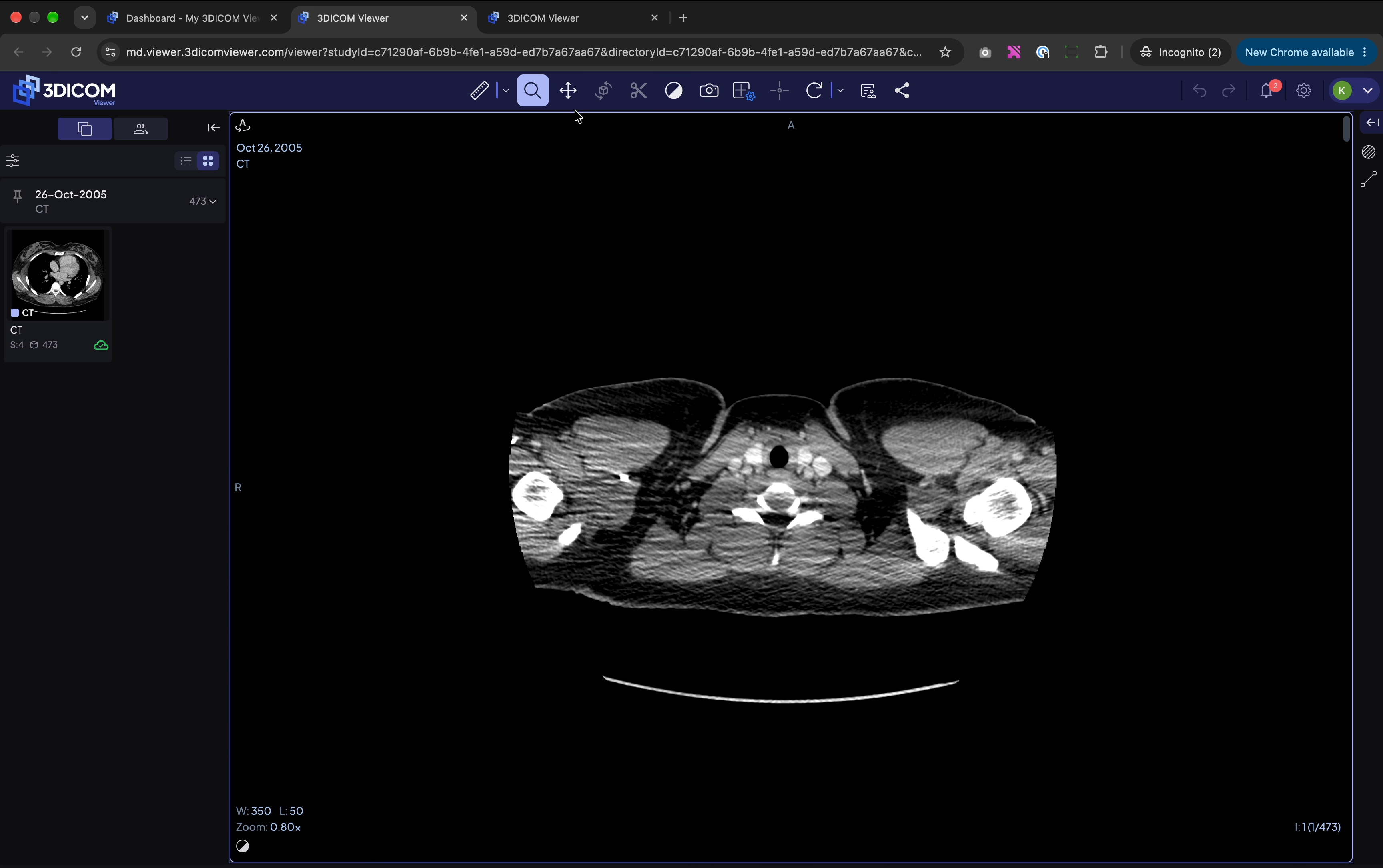
Step 6. Click the Windowing tool to adjust image contrast and brightness for better detail visibility.
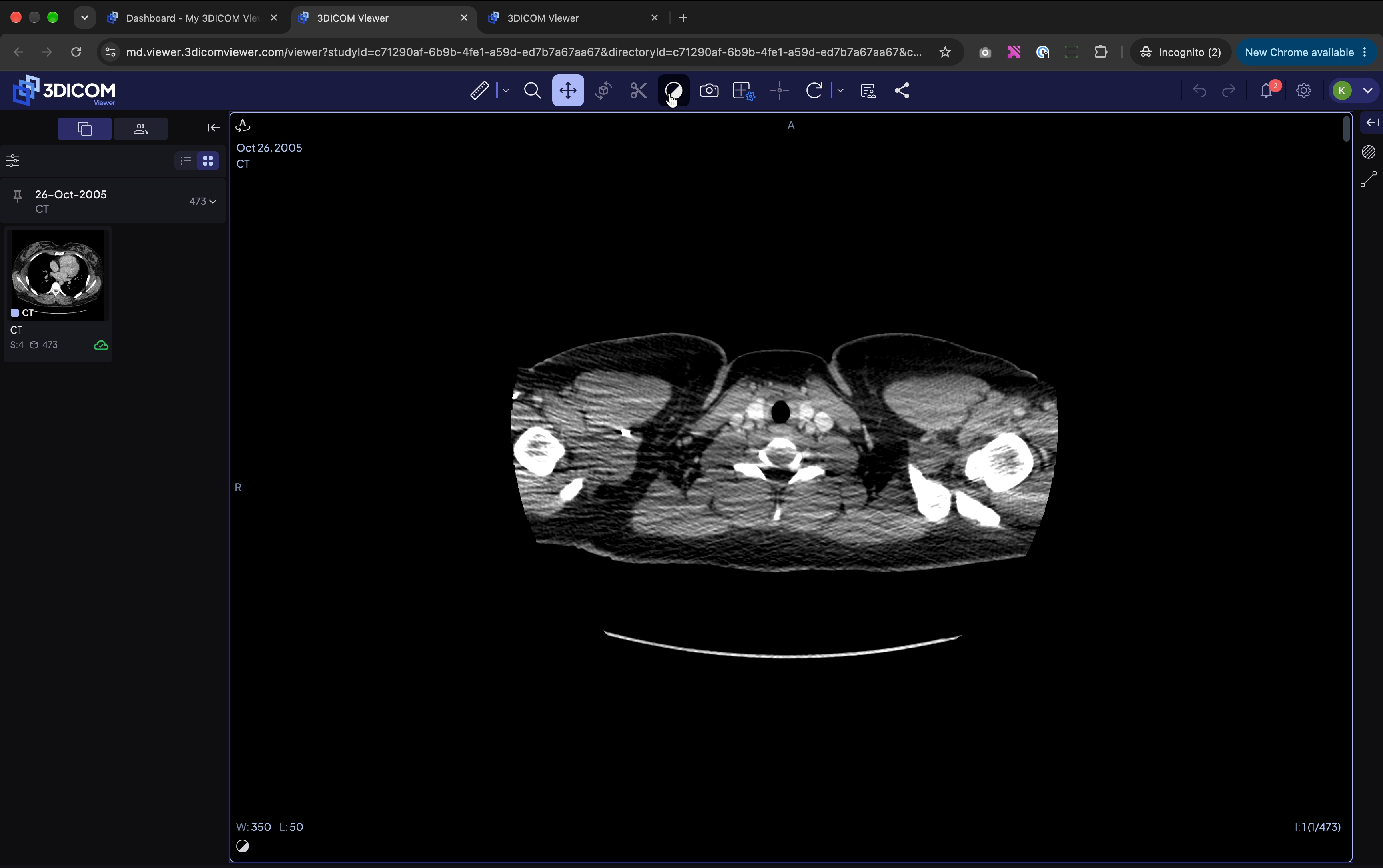
Step 7. To return the view to its starting state, press the Reset button.
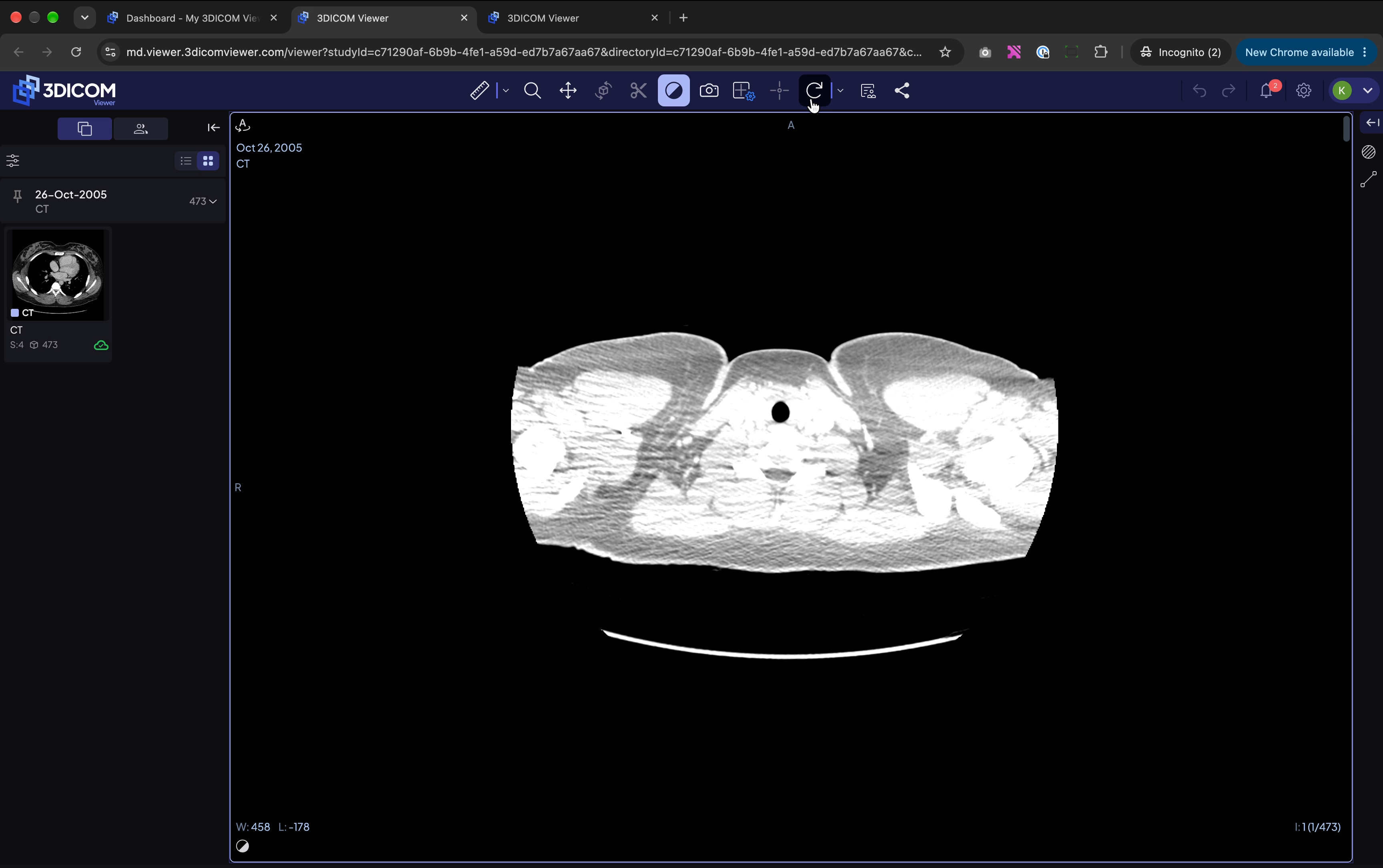
Access additional view controls
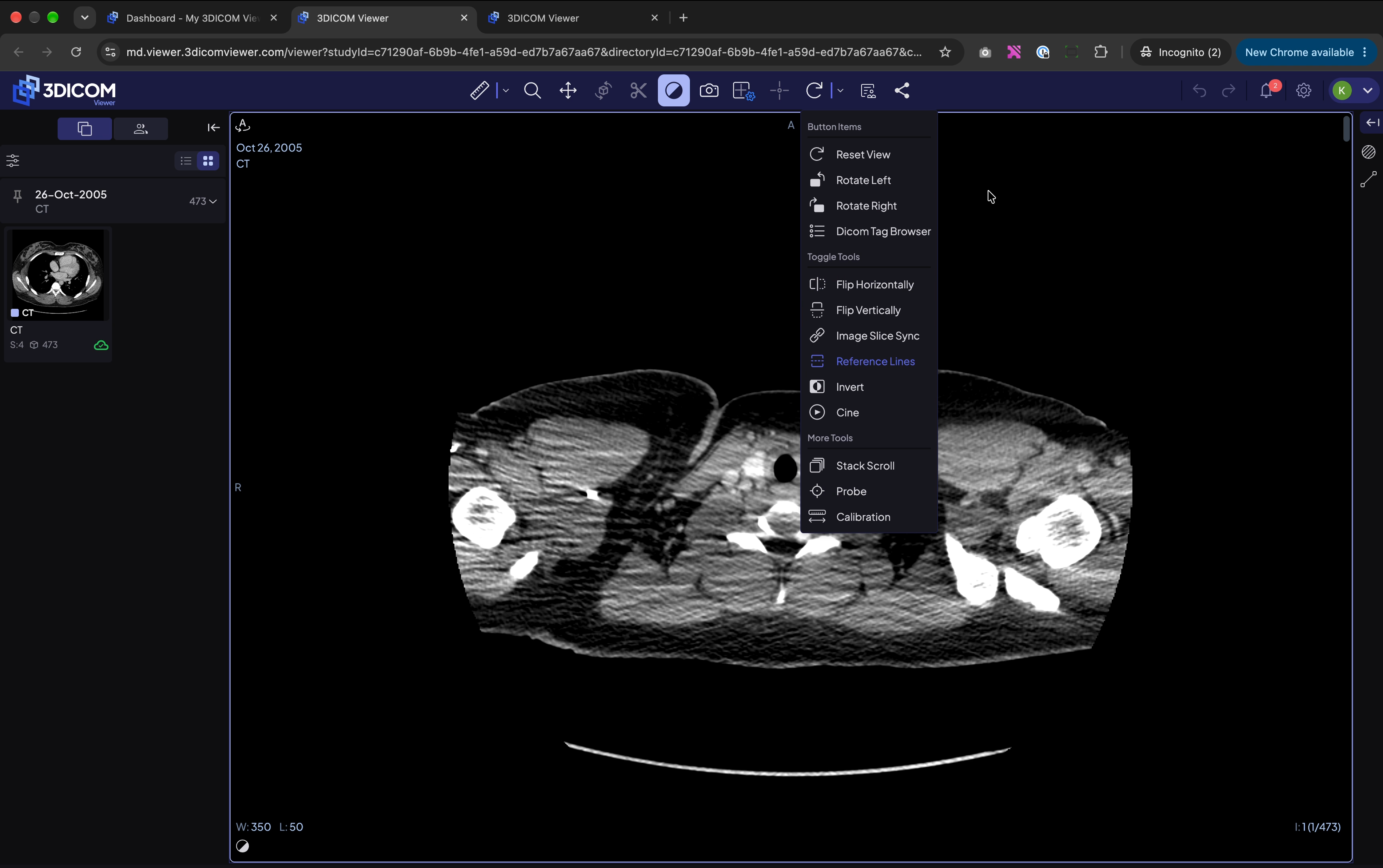
Step 8. Open the dropdown next to Reset View for extra options such as rotating and flipping the image.
Working with layouts and 3D tools
Switch layouts and explore in 3D
Step 9. Find the display mode options in the viewport panel.
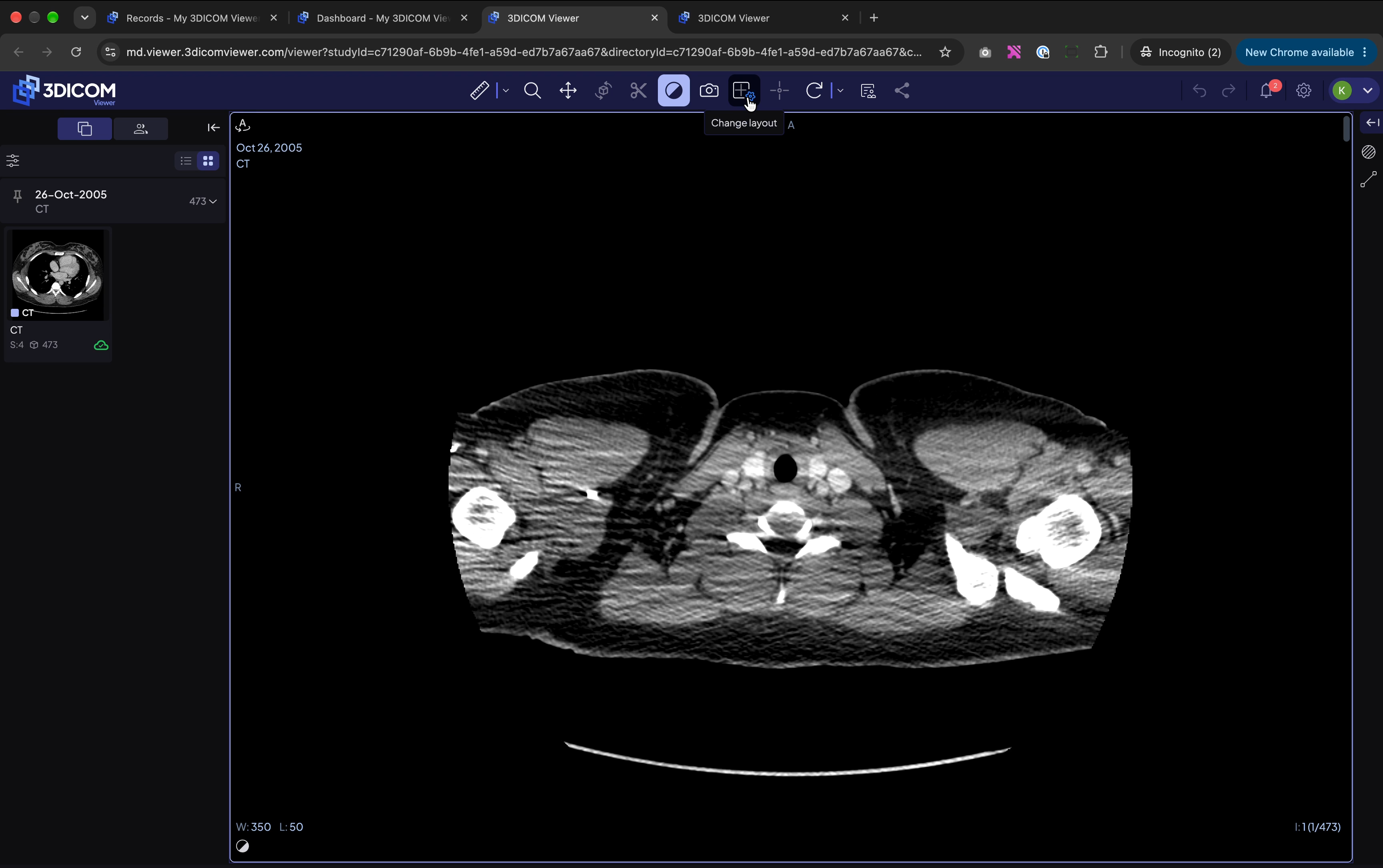
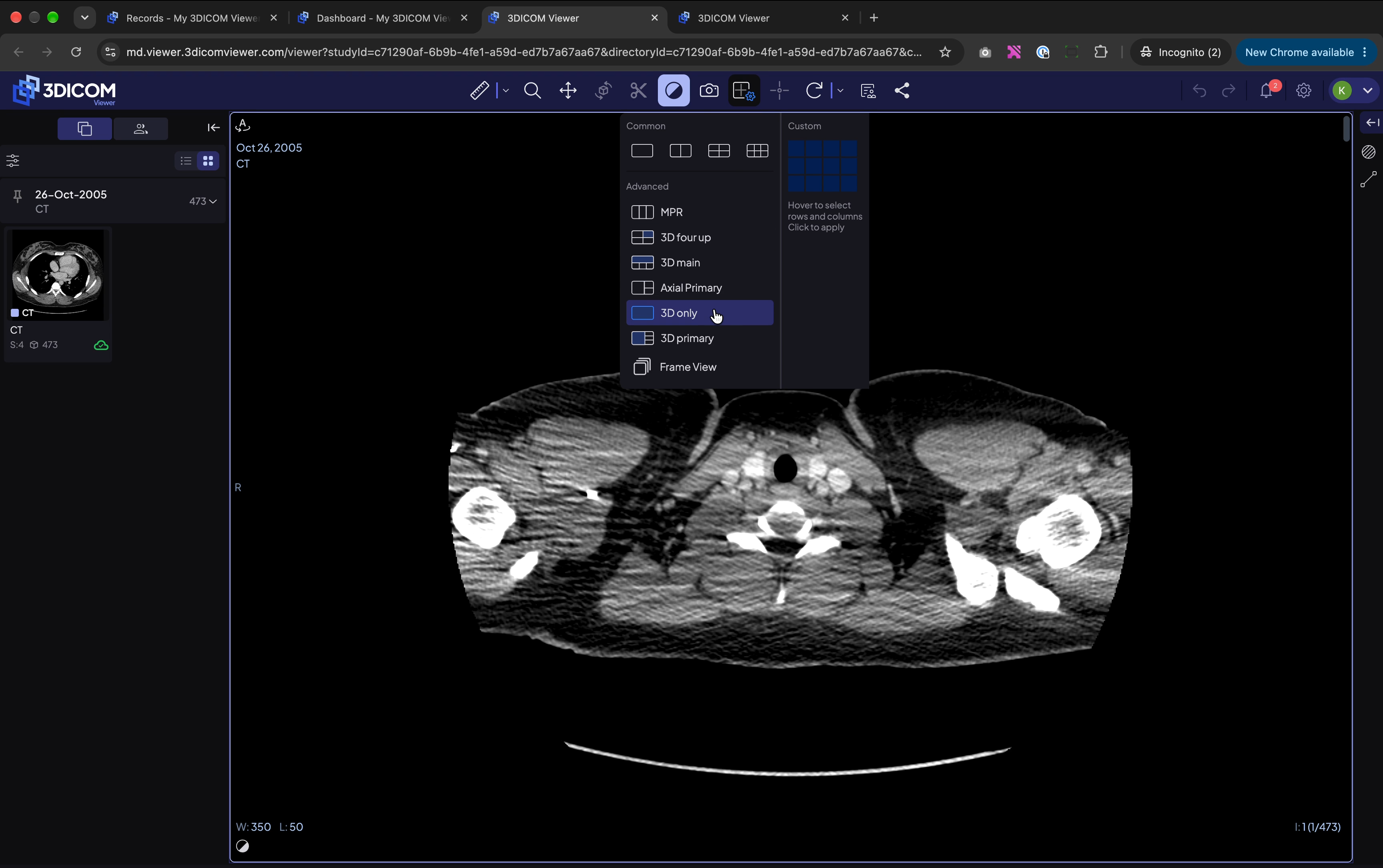
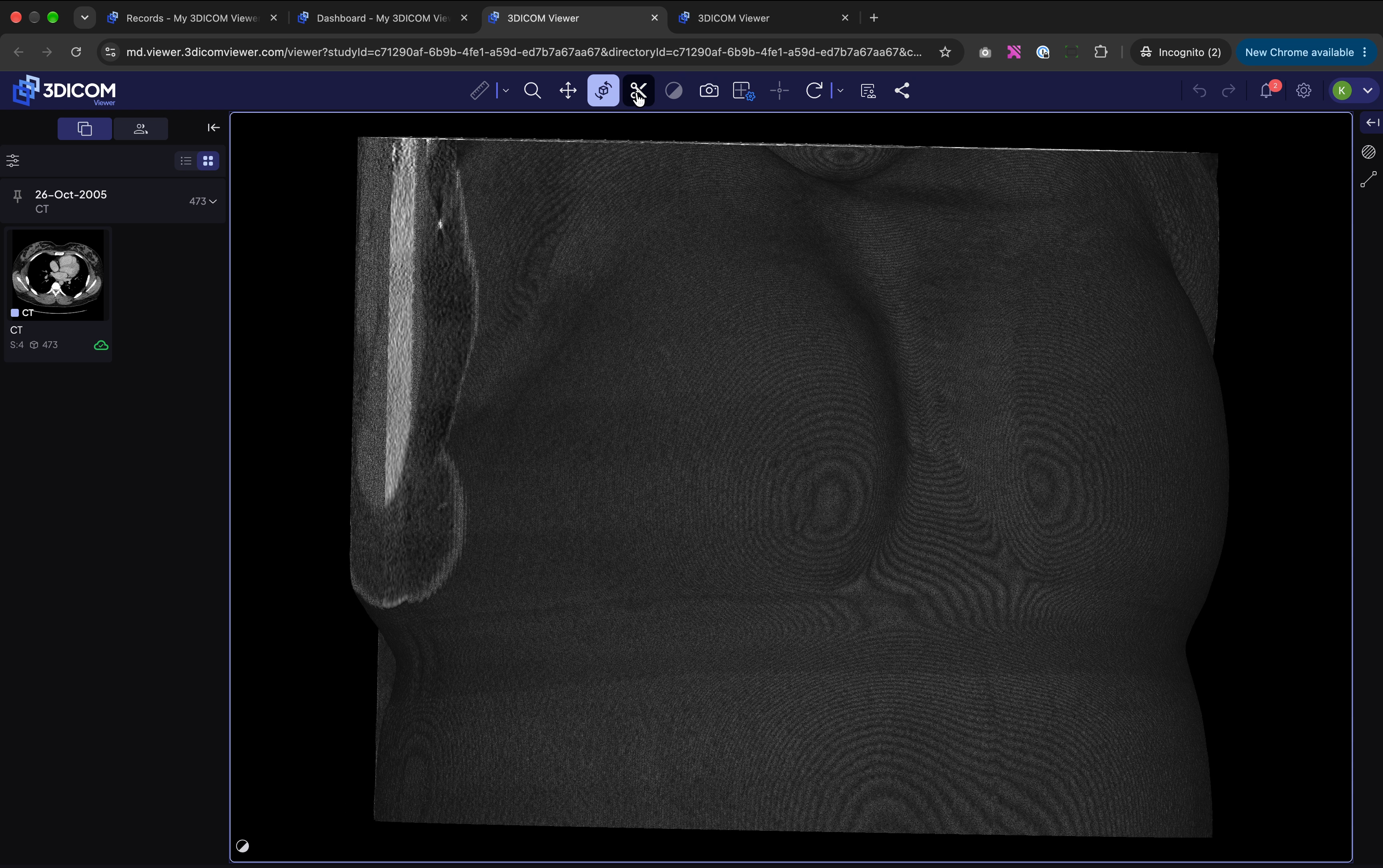
Step 10. Choose 3D only mode to focus on the 3D representation.
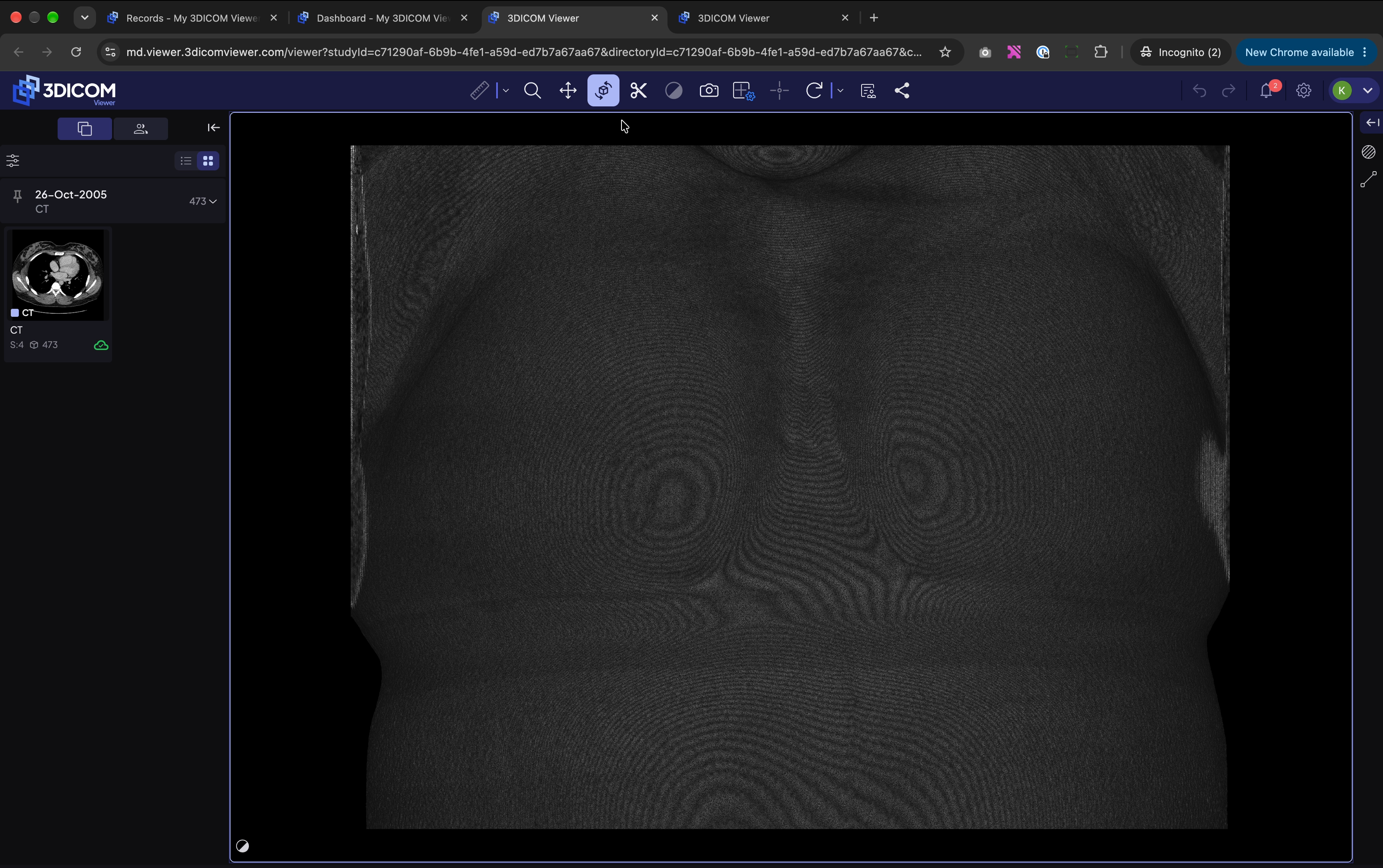
Step 11. Select the Rotate tool, then click and drag inside the viewport to turn the 3D volume and view from different angles.
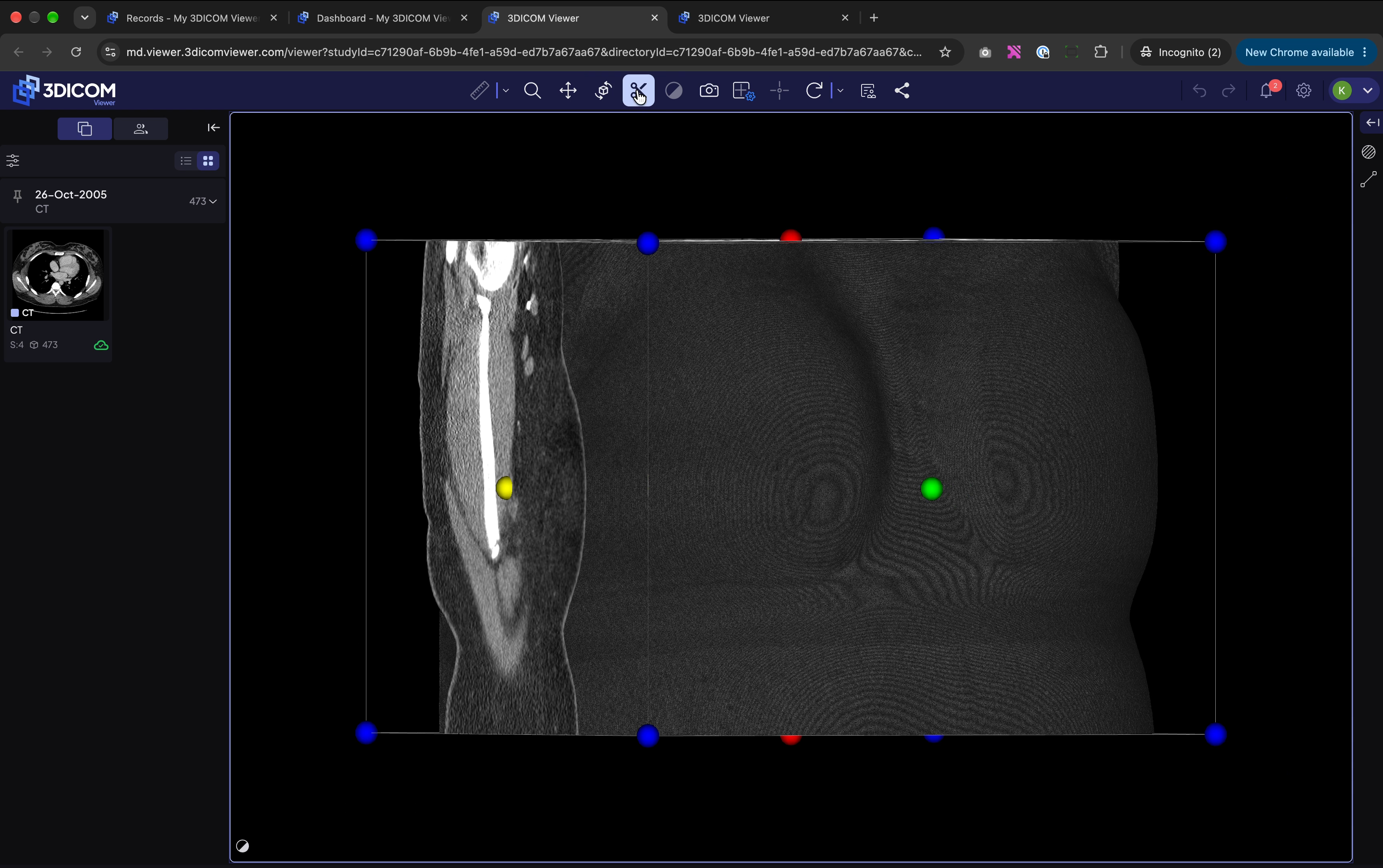
Step 12. Switch to the Slice tool.
Step 13. After activating the tool, coloured handles appear on the slicing planes. Drag them to move the planes through the 3D volume and examine internal structures layer by layer.
Change image layouts and orientation
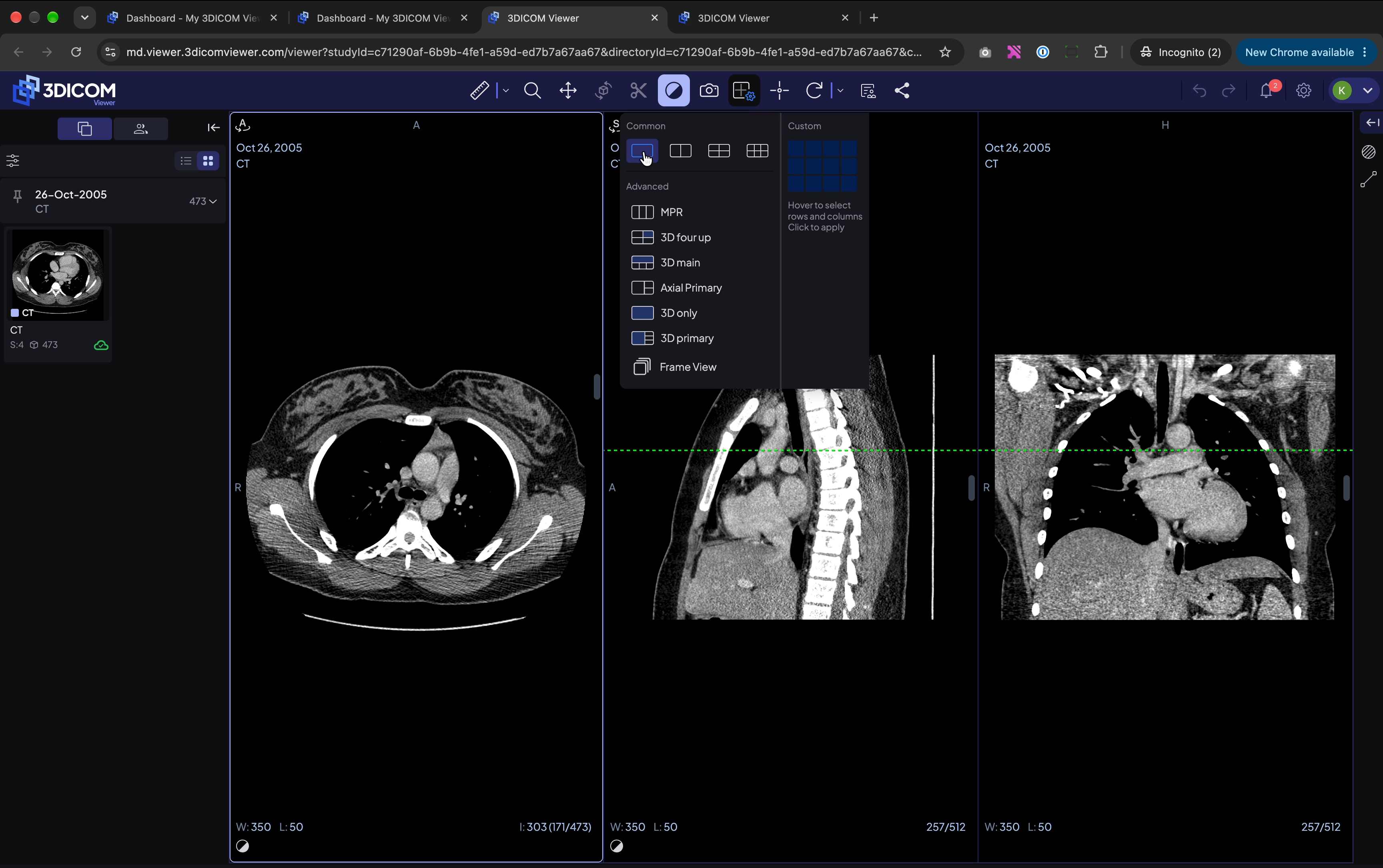
Step 14. Click the layout (grid) icon in the top toolbar to see additional arrangement options.
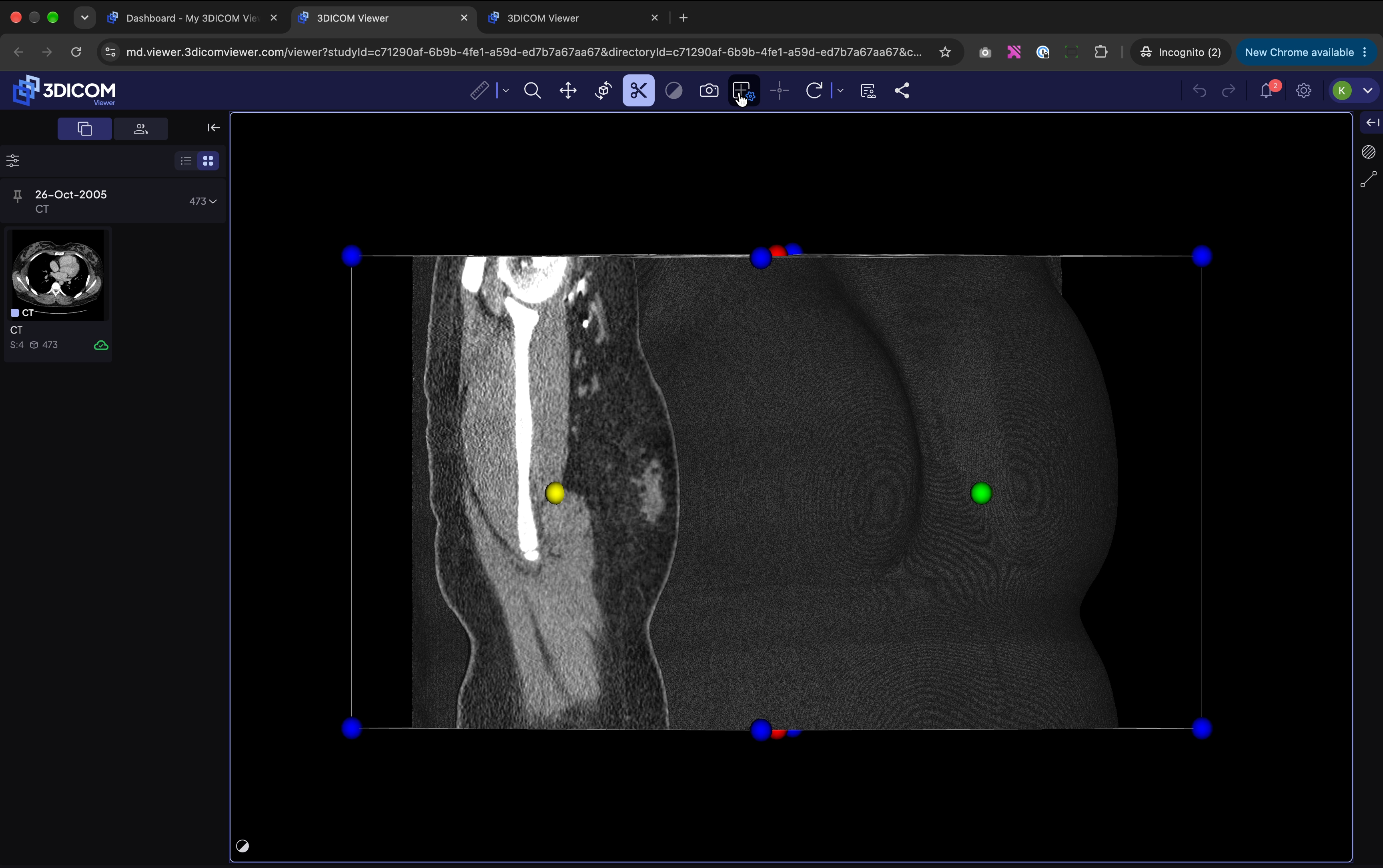
Step 15. Select a multi-viewport layout, such as MPR, to view several perspectives side by side.
Step 16. Click inside the viewport you want to adjust before making any changes.
Step 17. To change a viewport’s orientation, click the orientation icon in its top-left corner.
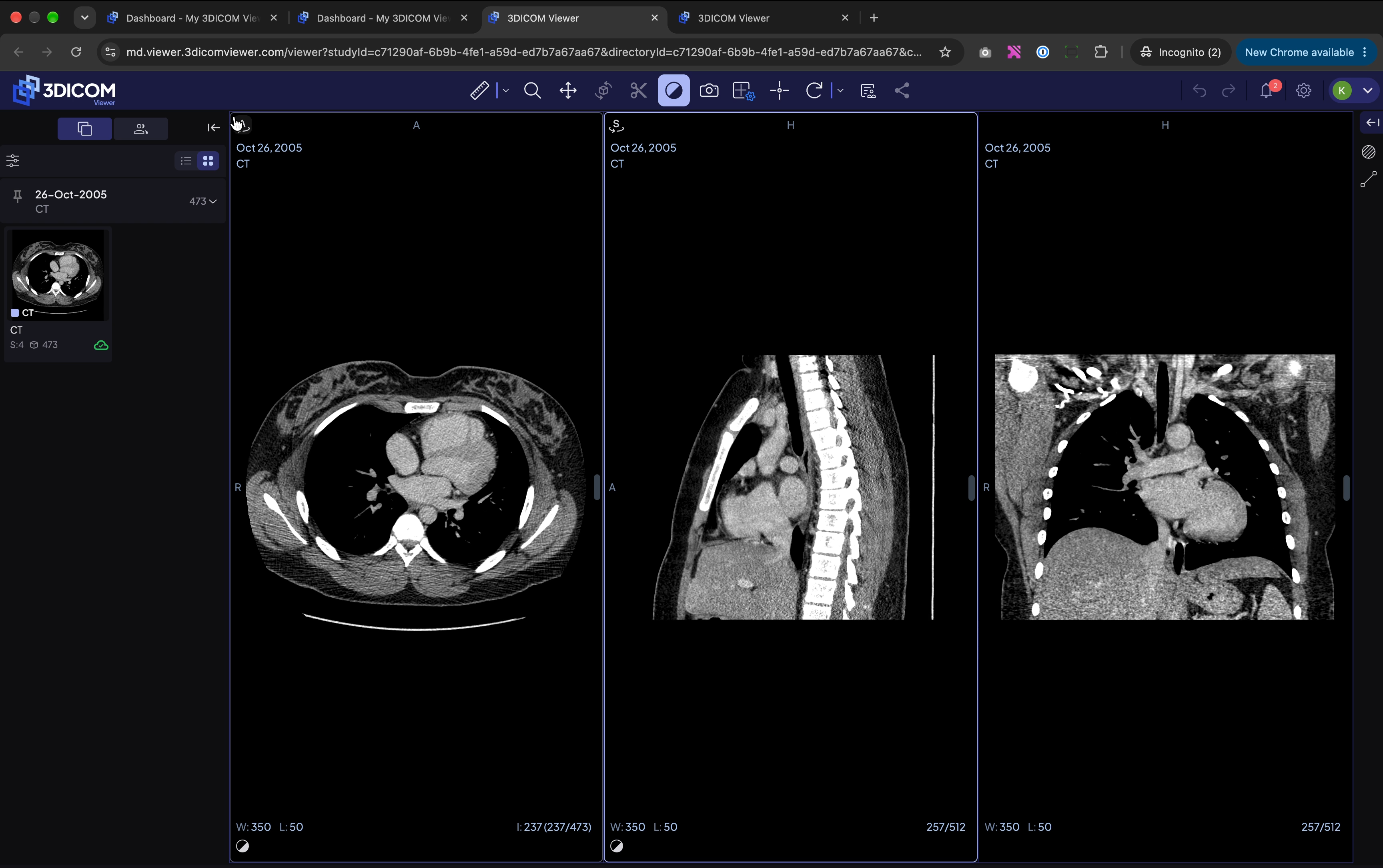
Step 18. Choose Sagittal, Coronal, or Acquisition orientation.
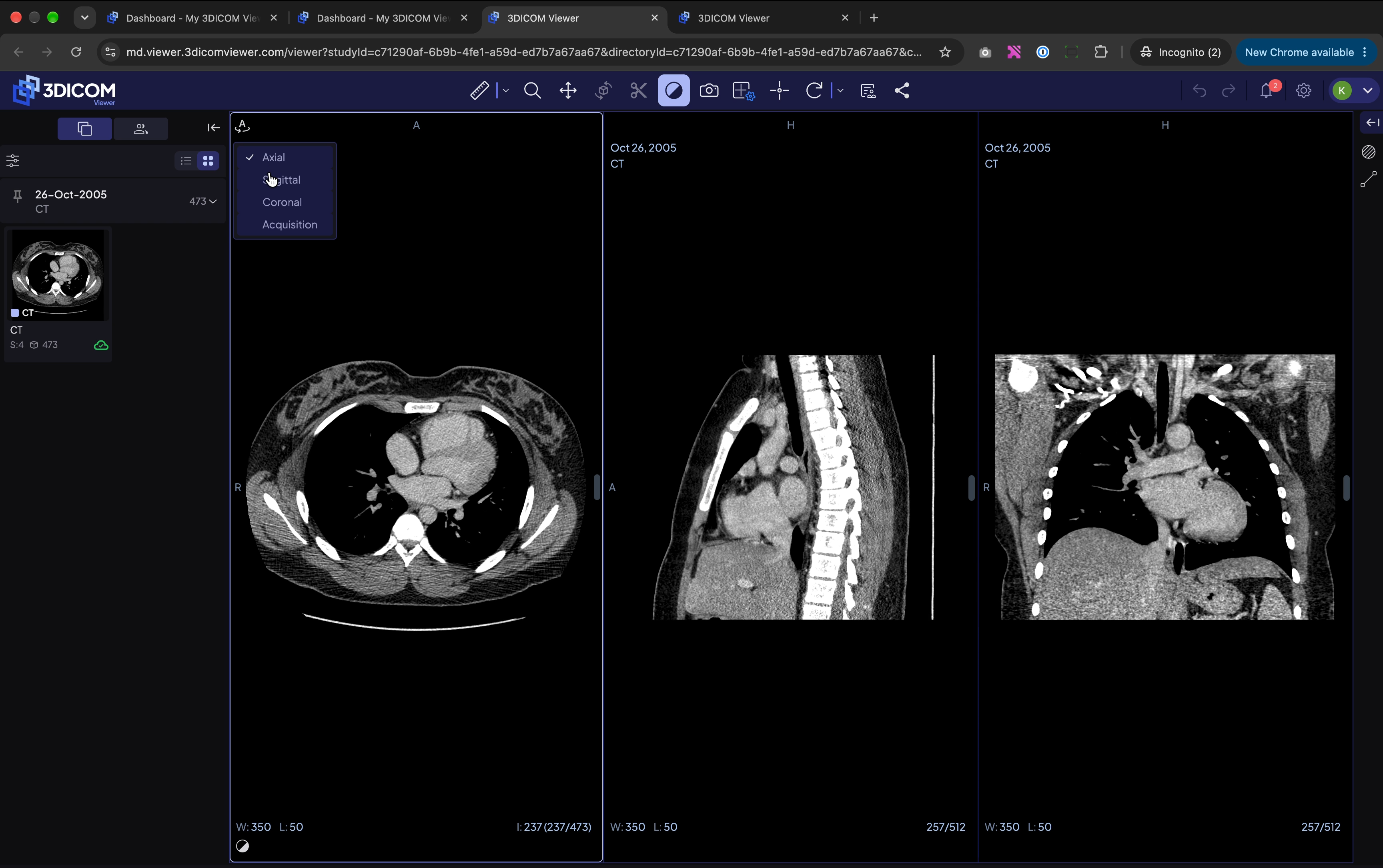
Step 19. Scroll through each image stack to locate the slice you want to study.
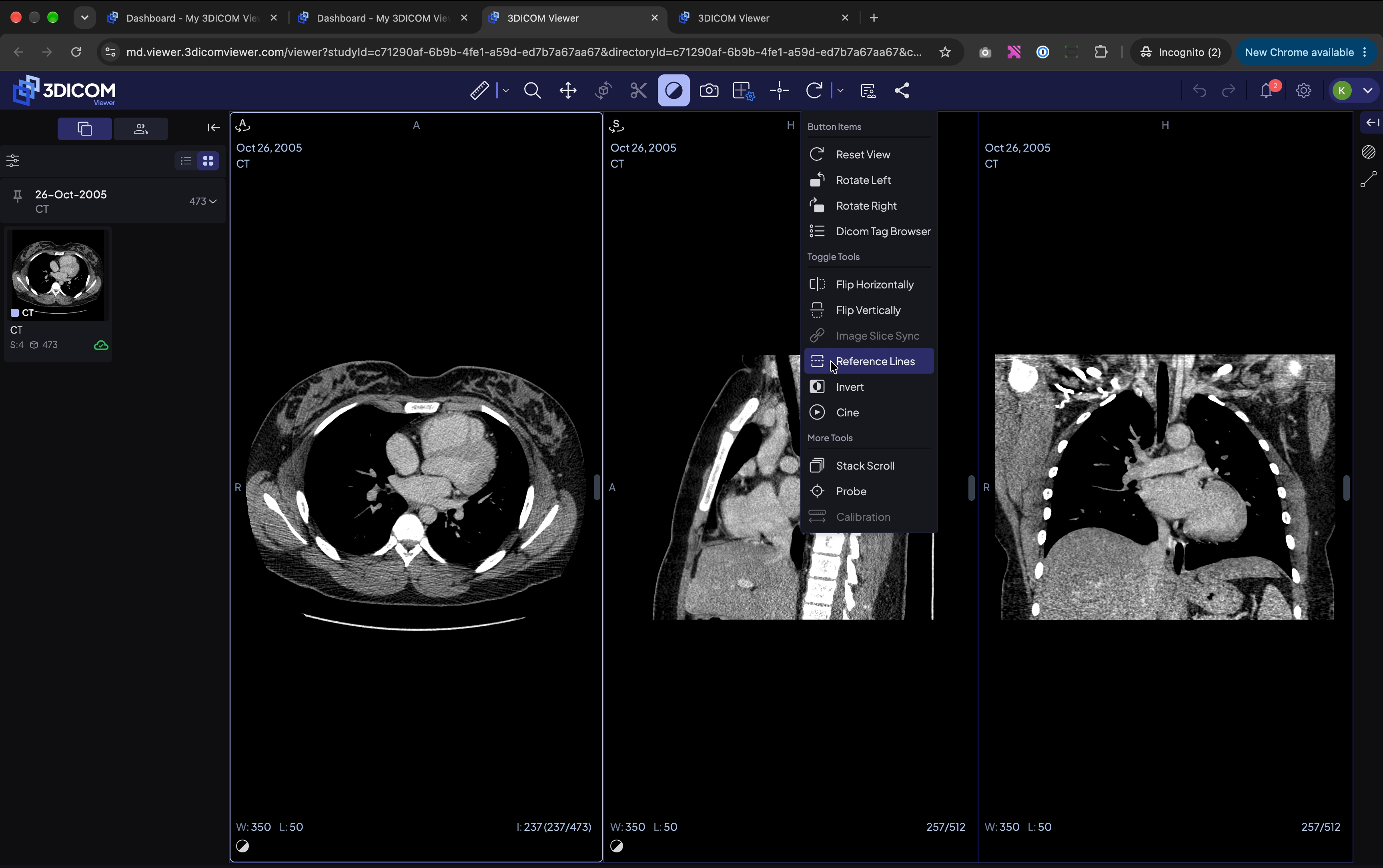
Step 20. Use the Reference Lines tool to see your current slice’s position in other views.
Step 21. For a larger working area, click the layout icon and select a single-viewport layout.
Taking and managing measurements
Draw, track, and save measurements
Step 22. Open the measurement dropdown next to the ruler icon and select Length.
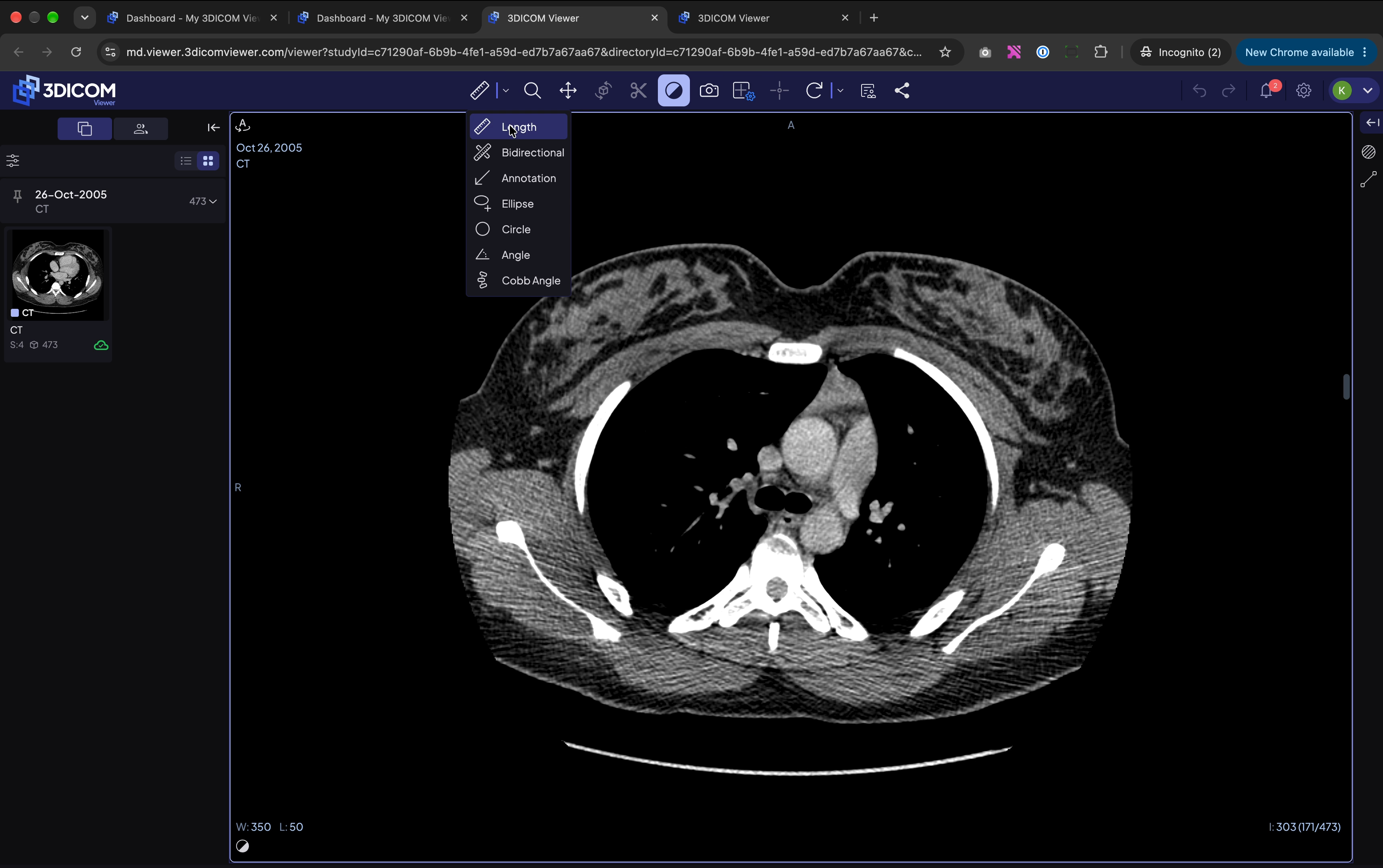
Step 23. Draw a line between two points on your image to create a measurement.
Step 24. When prompted to track measurements for this series, click Yes.
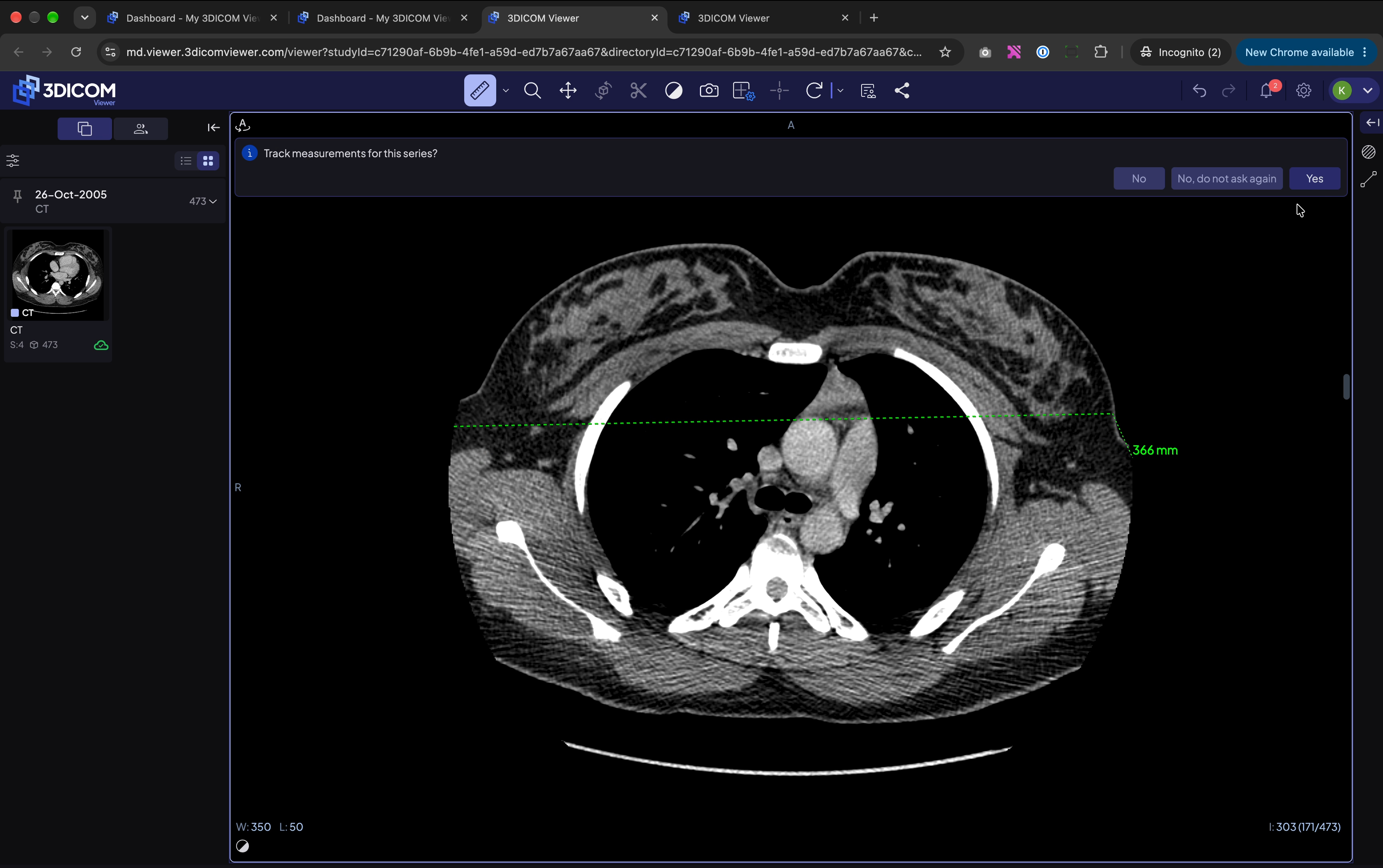
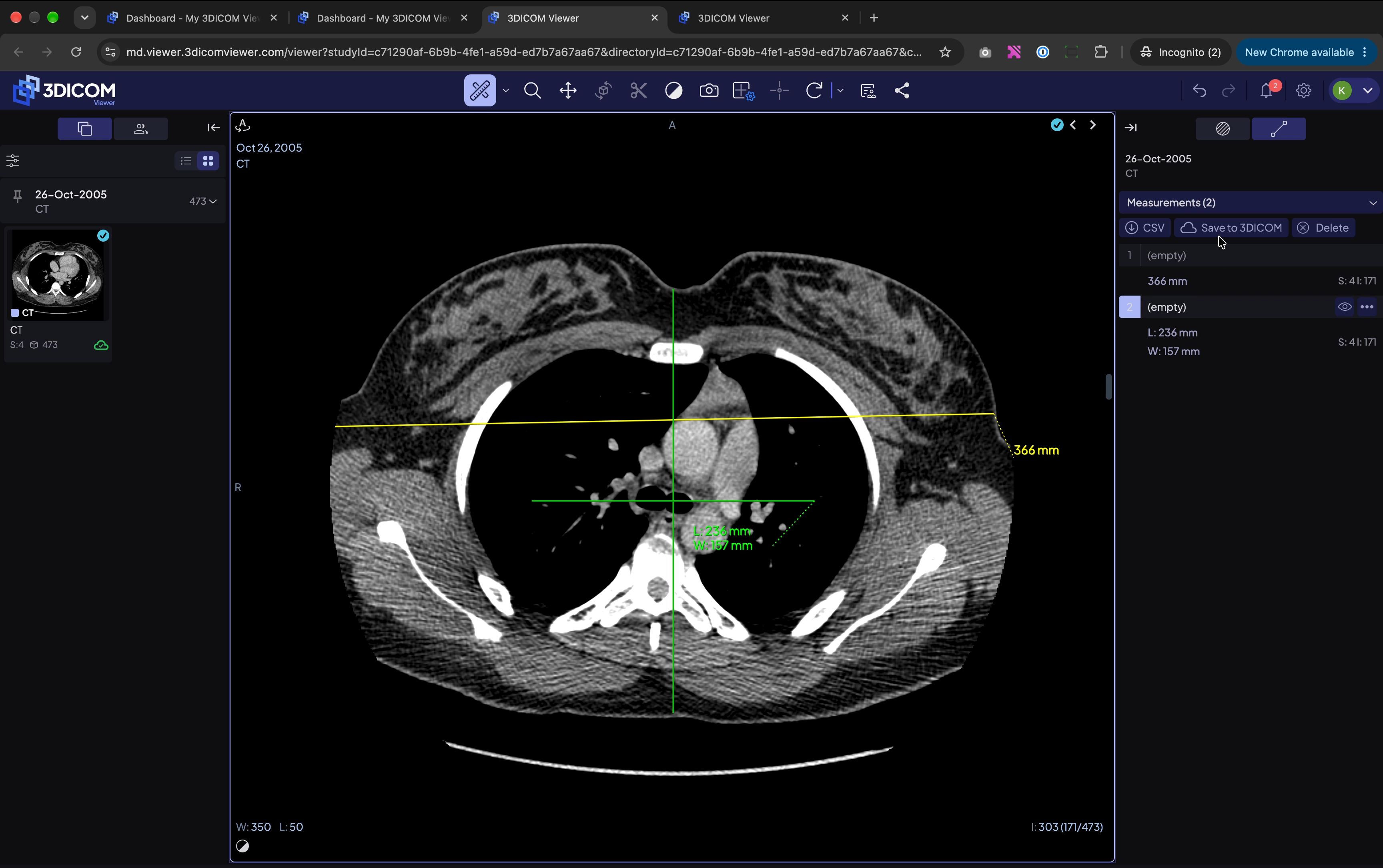
Step 25. Check the Measurements panel on the right to review your values.
Step 26. For two-direction measurements, select Bidirectional from the measurement dropdown and draw on the image.
Step 27. To save your measurements, click Save to 3DICOM in the Measurements panel.
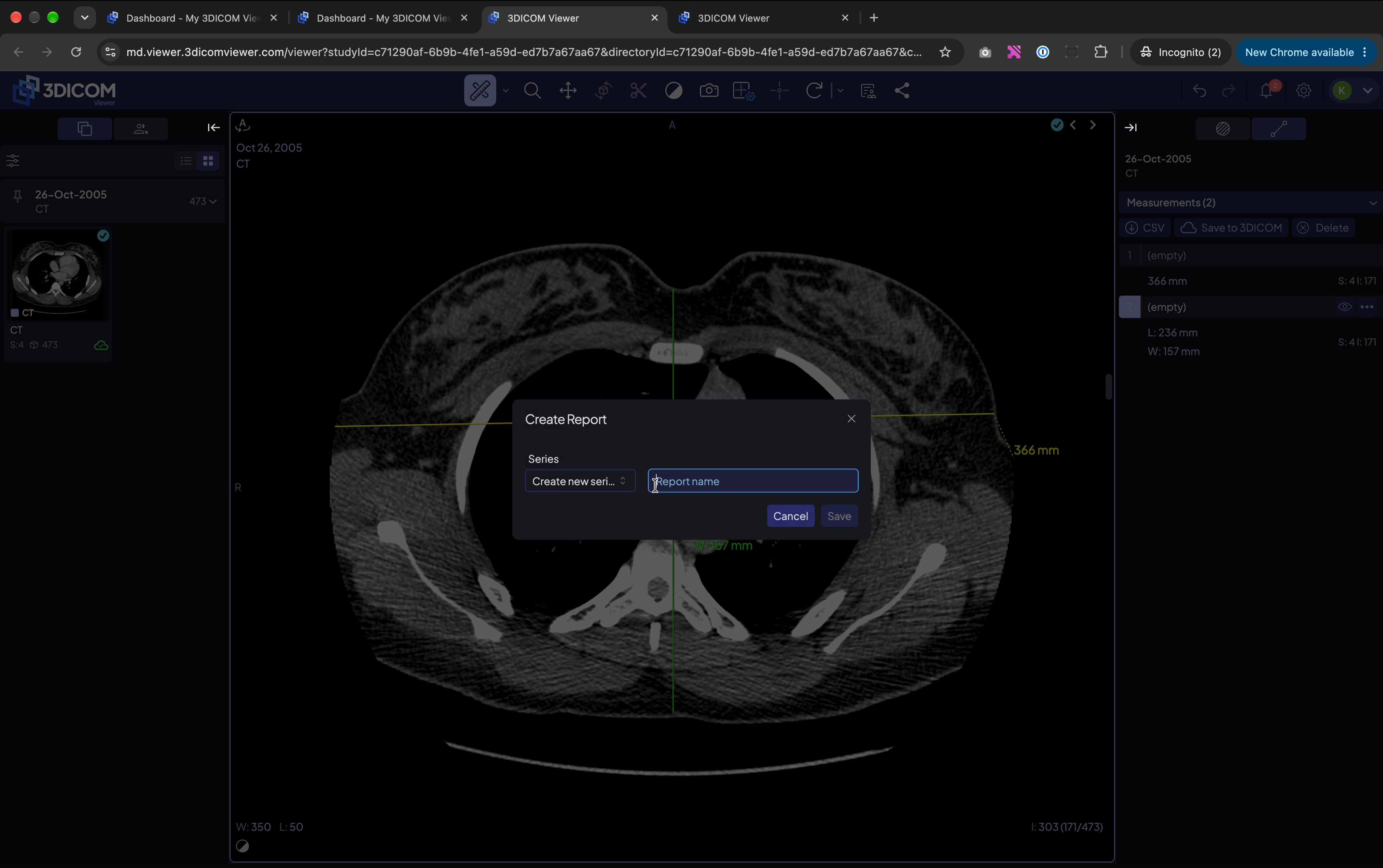
Create and manage a structured report
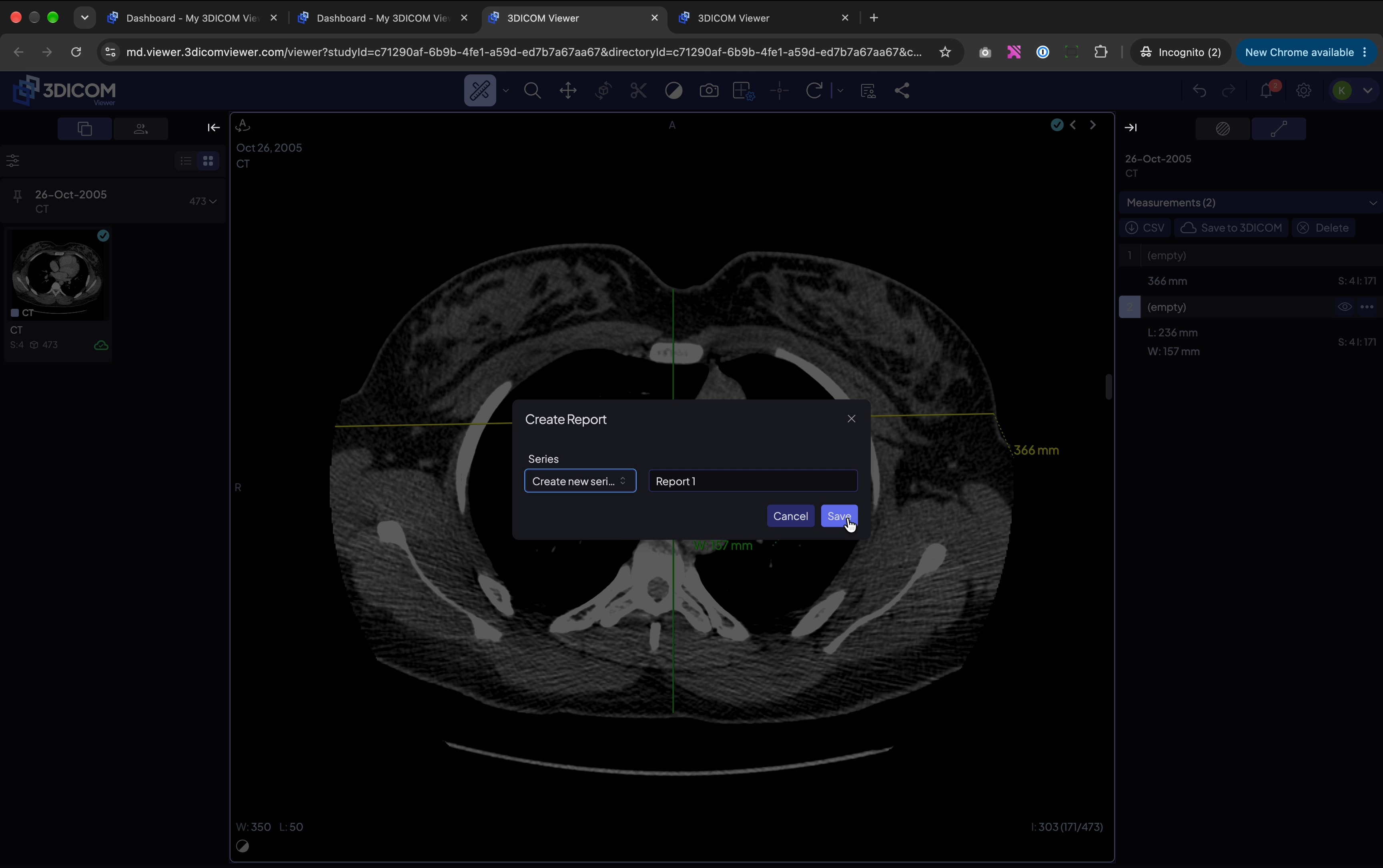
Step 28. In the Create Report window, enter a report name.
Step 29. Select Create new series.
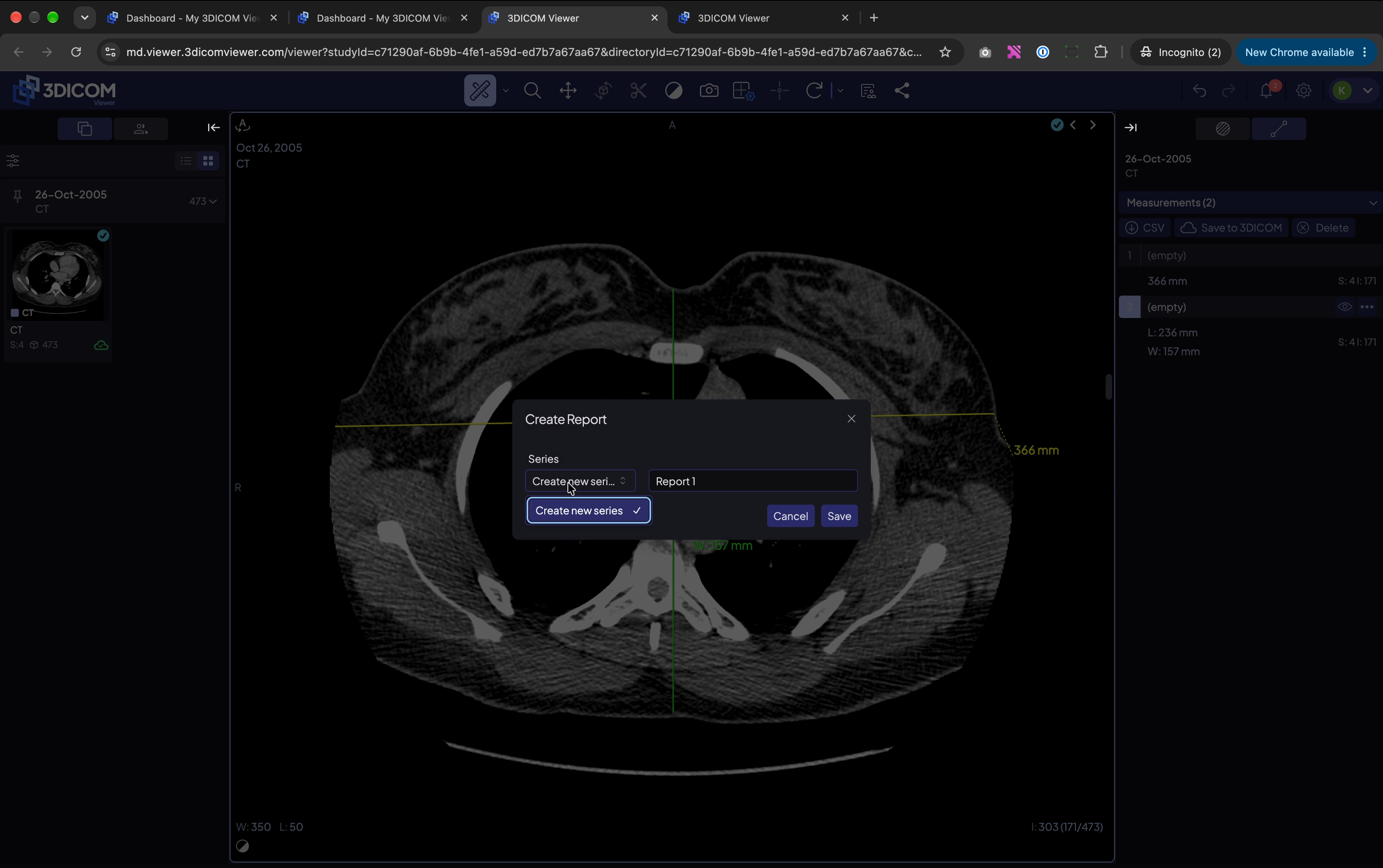
Step 30. Click Save to finalise the report.
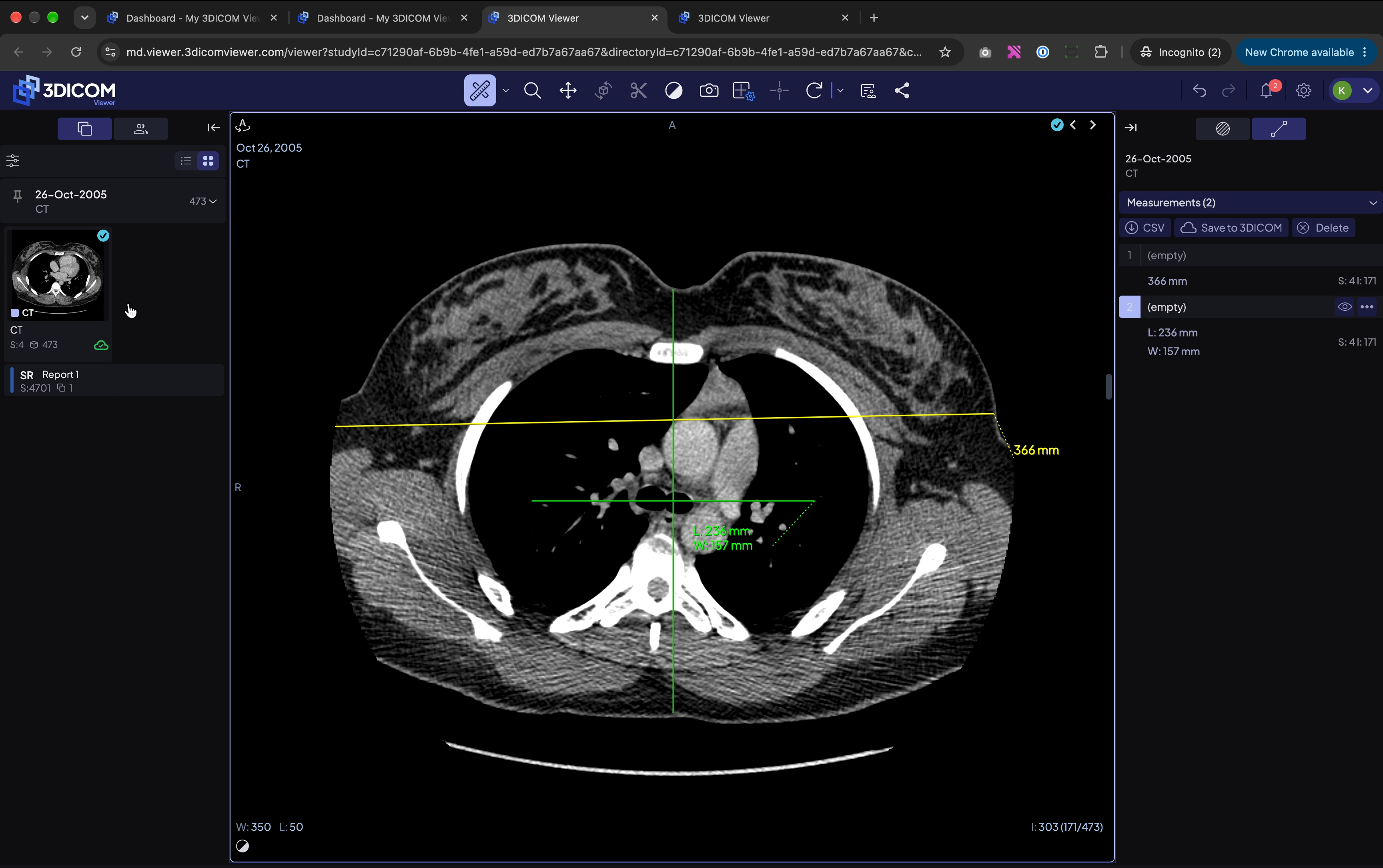
Step 31. After saving, your Structured Report appears in the series panel on the left.
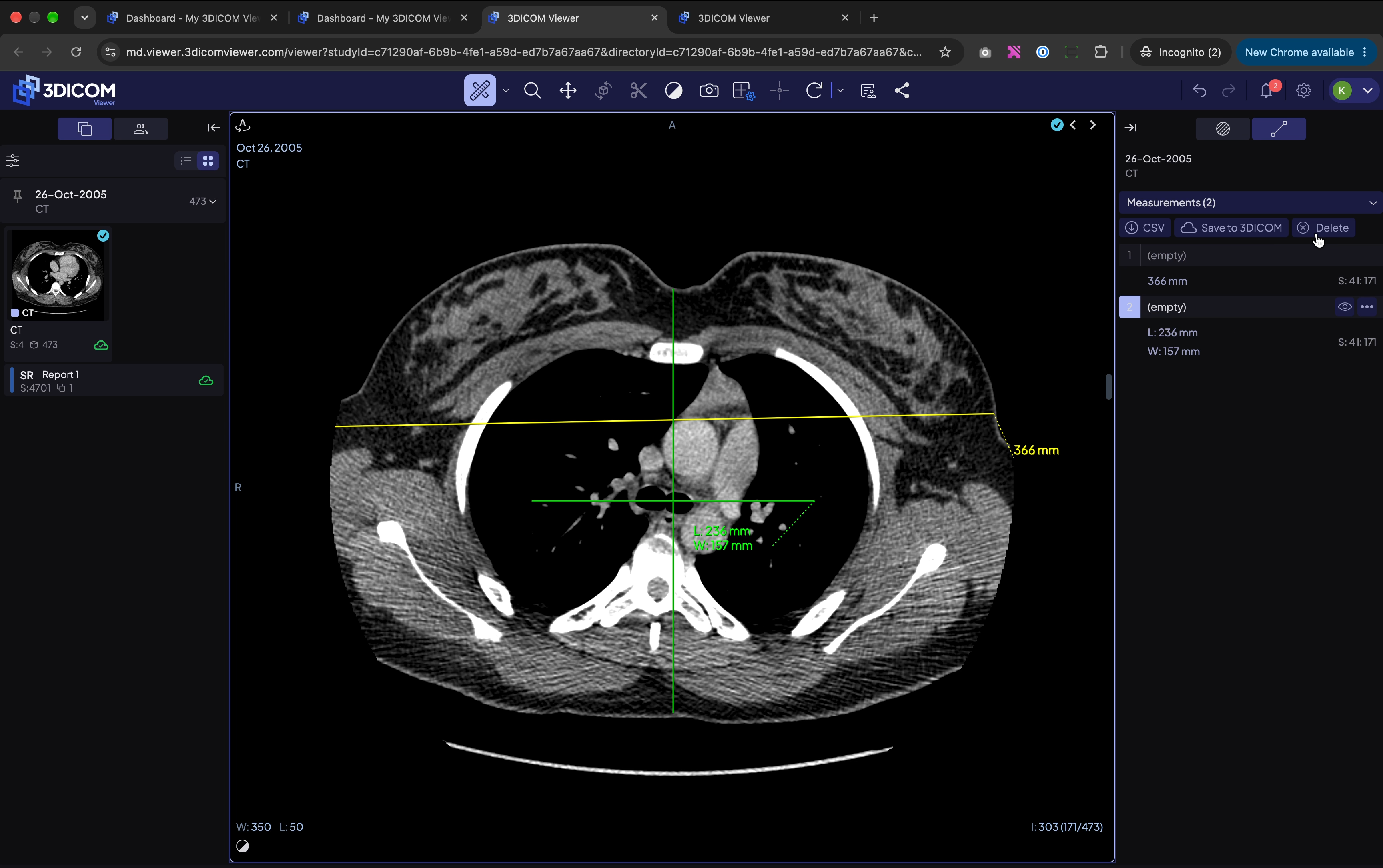
Step 32. To clear current tracked measurements, click Delete in the Measurements panel and confirm.
Result
After following these steps, you will have successfully opened, explored, measured, and reported on your imaging files using 3DICOM MD Cloud’s FDA-cleared MD Viewer.